About cPanel Spam Filters
Email security matters more than ever, and cPanel users rely heavily on spam filters to keep inboxes clean. Understanding how cPanel spam filters work—and how to adjust them—helps ensure real messages get through while junk is blocked. In this guide, we’ll explain how spam filters evaluate email, how you can manage those settings in cPanel, and how SpamAssassin compares with cPanel’s stricter tool, BoxTrapper.
Apache SpamAssassin is the no. 1 Open Source anti-spam platform giving system administrators and users a filter to classify email and block spam (unsolicited bulk email).
Click open the headers below to learn more about how to enable and manage SpamAssassin and learn about the stricter Boxtrapper utility which is also available. Support options are available for professional assistance. You can return to our Index of Articles by clicking here.
How cPanel Spam Filters Score Incoming Email
cPanel spam filters offer a scoring a scoring system that evaluates every incoming email message. Each email is analysed for spam indicators like:
- suspicious wording
- forged headers
- missing SPF records
- whether incoming email is “whitelisted” by the targeted recipient
- unusual formatting and dozens of other signals
Each factor adds positive or negative points.
By default, your instance of SpamAssasin uses a default threshold of 5 when filtering is enabled. If the combined score of an email exceeds this value, the message is flagged as spam and is either moved to the Junk folder or discarded, depending on how the account is configured.
Because the calculation is cumulative, even legitimate emails can occasionally reach a high score—especially those containing marketing language, attachments, or forwarded content. This makes it important for users to tune cPanel spam filters to match their needs. Internet Service Providers (ISPs) for example, would relaxe their threshold to 8, to permit end users to allow their own servers to deal with arguable decisions.
rDNS, SPF, DKIM, and DMARC are all protocols that help “authenticate” valid emails. While email “just” works out of the box, without these services email that YOU send to others can be compromised because tools like SpamAssassin use these configurations to test email you send to recipients. These settings are often considered to be irrelevant by casual users because they are troublesome to implement and email seems to send when a user dispatches it. The problem is that if you send inadequately authenticated email, you usually do not know that it has been dropped by a spam filter. You can read more about authenticating your outgoing email in our article, Configure SPF, rDNS, DKIM, and DMARC for email.
Managing SpamAssassin Settings in cPanel
SpamAssassin is the default filtering engine in your cPanel environment, and it gives users fine‑grained control without requiring technical expertise. You can enable or disable the filter from the your cPanel home page in Email → Spam Filters panel.
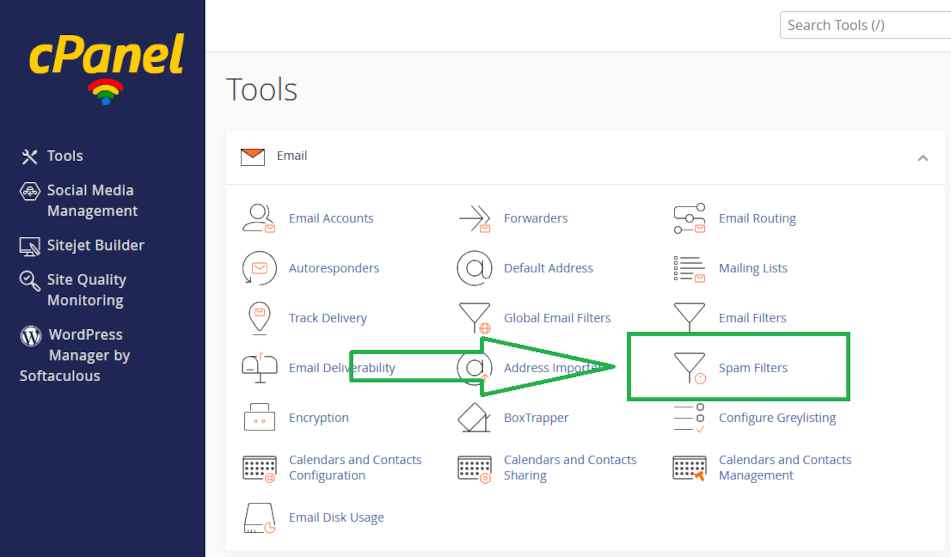
Open spam filters in your cPanel web server console
Adjusting the Spam Threshold
You will find a slider or a numerical box where you can adjust the spam score threshold in your Spam Filter preferences. Lower numbers make the filter more aggressive, while higher numbers reduce the chance of blocking legitimate emails. Users keep the threshold between 3 and 7, depending on how much mail they receive and how sensitive their workflow is.
The setting depends on your needs. Also, the setting needs periodic review. Above, we saw that ISPs use a more relaxed spam control of 8. Retailers, too, might need a more relaxed setting to accept orders from poorly authenticated email senders. In these sorts of situations, you would probably use locally implemented filtering to better target invoming email. For instance, a retailer might want to approve incoming email whose subject header or textual content matches “new order” or other metric.
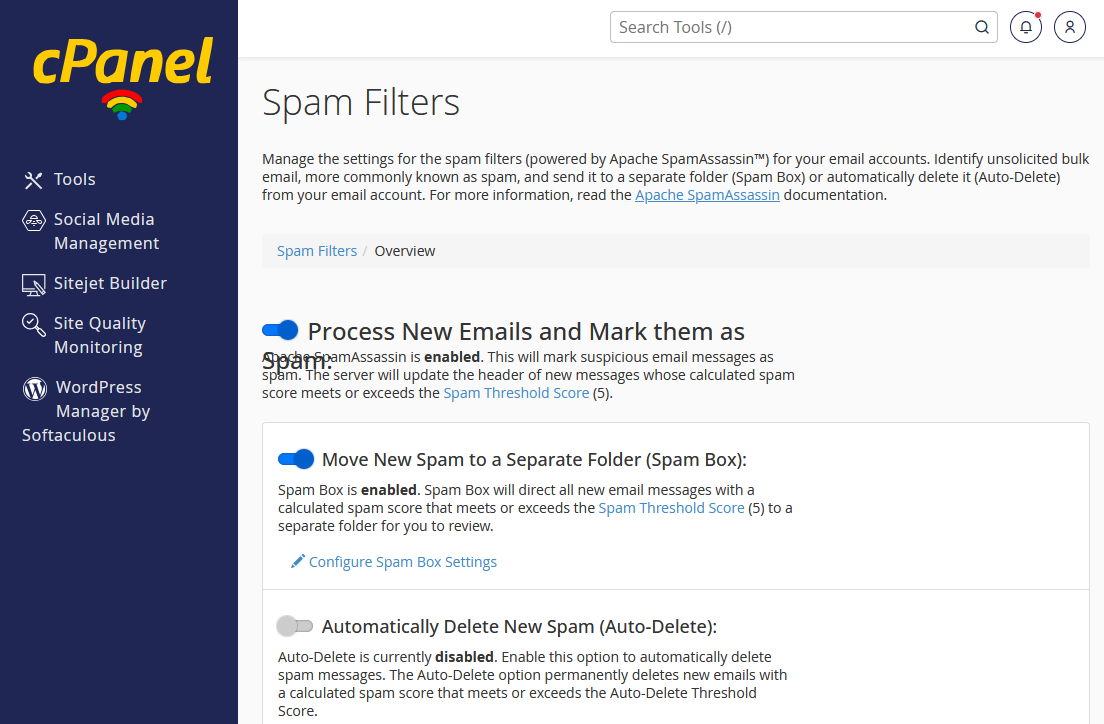
Users typically configure their spam filtering like this – click open
Auto‑Delete and Spam Box
SpamAssassin also includes:
- Spam Box, which moves suspected spam into a special folder
- Auto‑Delete, which permanently removes messages over a certain score
- Whitelist and blacklist settings, allowing total control over trusted and untrusted senders
These optional tools give you more precision without requiring deeper configuration.
By adjusting these controls, you ensure that cPanel spam filters behave appropriately for your daily email habits.
SpamAssassin vs BoxTrapper: Which Is Better?
Your email server provides another spam filtering tool called BoxTrapper. The two solutions take different approaches to spam filtering.
SpamAssassin
- Uses an automated scoring system
- Requires no interaction from the sender
- Works quietly in the background
- Allows whitelisting and custom scoring rules
SpamAssassin is designed for ease of use and minimal disruption while still providing strong protection via its cPanel spam filters.
BoxTrapper
- Uses challenge–response verification
- Sends an automatic confirmation email to unfamiliar senders
- Requires the sender to take action before their message is delivered
- Filters nearly all spam because automated bots cannot confirm
BoxTrapper is far more aggressive than SpamAssassin. It is extremely effective—but at the cost of convenience. Some businesses and individuals avoid it because legitimate senders may ignore the confirmation request, leading to missed messages. You can find out more about BoxTrapper in this article.
For everyday users, cPanel spam filters based on SpamAssassin offer the right balance. For those facing severe spam issues and who can tolerate the extra step for new contacts, BoxTrapper provides nearly complete protection.
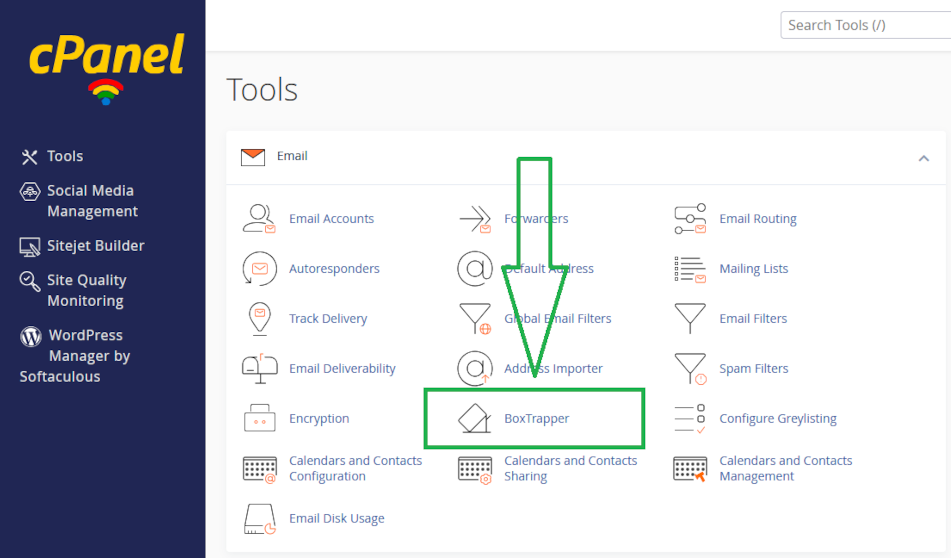
Summary
Most users will be well‑served by SpamAssassin’s flexible scoring system and simple management options. It provides reliable filtering via cPanel spam filters while allowing legitimate messages to pass through with minimal effort.
If you require near‑zero spam at the cost of extra friction for new senders, BoxTrapper may be the better choice. This would be desirable if you need to limit incoming email to known senders and you need to minimize the risk of phishing or other attempted attacks.
Both systems reflect the core strengths of cPanel spam filters, and understanding each helps you customise the best email experience for your needs.
If you need help configuring email, please get in touch, or use our contact page to organize an appointment which suits your timetable. You can return to our Index of Articles by clicking here .