Introduction
Most Outlook users still rely on folders to store and manage their email. It’s familiar, and for small volumes of email it works well enough. But as your mailbox grows, folders start to break down. Messages fit into multiple topics, threads get split across separate folders, and it becomes harder to find what you need quickly. Outlook categories solve this problem.
Outlook Categories turns your Inbox or Sent Items into a dynamic, instantly searchable workspace. Instead of dragging email into rigid folders, you add one or more coloured tags – i.e. Outlook Categories to an email. These tags make it possible to filter and group messages on the fly—exactly the way people already search the web using keywords, not folders.
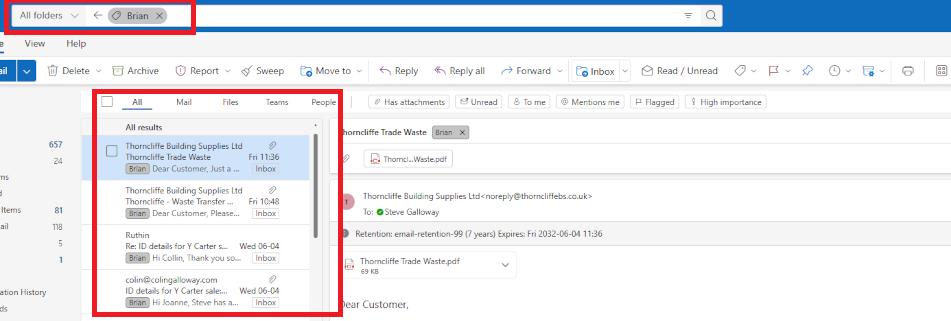
Enter the name of a category you want to filter in “search” and turn your Inbox into a dynamically generated folder which lists activty associated with your tag, e.g all items tagged with “Brian” in this screenshot.
Click open the headers below to learn more about Outlook Categories. You may also be interested in these associated articles.
- Microsoft Outlook’s “Categories” Feature
- Why Outlook Categories Are Better Than Folders: A Simple Guide for Reluctant Adopters
Support options are available for professional assistance.For help planning a taxonomy that can be managed over time, please contact us.
Why Folders Don’t Scale
Folders are great for tidy filing cabinets, but email doesn’t behave like paperwork. Common problems include:
- Emails often belong to more than one folder. A message from a supplier might relate to two different projects. Which folder should it go in?
- Moving an email breaks the thread. If part of the conversation is in another folder, you lose context.
- Folder structures change over time. Projects evolve, businesses reorganise, priorities shift. Your folder tree becomes a maze.
As your mailbox grows, rigid storage (folders) become harder to maintain, not easier. This is why search engines like Google and Bing are so successful. We search by keyword (or category) and it works. So, we already use keywords every day to sort information. As your email volumes grow, keywords or categories become the logical way to rapidly find emails and threads.
Why Outlook Categories Work Better
Outlook Categories act like keywords or tags. An Outlook Category is a flexible, stackable, colour-coded label that help you recognise and organise email instantly. You can:
- apply multiple categories to a single email
- search or filter by category in seconds
- change categories without moving the message
- build dynamic, instant “views” of your Inbox
In other words, your Inbox becomes a smart workspace—no filing cabinet required.
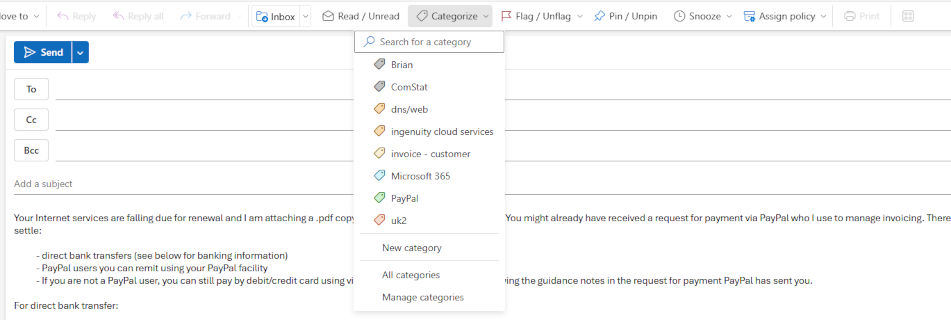
Use categories to filter large Inboxes for emails tagged with a category to create a dynamic folder from your Inbox or Sent Items
Real Example: Tracking Deliveries Using Outlook Categories
Consider this scenario: at any one time we might have several outstanding orders from retailers or suppliers. If everything is delivered “next day”, that’s fine. Sometimes, though, a delivery may take weeks to despatch. We can put our Inbox to work to track deliveries using Outlook Categories to know what you have ordered and what has arrived.
Outlook Categories: example workflow setup
You need two categories (see this article to learn how to create a category):
- Outstanding (colour-coded, for items not yet received)
- Delivered (or “Complete”, for orders that have arrived)
Outlook Categories: track deliveries
This how the workflow looks once your categories are established:
- When you receive an order confirmation, apply the Outstanding category.
- When the goods arrive, change it to Delivered
- Use Outlook’s filter (i.e. Search) options to show only Outstanding emails when you want to check what you’re still waiting for.
- Switch filters to Delivered if you need to confirm what has arrived
Rather than using a tag called Delivered, you could call the tag Completed – this way you could use one tag to deal with other projects or tasks that are completed. This becomes an issue of planning and category management. When creating categories it is helpful to have a plan of how tags should be organised to make it easier to manage your “taxonomy” over time.
At their simplest level, Outlook Categories can manage individual recipients, groups, subjects/projects, and more.
To find out how to create an Outlook Category, see this article.
How to Filter Emails by Category
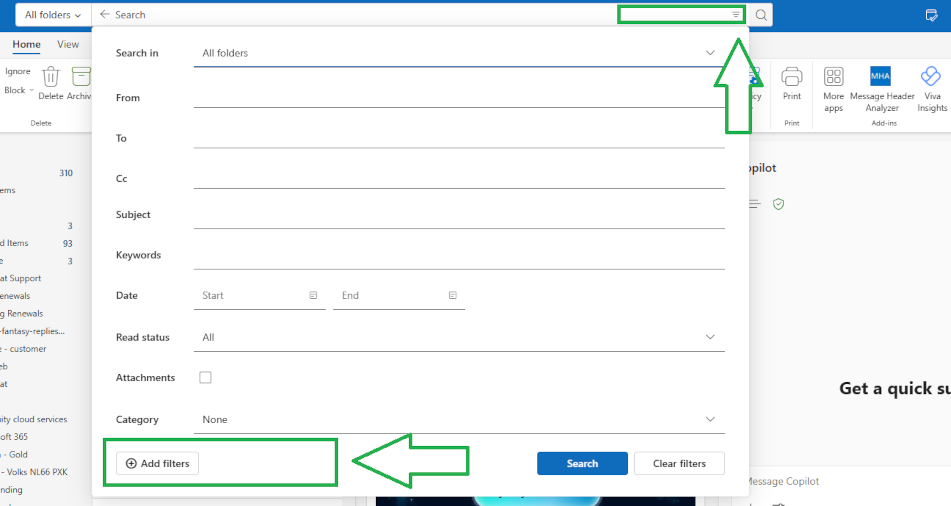
To bring fingertip power to Categories powerful, first add them to Outlook’s filter options in the Search utility.
- Go to your Inbox or Sent Items
- Click the Filter icon at the right of the Outlook Search field*
- Choose Add, More Filters or Search Tools → Advanced Find (depending on version).
- Add Categories as a filter field
Optionally, you can add Categories as their own field to make frequently used or topically important Categoires available in your Search drop-down.
*Hot Tip: the fliter icon does not appear by default inthe Outlook Search field. Instead, hover your mouse over the right side of your Search field to reveal the filter options icon.
Why Outlook Categories Beat Folders for Productivity
With Outlook Categories, you gain several long‑term advantages:
- Speed: Find what you need in seconds
- Flexibility: One email can have multiple categories
- Reduced clutter: Your folder list stays simple
- Consistency: Categories remain relevant even as your work changes
- Better search: Filters turn your Inbox into a powerful, dynamic dashboard
Most importantly, categories match how people already think. We tag photos, tag social media posts, tag documents—and we search the internet using tags or keywords. Categories simply bring that same modern approach to email.
Try Outlook Categories
If you struggle to keep on top of overflowing folders, or if you feel like you can never find the right message when you need it, give Outlook categories a try.
Start small with your Outstanding and Delivered tags, and once you see how much time you save, you can expand categories into other areas—projects, clients, personal admin, travel, invoices, support requests, and more.
Your email doesn’t need more folders. It needs better visibility. For large volumes, several emails can be selected (for instance in a folder) and categorised. However, with long established folder structures it mighjt not be practical to try to convert all emails to categories. Often, categories and folders co-exist. Folders become important in situations where a multiple users need access to a folder.
Lastly, note that categories are not easily assigned at an organizational level. So, if you work within an organizational group, it makes sense to establish a policy that colleagues can conform to.
About ComStat.uk: Internet Service Provider Comstat provides IT support, web hosting, and media services including website design, Microsoft 365 setup, and audio/video production, serving businesses across Denbighshire, North Wales and Wirral from Ruthin, and Lancashire and the Northwest from Bolton.