
What Is Windows 11 System Restore?
Windows 11 System Restore is a built‑in recovery feature that protects your PC by taking snapshots of crucial system files, settings, drivers, and registry entries. These snapshots are called restore points. If something goes wrong after installing software, drivers, updates, or after a malware incident, System Restore allows you to roll your computer back to a previous stable state.
System Restore does not delete your personal documents, photos, or emails. Instead, it focuses on parts of the system that can break Windows. Because of this, it is one of the simplest and most powerful safety nets for everyday users.
System Restore is especially valuable when reacting quickly to malware or virus infiltration. If the infection is recent, restoring the system to a point before the attack can help reverse harmful changes and reduce damage. While it is not a replacement for anti‑malware tools, it adds an essential extra layer of protection.
Click open the headers below to learn more about how to enable System Restore. Support options are available for professional assistance. You can return to our Index of Articles by clicking here.
How You Can Check That System Restore Is Enabled
Many users assume Windows 11 System Restore is switched on automatically. Often, it is not. Some OEMs ship devices with the feature disabled, and major upgrades can also turn it off. For anyone who is not IT‑literate, the most important advice is simple:
“Check once a month that System Restore is enabled“
This is how to verify System Restore is operational:
- Press Windows Key and type restore point
- In System Properties, open System Protection tab
In the screenshot below, see how system restore status is enabled. If protection is off, Windows cannot create restore points automatically — and you won’t be able to roll back when things go wrong.
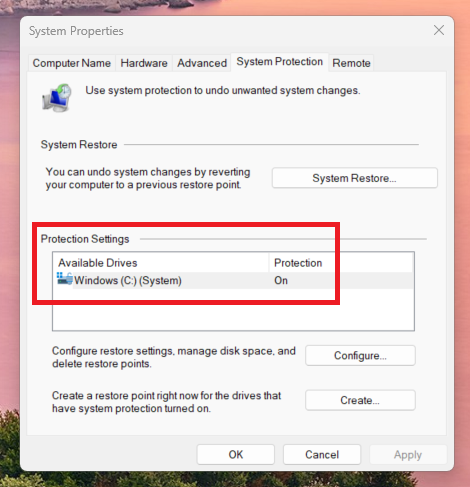
System Restore control panel allows you to enable services, check status, and restore Windows’ last known working state
How to Create a Restore Point in Windows 11
Configure automtatic restore point creation
Creating a restore point in Windows 11 System Restore takes less than a minute and can save hours of recovery work and consequential labour costs. This is how to configure System Restore:
- Press the Windows Key and type restore and click <enter>
- In the System Properties control panel, click open System Protection
- In the System Properties window, select your primary drive (C:) by clicking it to highlight row
- Click <Configure>
- Ensure Turn on system protection is selected
- Confirm that the Max Usage slider has at least 2–5% allocated
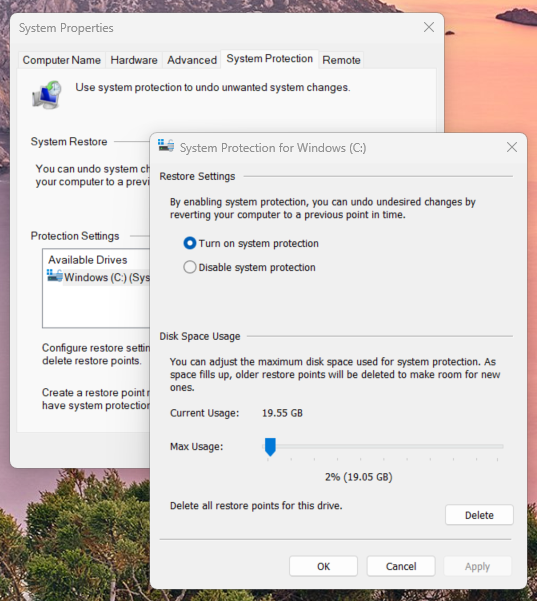
Create a restore point manually
You can also create a system restore point before major changes like:
- Driver installations
- Registry modifications
- Software that affects system behaviour
- Windows feature updates
You can do this by navigating to System Restore control panel described above and clicking the <create> button.
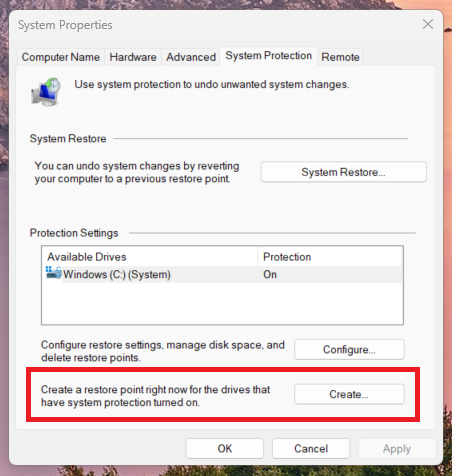
How to recover a Restore Point
Sometimes, a Windows corruption or a malware infiltration needs correcting. Especially if this has happened in the last 2-3 days, you can use System Restore to reinstate Windows to the state it was in before Windows system files were compromised. If your buffer is large enough, you may be able to use earlier system Restore Points, but bear in mind that using old restore points might undo good updates that have been implemented, too.
To restore your system:
- Return to the same System Protection window as described above
- Click System Restore
- Choose your restore point
- Follow the on‑screen instructions (see screenshot below)
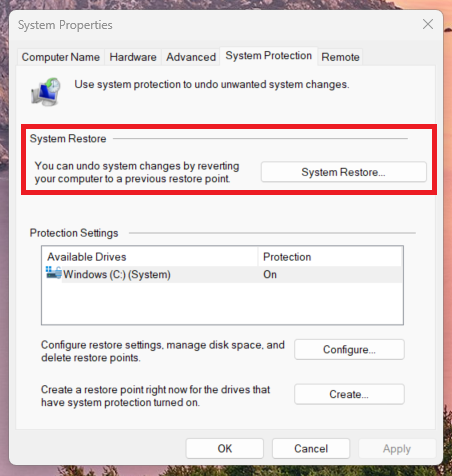
Best Practices for Using System Restore
To get the most from System Restore, consider these simple tips:
- Keep it enabled: Check periodically that protection has not been turned off
- Create manual restore points before major system changes
- Act fast after malware signs: restoring early increases the chance of reversing harmful changes that antivirus/anti-malware software could aggravate further
- Do not rely on it as your only backup: use OneDrive, external drives, or full‑system imaging for complete protection.
Computer Life expectancy affects recovery options
In larger businesses, the average replacement cycle for computers used for desktop productivity is 3-5 years. Self-employed users demand much more from their computers. This kind of profile is more in line with a corporate power user, whose computers are replaced at 2.5 – 4 years. This is because this kind of useage imposes a heavier computational duty cycle on hardware. While System Restore and Windows Recovery can help mitigate running costs, these kinds of tools cannot perform when hardware has failed or is reaching the end of its duty cycle.
Hot Tip: System Restore is only designed to resinstate a last known working state of your Windows systems files. System Restore does not manage files or user data.System Restore is often more capable of resolving malicious infiltration that antivirus software. However, malicious attacks cause unpredictable consequences which may mean that you still have to resort to your recovery drive (see this article) to correct a serious Windows system problem.
Summary
Windows System Restore is one of the most valuable recovery features built into the operating system. When enabled, it can quickly repair software problems, undo bad updates, and help mitigate early‑stage malware infections. For everyday users and professionals alike, this simple tool offers powerful peace of mind.
If you need help configuring restore points across multiple devices or want deeper protection for high‑value systems, please get in touch, or use our contact page to organize an appointment which suits your timetable. You can return to our Index of Articles by clicking here .