Configure Reverse DNS (RDNS)

Reverse DNS

Reverse DNS, also called rDNS, is used by email servers to verify your email has reached it from an email server and IP address that you own. rDNS is crucial for email deliverability and server reputation. For instance, web site contact forms often fail because Reverse DNS is not configured properly and emails are dropped before reaching a web site owner’s Inbox. This is why SPF, rDNS, DKIM, and DMARC are so important in business email.

Reverse DNS

Your web server’s zone record is already configured to a rDNS mapping so you should not need to intervene unless you are operating exceptional circumstances.

Click on the headers below to follow our guide to record a Reverse DNS/PTR record in your domain name’s zone record at your domain registrar. Click on images to see in full resolution.

How to check rDNS is configured

At the moment, your web server already resolves rDNS, and the record posted in cPanel > Email > Email deliverability should already resolve to:

  • Name: 10.183.202.88.in-addr.arpa.
  • Value metal1.namesfirst.net.

Note that the IP address is recorded in the <Name> field. This is usually illegal logic, and that is why this record has to be specially handled by the owner of the IP address block your server relies on: it requires a “reverse” entry which means it has to be handled at “datacenter” level.

rDNS is a not always an easy DNS feature to deal with. Please contact us for advice if you are in doubt about your server configuration.

Summary

Reverse DNS is an important tool that remail servers rely on to verify that email you send is recognized as valid. Without this validation, you may send email that is rejected or dropped before it reaches a recipient’s Inbox.

Making adjustments to your domain name’s zone record requires exacting language and syntax. A missing character can cause a web site to cease functioning and disable your organisation’s email. Nor can you test a modification first – changes made have effect in real time.

Expert help available

We have decades of experience managing domain names on behalf of clients. If you are nervous about dealing with this technology, we can provide admin support for domain names and ongoing services. We can turn modifications in minimal time at reasonable cost while saving you from risk of web site and email disruption – please ask for help if in doubt. 

Why Authoritative Nameservers Matter for Your Web Hosting Setup

Introduction

Use this article to understand how a domain name relies on authoritative namservers to connect web site viewers and email users to your web server. This article is intended for Comstat.uk clients who have bought domain names elsewhere who intend to maintain the domain names in their own portfolios. This requires more client input and can delay restoration of services in the event of outages.

If you maintain your domain names within ComStat.uk’s management portfolios we can provide streamlined support because we can access your domain names’ zone records 24/7 without recourse to clients. This means we can fix authoritative nameservers without reverting to you.

For instance, in the event of an outage while you are away on holiday, or you cannot access your domain name control panel because you have no phone signal to handle 2FA, your web site service could be disrupted until someone can get to your domain name control panel to resolve problems. So, it is important to understand how your authoritative nameservers operate and who is repsonsible for the dashboard that manages them.

Click on the headers below to find out about how to decide where to locate your authoritative nameservers. Click on images to view at full-sized resolution.

What are Authoritative Nameservers?

Authoritative nameservers hold the definitive records for a domain name that operate your email, website availability, and other services. Conventionally, two or more authoritative nameserves are in operation in case one server fails. Authoritative nameservers answer queries about domain names with the most accurate and up-to-date information about your web site, email server, and more.

For instance, if you want to send an email, your computer has to find your authoritative nameserver to find out how to send your outgoing email. Also, it has to find where to send the email. Lastly, the receipient’s email server has to verify that email is legitimate, so it is critically important that your authoritative nameservers are operational and capable of demonstrating a good “score”. If your authoritative nameservers are not recognised and do not achieve adequate safety metrics, your emails will be dropped or sent to spam.

Authoritative nameservers work behind the scenes to translates domain names (like comstat.uk) into IP addresses (like 192.0.2.1). To read this article, your computer had to find where the web server was that hosts the page you are reading. Often, a web site operates from one server, and email from another. Authoritative nameservers define where your services are established. 

Using a domain name supplier's Authoritative Nameservers

When you buy a domain name your domain name supplier will provide standard authotitative nameservers which point to your domain name’s “zone record” – a phone book – which describes where your web site is, and where your email server is. Also, it provides room for you to define records to help prove that your email is legitimate and many more things. It is important that it is secure, and safe from malicious hijack. 


Pros:

  •  Reliability – good security, robust global availability

Cons:

  • Limited control – limited customization options
  • Dependency – you rely on the registrar for DNS management
  • Manual entries – records have to be transcribed from your cPanel zone record (e.g. webmail.domainname.com)
  • Complexity – different suppliers adopt differing methodologies for scripting records
  • Resolution – some suppliers take up to 72 hours to resolve DNS
Using your web server for Authoritative Nameservers

When you use your web server as your authoritative nameservers, you modify records at your domain name supplier so that your web server become your authoritative nameservers. This is easy to do: you replace the standard nameservers in your domain name’s control panel with your web server’s nameservers which we will establish for you. For instance, we use nameservers like ns1.namesfirst.net and ns2.namesfirst.net. Once the nameservers are modified, all records dealing with your web site, email, webdisk, etc., are handled via cPanel.


Pros:

  • Control – you/we can make changes instantly
  • Integration – seamless integration with your email, web site, etc.
  • Customization – you can tailor DNS to specialized needs
  • SSL – cPanel can automatically align SSL certificates with your web server

Cons:

  • Security – teh onus is on the web server owner to protect against intrusion
Summary - which one?

Entry level web hosting services do not do much more than provide a web site, and email is usually bought as a separate service. As businesses outgrow entry level web hosting, the realities that larger business face become more evident.

If you operate a web site via cPanel which includes email, and you intend to use services like Webdisk and automated SSL, it is probably less effort to use your web server as an authoritative web server.

If you want to provide extra security against a malicious person hacking your authoritative nameserver, consider managing things at your domain name supplier. This will mean copying records from cPanel however, and may limit how your SSL certificate works. Also, our ability to restore services in the event of authoritative nameservers depend on us being able to reach you.

In some cases, we also manage authoritative nameservers for clients at Cloudflare and Microsoft 365. Both provide Enterprise grade suecurity and resiliency. How your email and website are organised influences how we need to deal with your authoritative nameservers.

Without a working authoritative namserver, web sites, email, and more cease to work. So, at some point businesses have to develop in-house skills or outsource help to manage this critical Internet technology.

To discuss how best to manage your domain name and how best to establish your authoritative nameservers, contact us using the WhatsApp link or arrange a convenient time for us tr contact you via our contact page.


Add SPF to your DNS zone record

Authenticate your outgoing email with SPF

Use SPF (Sender Policy Framework) is a utility that lists all the server IP addresses that a domain name can use to send emails from.

cpanel SPF record

Click on the headers below to follow our guide to manage SPF record using cPanel WHM and then post your SPF record in your domain name’s zone record at your domain registrar. Click on images to see in full resolution.

Why is SPF important?

Most people who rely on a contact form have experienced what happens when SPF is not working.

For instance, your business might use Microsoft 365 (i.e. Exchange). Exchange handles all staff email and its servers use IP addresses to do so. Now, imagine that your business also has a web site with a contact form but the web site sends contact form email from a different IP address than Microsoft Exchange uses for everyday emails: the contact form uses the web server’s IP address. SPF means your business can validate the web site’s server IP address. Without properly configured SPF, the contact form would not work. You would never know you lost a sale. At best, contact form email might end up in Spam/Junk.

How do I configure SPF?

If your web server is configured for email, you might not need to do anything at all. If you already use another email service for regular email, you may need to amend your existing SPF record where you manage your domain name to include the IP address for your contact form. The best thing to do is to contact us first for advice.

Step-by-step instructions

This guide assumes that you need to create an SPF record at your domain name supplier, but you want to operate your email from our new web server.

1. Log in to cPanel

  • using your web server configuration sheet, log into cPanel
  • navigate to <Email>
  • click on <Email deliverability>

2. Find your SPF record

  • towards the top of your page, you will see a section for SPF, like you see in the screenshot below.
  • the SPF <value> is the entry you need to modify your existing domain name record where you manage your domain name – copy the record from cPanel.
  • go to your domain name supplier

cpanel SPF record

3. Create or edit your SPF record

  • log in to your domain name manager or zone editor
  • if there is no SPF record, create a new TXT or SPF record, and enter the the values from cPanel
  • if there is an SPF record, copy the existing record an paste/save it so you have a last known working state
  • if the existing SPF record handles other email alredy, you will need to determine how to add your web server’s IP address to the entry. This is because you use one SPF record to define all IP addresses that need to be covered.

SPF can be the simplest of protocols to implement, especially if you are operating all email from your web server and your domain name uses our nameservers. However, SPF needs to be able to cope with diverse eventualities, and it may need configuring for multiple IP addresses that handle email for your business. If in doubt, contact us for advice.

Summary

SPF is already configured if your web server includes email services, so there is nothing to do if we manage your domain name for you and all your email will be handled from your web server.

In most other cases, you should contact us for guidance before you make changes anywhere. If you do make changes to existing records, be sure to copy/paste/save those records so that you can resort to a last known working state if problems develop.

DNS is not a forgiving technology, and if you are nervous about making real time changes that might disrupt your web site and/or email, please contact us at the very least for advice.

Expert help available

We have decades of experience managing domain names on behalf of clients. If you are nervous about dealing with this technology, we can provide admin support for domain names and ongoing services. We can turn modifications in minimal time at reasonable cost while saving you from risk of web site and email disruption – please ask for help if in doubt.


Outlook templates

Resend Message tool for email templates

<Resend message> is an easy method for creating and managing email templates in Outlook.

Template tools are not intuitively easy to organize in Outlook and require detailed knowledge. One option is to use Signatures to manage templates. Signatures can be inconvenient too when you want to save a longer of standardised emails this way.

Instead, use <Resend Message> to build a library of standard form emails to improve efficiency.

Click on the headers below to find how to use this option.

About Resend message utility

To use <Resend message> in Outlook open a previously sent email. Then, using <Resend message> Outlook strips the email headers from the original email leaving you with a draft email and subject header which only needs a new email address adding to it. before sending or scheduling as normal.

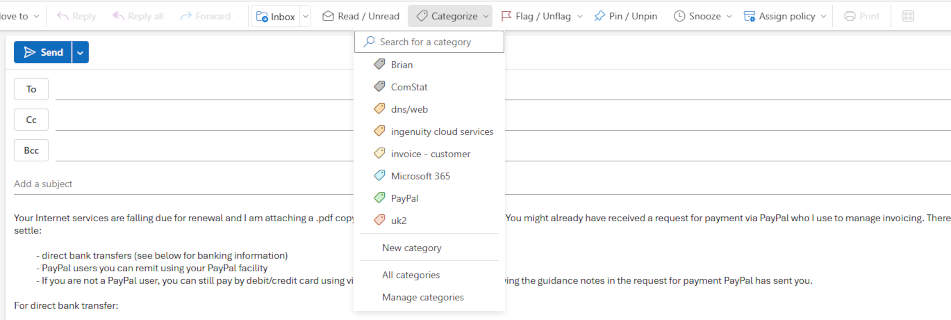
You can copy emails that you want to save as templates this way to a folder which you could, for instance, call Templates. Also, you could use Outlook Categories to tag emails in Sent Items as templates.

Use Resend Message in Advanced Options

To use the <Resend message> option see screenshot below and follow this workflow:

  1. Open the e-mail you want to send again
  2. Click down the three dots towards the upper right of the editing window
  3. Click <Advanced Options>
  4. Click <Resend message>
  5. Edit the e-mail as necessary
  6. Send as normal

Using Advanced options to resend email


Use Resend Message using More Options

Often, <Resend message> is available on Outlook message editor toolbar. Click on the three dots for <More options> and select <Resend message> from the drop down menu. At time of writing, <Resend message> cannot be added to the toolbar with a button.

Resend message using More options in Outlook toolbar


Summary

Outlook can be difficult to use at face value for some tasks like templates. Partly, this is because larger organizations rely on IT deparatments to automate functions like templates at a server level so that staff have ready-made presets.

Those same tools are available in smaller business that use Microsoft 365/Exchange/Outlook. In smaller businesses, staff tend to have to do more for themselves because server level presets are not usually deployed.

Using <Resend message> is the simplest of Outlook’s desktop options for creating and managing templates.

How to Use Microsoft 365 Inline Archiving

1. What Is Inline Archiving in Microsoft 365?

Inline archiving in Microsoft 365 is a feature designed to help users manage large volumes of email. It provides an additional mailbox—called the archive mailbox—where older messages can be stored automatically or manually. This helps keep your primary mailbox uncluttered and improves performance.

This feature is especially helpful. You do not need advanced skills to use it, and inline archiving works seamlessly with Outlook and Outlook Web App. Once enabled by your organization’s IT admin, you’ll see an “In-Place Archive” folder in your mailbox. You can move emails there manually or set up rules to do it automatically.

Click open the headers below to learn how to use Microsoft 365 inline archiving to manage emails, automate archiving, and keep your mailbox clean—even in the archive.

2. Why Inline Archiving Is Useful

Managing email can be overwhelming, especially when your inbox grows quickly. Inline archiving helps by:

  • Improving performance: A smaller mailbox loads faster
  • Reducing clutter: Older emails are moved out of your main inbox
  • Supporting compliance: Archived emails are stored securely and can be retained according to company policies.

For organizations with strict data retention rules, inline archiving ensures that emails are preserved without taking up space in the active mailbox. It’s a win-win for both users and IT departments.

3. How to Automate Archiving in Microsoft 365

To make archiving easier, you can set up automatic rules. This is how to do it:

  1. Use Retention Policies: These are set by your IT admin or global administator and can automatically move emails older than a certain age to the archive mailbox
  2. Manual Setup in Outlook:
    1. Right-click on a folder and choose Properties
    2. Go to the Policy tab
    3. Choose a retention policy that moves items to the archive after a set time (e.g., 6 months)
  3. Use Sweep Rules in Outlook Web App: Sweep is a terrific innovation to move emails from specific senders like newsletters, or with emails that you can indentify with certain keywords, to the archive

Establishing a routine means checking your inbox weekly, archiving emails you no longer need immediately, and letting automated rules handle the rest. This keeps your mailbox tidy without constant effort.

4. Managing Your Archive: Why Deletion Still Matters

Even archived emails can pile up over time. Subject to your organization’s data retention policies, it’s important to manage your archive just like your inbox.

This is what you can do:

  1. Review old content: set a reminder every few months to check your archive
  2. Delete outdated emails: iIf your company allows it, remove emails that are no longer needed.
  3. Use retention tags: retention tags can be applied to archived items to automatically delete them after a set period.
Summary

Imagine letting your morning postal deliveries pile up on the kitchen table for 15 years – who would do that? Yet that is what we do with our email. Without management, we suffer from slower access to ever increasing data volumes, and we risk exposing data to breaches which could breach data protection policies. So, managing our spent email is an important habit.

Remember, archiving is not the same as permanent storage. Keeping your archive clean helps with compliance, improves search speed, and ensures you’re not holding onto unnecessary data. 

About ComStat.uk: Internet Service Provider Comstat provides IT support, web hosting, and media services including website design, Microsoft 365 setup, and audio/video production, serving businesses across Denbighshire, North Wales and Wirral from Ruthin, and Lancashire and the Northwest from Bolton.