
Microsoft Entra Passkeys: Why Microsoft Is Retiring SMS Authentication and What You Need to Do

Why Microsoft Is Retiring SMS Authentication and What You Need to Do

Microsoft Entra Passkeys are being enforced for business users in ealry 2027. This significantly reinforces account security at a time when phishing attacks and malicious intrusion is mushromming. Microsoft-provided SMS and voice authentication for Microsoft Entra ID will retire on 1 February 2027, with passkeys becoming the preferred authentication method.

If you are a Micrsoft 365 tenancy owner you need to be ready for this change. For instance, business owners may need to help staff update their sign-in routine. Recently, some users who only consider themselves Microsoft account holders have received notifications about this as well. This has led to understandable confusion about who is affected and whether any action is required.

The good news is that the change is straightforward once you understand the difference between a Microsoft account and a Microsoft Entra tenant. Also, this article will help you understand how you can determine if you need to action anything if you do not believe you are affected by this.

Click open the headers below to learn more about how Microsoft Entra Passkeys to prepare for Microsoft’s new credential system. Support options are available for professional assistance. You can return to our Index of Articles by clicking here.

What Are Microsoft Entra Passkeys?

A passkey is a modern authentication method designed to replace traditional passwords and SMS verification codes.

Instead of receiving a text message or entering a password, users authenticate using a trusted device such as:

  • Windows Hello
  • Face recognition
  • Fingerprint authentication
  • A security key
  • A mobile device linked to the account

Microsoft Entra passkeys are classed as phishing-resistant authentication. This means they are far more difficult for attackers to steal, intercept, or misuse than passwords, voice verification, or SMS codes.

As cybercriminals increasingly rely on phishing campaigns, Microsoft and other major technology companies are moving towards authentication methods that do not depend on passwords or mobile text messages.

Why Is Microsoft Retiring SMS Authentication?

SMS authentication has served organisations well for many years, but it has several weaknesses.

Attackers can:

  • Trick users into revealing authentication codes
  • Conduct SIM-swap attacks
  • Intercept messages in some circumstances
  • Use social engineering to bypass protections

Passkeys solve many of these problems because authentication occurs directly between the device and Microsoft’s identity platform.

From Microsoft’s point of view, Microsoft Entra passkeys provide a much stronger security baseline for business and organisational accounts. The company is therefore encouraging all affected users to transition before the retirement date.

Who Is Affected?

If you manage a Microsoft 365 Business tenant, Microsoft Entra tenant, Azure subscription, or related cloud services, you should assume that this announcement applies to you.

Even if you already use Microsoft Entra Passkeys using Microsoft Authenticator, you might have some users who still rely on SMS-based multi-factor authentication (MFA). Often, this is because handsets are too old for tools like Microsoft Authenticator to operate on. Those users will need to migrate to a phishing-resistant authentication method before February 2027.

If you only use services such as:

  • Outlook.com
  • Hotmail
  • Xbox
  • OneDrive Personal
  • Microsoft 365 Personal
  • Microsoft 365 Family

you might not be affected.

However, there is an important exception.

Some people created Microsoft cloud services years ago and unknowingly obtained a Microsoft Entra tenant in the background. Microsoft may therefore send administrative notifications to accounts that appear to be ordinary Microsoft accounts.

How to Check If You Have a Microsoft Entra Tenant

If you receive one of these notifications and are unsure whether it applies to you, perform a simple test.

Visit the Microsoft Entra Admin Centre:

Sign in using the email address that received the notification. You will usually experience one of three outcomes:

Option 1: No Access to a Tenant

If Microsoft reports that you do not have access to a tenant or administrative resources, the notification is unlikely to require any action.

In most cases, personal Microsoft account users can safely disregard the message.

Option 2: Access to a Tenant

If the portal opens and displays tenant information, directory details, or administrative options, Microsoft considers you to have responsibility for an Entra environment.

You should review your authentication methods before the retirement deadline.

Option 3: A Forgotten Trial or Subscription

It is surprisingly common to discover an old Azure trial, Microsoft 365 test tenant, or developer environment that was created years ago.

If one exists, determine whether it is still required. If it remains in use, the transition to Microsoft Entra passkeys should be planned.

What Should You Do?

If you own a Microsoft 365 tenancy, or if your email addressis implicated in Microsoft services listed above which list you in Microsoft Entra, you should begin preparations well before 2027. Recommended actions include:

  1. Review authentication methods currently in use.
  2. Identify users relying solely on SMS or voice authentication.
  3. Check that mobile devices are able to install Microsoft Authenticator app
  4. Enable Microsoft Entra passkeys where appropriate.
  5. Encourage Windows Hello or FIDO2 security key adoption.
  6. Communicate upcoming changes to users.
  7. Test authentication workflows before enforcement begins.

Early adoption reduces the risk of support calls and avoids users being surprised by registration prompts later.


Benefits Beyond Compliance

The move to Microsoft Entra passkeys is not simply another administrative requirement. Identity theft is increasing sinificantly and improved security is not just for business users. In fact, if you are a consumer user and you believe your security is satisfactory even with SMS Authentication, you are in a high risk target group.

Imagine waking up one morning to discover that a malicious party has appropriated control of your online retail and banking accounts, and that they are using your identity to buy expensive luxury watches at auction houses for which payment is intended to be drawn against your savings? If this sounds like fiction, think again. This is just one such situation we have dealt with this year, and the trend is escalating.

Microsoft 365 users enjoy Microsoft Entra ID passkeys that offer:

  • Better protection against phishing attacks
  • Reduced password-related support requests
  • Improved user experience
  • Faster sign-in processes
  • Stronger regulatory compliance

In practice, passkeys represent one of the most significant improvements to account security since multi-factor authentication became mainstream. Even if you are not a Microsoft 365 user, we suggest you think very carefully about improving secured access to email. Once an identity is stolen. building a new identity means significant costs and trouble.

Summary

Microsoft Entra passkeys are becoming the future of authentication across Microsoft’s cloud services. While many personal Microsoft account users will not need to take action, anyone responsible for a Microsoft 365 or Entra environment should review their authentication strategy now.

If you receive a notification about the retirement of SMS authentication, the first step is simple: sign in to the Microsoft Entra Admin Centre and determine whether you have access to a tenant. Once you know your status, you can take the appropriate action long before Microsoft’s February 2027 deadline.

Comstat provides independent advice on business IT choices that reduce risk, protect continuity, and support long‑term growth. If you need help with improving your ID security, please get in touch, or use our contact page to organize an appointment which suits your timetable. You can return to our Index of Articles by clicking here .
Microsoft Authenticator iPhone backup

Backup Microsoft Authenticator credentials to iCloud

iPhone users can use Microsoft Authenticator iPhone Backup utility to save Microsoft 365 credentials to their iCloud account.

Using Microsoft Authenticator iPhone Backup, you can restore your existing 365 MFA credentials to a new iPhone. Also, you can restore your MFA account if your iPhone’s working MFA settings are corrupted. If you are a 365 tenancy owner or a Global Administrator (GA) ou would need another global administrator (GA) to create new credentials. Without a second GA (see this article about creating a secondary “break-glass” Global Administrator) a Microsoft 365 tenancy owner could lock themselves out of their tenancy. So, backing up 365 Authenticator settings is critically important if you are a tenancy owner.

This article explains how to configure your handset, iCloud, and Microsoft Authenticator iPhone Backup.

Click open the headers below to learn more about Microsoft Authenticator iPhone Backup. Support options are available for professional assistance. You can return to our Index of Articles by clicking here.

How Microsoft Authenticator iPhone Backup Works

On an iPhone, Microsoft Authenticator does not use a Microsoft account for backup. Instead, Microsoft Authenticator relies entirely on Apple iCloud.

There is no backup button inside the app in Microsoft’s version of Microsoft Authenticator for iPhone. Instead, once your iPhone is set up correctly, your MFA settings are synchronised and periodically checked in iCloud and iCloud keychain in the background.

The key requirement is that your iPhone is:

  • Signed in to your Apple ID
  • Using iCloud
  • Using iCloud Keychain

If those conditions are met, Microsoft Authenticator iPhone backup is already working. Click open the next sections to learn how to set up your iPhone.

Important note about your Apple ID – your Apple ID, like a Google, Microsoft (personal) and a Microsoft 365 account – is what is called a sovereign account. Be sure that sovereign accounts are configured with secondary sign-in alternatives, and be sure to verify your record and review your user account contact preferences no less than annually.

Step‑by‑Step: Enabling Microsoft Authenticator iPhone Backup

These steps take about two minutes and only need to be done once. Please read through the workflow before you begin. Also, bear in mind that Microsoft and Apple can change processes from time to time and the workflow may vary depending on your iOS version and iPhone model. In any event, the objective is to enable iCloud, iCloud keychain, and enable iPhone to execute connectivity for Microsoft Authenticator.

1. Confirm You Are Signed In to Your Apple ID

  1. Open iPhone Settings
  2. Look at the very top of the screen
    1. If you see your name, then you are signed in
    2. If not, sign in with your Apple ID

Microsoft Authenticator iPhone backup needs to be associated with your Apple ID, so this step is essential.

2. Make Sure iCloud Is Turned On

  1. Open Settings
  2. Tap your name
  3. Tap iCloud
  4. Ensure iCloud is switched ON

Without connectivity to iCloud, Authenticator cannot backup your credentials.

3. Turn On iCloud Keychain (Most Important Step)

  1. Go to Settingsyour nameiCloud
  2. Tap Passwords & Keychain
  3. Turn iCloud Keychain ON

iCloud Keychain securely stores your 365 MFA settings so that they can be retreived later. If you store Microsoft Authenticator credentials for other services, you can back these up too.

4. Allow Microsoft Authenticator to Use iCloud

  1. Go to Settingsyour nameiCloud
  2. Tap Show All
  3. Ensure Microsoft Authenticator is switched ON

If Microsoft Authenticator is turned OFF, Microsoft Authenticator iPhone backup will not work. So, be sure to check this setting.

Using Microsoft Authenticator Day to Day

Once these settings are in place, you can use Microsoft Authenticator normally:

  • Add your Microsoft work account if 365 MFA is not already configured
  • Add any other supported accounts
  • Approve sign‑ins as usual

There is nothing else to manage. On an iPhone, backup happens automatically in the background.

What Happens When You Get a New iPhone?

If your phone is lost, damaged, or replaced, restoring Microsoft Authenticator is straightforward:

  1. Sign in to the same Apple ID on the new iPhone
  2. Turn on iCloud and iCloud Keychain
  3. Install Microsoft Authenticator from the App Store
  4. Open the app

Your Microsoft Authenticator accounts/credentials will reappear automatically. You may be asked to sign in again to some services, but the Authenticator entries themselves are restored. This is why Microsoft Authenticator iPhone backup is so important to set up early.

Hot Tip: Microsoft Authenticator requires iOS 16 or later to work. If Microsoft Authenticator is not available in your App Store inventory, it is usually because your iPhone does not support minimum hardware/software requirements.

Common Questions About Microsoft Authenticator iPhone Backup

Do I need a Microsoft personal account for backup?

  • No. On an iPhone, backup uses Apple iCloud only.

Can I choose where the backup is stored?

  • No. Microsoft Authenticator iPhone backup always uses iCloud.

Is the backup secure?

  • Yes. The data is encrypted and protected by iCloud Keychain.
Summary

For iPhone users, Microsoft Authenticator iPhone backup is simple, automatic, and secure — as long as iCloud and iCloud Keychain are enabled, and iOS is configured to connect Microsoft Authenticator to iCloud. Microsoft does not back up your MFA credentials to your Microsoft 365 account because if you have lost your credentials, you cannot login to 365 to retreive them. Therefore, MFA credentials need to be stored elsewhere.

Google users and Microsoft (personal) account users save their MFA settings in Microsoft (personal) accounts. Click here for guidance to backup 365 MFA settings using Android.

Spending two minutes checking these settings now can save hours of disruption later, and possibly catastrophic loss. For 365 tenancy owners and Global Administrators, this is a critically important utilitiy. If you manage devices or Microsoft 365 for your business and want help configuring this service correctly, Comstat can assist: feel free to get in touch, or use out contact page to organize an appointment which suits your timetable.

You can return to our Index of Articles by clicking here

How to Transition Users to Microsoft 365 Sign-In and Entra ID

Planning the Transition: Know Your Environment

Planning is decisive when you implement changes that affect daily IT habits. Before adopting Microsoft 365 sign-in, assess your current setup:

  • What types of licenses are in use? (Exchange Online, Business Basic, Standard, Premium, Enterprise)
  • Are users signing in with personal Microsoft accounts or local profiles?
  • Are devices running Windows 10/11 Pro or Enterprise?
  • Is Microsoft Intune available for device management?
  • Should this be a gradual change?

Understanding these factors will help you and your team understand what the onboarding process means for users. Microsoft 365 licenses support varying features,. For instance. Business Premium and Enterprise licenses include Microsoft Intune services. Apart from 365 Business Premium, other Business 365 license do not, and this will have a bearing on how Single Sign-On (SSO) rules, policies, and device management work.

To review our first article for an overview: Why Switching to Microsoft 365 Sign-In Matters for Small Businesses

Click open the headers below to learn about implementing Microsoft 365 sign-in. 

Step-by-Step: Onboarding Users to Microsoft 365 Sign-In

1. Communicate the Change Clearly

Start with a simple message to users like:

“We are moving to Microsoft 365 sign-in to improve security and simplify access to your work tools. This means that soon you will use your Microsoft 365 account to sign into your computer and Microsoft apps.”

Include:

  • Benefits (SSO, security, better data separation)
  • What to expect during the transition
  • Where to get help

2. Prepare Devices

Device configuration depends on whether the workstation is a new machine or if it is an existing workstiona.

For new devices:

For existing devices:

  • Backup important files.
  • Convert the device to Entra ID join via Settings > Accounts > Access work or school.
  • Remove personal Microsoft accounts from OneDrive and Office apps.

3. Migrate Content

Users often store business files in personal OneDrive or local folders. So, vetting content is crucial to avoid data loss and confusion. It is labout intensive too, and perhaps explains why Microsoft 365 Sign-in is necessary.  Help them:

  • Move files from personal OneDrive to OneDrive for Business.
  • Organize folders to separate personal and work content.
  • Use SharePoint for team-based storage when appropriate.

4. Enable Conditional Access and MFA

This stage depends on the license which governs your, or your user’s, Microsoft 365 account. The last step is available only where user have 365 Business Premium and 365 Enterprise licenses, which include Microsoft Intune. Set up policies in Microsoft Entra Admin Center to:

  • Require MFA for cloud access.
  • Block access from unmanaged or risky devices.
  • Enforce sign-in only from Entra-joined devices (if Intune is available)

5. Train and Support Users

Offer short guides or walkthroughs:

  • How to sign in with Microsoft 365 credentials
  • How to access OneDrive for Business
  • What to do if they’re locked out or need help

Power users are a terrific way to demonstrate end educate. Also, consider organizing a short Q&A session or creating a helpdesk channel in Teams as another ways to build confidence in this upgrade.

Common Challenges and How to Solve Them

Adopting Microsoft 365 sign-in across your team is likely to introduce some resistance. In our experience these are common friction points:

Challenge Solution
Users fear losing files Review existing folder/file methodology and support a plan for backup and migration
Confusion between personal and work accounts Educate on OneDrive for Business vs personal OneDrive
Resistance to change Emphasize security and ease of use
Devices not eligible for Entra ID join Upgrade to Windows Pro or use hybrid join


Why Resistance Happens—and How to Address It

Changing user behaviour is never easy. We are comfortable with our habit. We tend to resist changing habits because it means expending effort. Common concerns when switching to Microsoft 365 Sign-in include:

  • “Will I lose my files?”
  • “Do I need to reset my computer?”
  • “Why can’t I keep using my personal account?”

To ease a transition of this kind across an organization, it helps to:

  • On-board select power users first
  • Communicate the benefits clearly
  • Offer support for content migration wit experience gained by power users
    • Provide training or walkthroughs
Admin Tips for a Smooth Rollout
  • Start with a pilot group (e.g., IT or field engineers)
    • include IT support and select power users to front-run adoption
  • Use Microsoft 365 Business Premium for full device management via Intune
  • Monitor sign-in activity and device compliance in the Entra Admin Center
  • Document the process for future onboarding
Summary

Transitioning users to Microsoft 365 sign-in and Entra ID is a strategic move that improves security, simplifies access, and clarifies data ownership. While it requires planning and support, the long-term benefits outweigh the initial effort. With Microsoft 365 Sign-In, you can elevate compliance standards to more closely align with Enterprise standards.

For small businesses with mixed licenses, this change ensures that every user is part of a secure, unified environment—whether they’re using Exchange Online, Business Basic, Standard, or Premium. Lastly, Microsoft 365 Sign-in automatically takes care of significant compliance issues which are often beyond the budget of small business.

To review our first article for an overview: Why Switching to Microsoft 365 Sign-In Matters for Small Businesses

About ComStat.uk: Internet Service Provider Comstat provides IT support, web hosting, and media services including website design, Microsoft 365 setup, and audio/video production, serving businesses across Denbighshire, North Wales and Wirral from Ruthin, and Lancashire and the Northwest from Bolton.

Why Switching to Microsoft 365 Sign-In Matters for Small Businesses

Introduction: Microsoft 365 Sign-In

Small businesses users still sign into their Windows devices using personal Microsoft accounts or “local” Windows user profiles. This may seem convenient, it creates confusion between personal and business data, especially when using tools like OneDrive. Using Microsoft 365 Sign-in allows users to separate personal and business content by signing into Microsoft 365 at Windows startup.

What’s the problem?

Field engineers have long known that 365 users store business files on personal OneDrive or local drives, making it hard for business owners to enforce data governance. This blurred line between personal and professional content can lead to:

  • Data loss or leakage
  • GDPR compliance issues
  • Difficulty in managing business data on user devices remotely

Microsoft 365 sign-in bypasses Microsoft personal accounts

Now, logging directly into your Microsoft 365 account at Windows startup dedicates Windows directly to your Microsoft 365 services and content. Meanwhile, you can still operate your personal content by logging into your existing Windows “personal” profile as you need to.

Article focus and goal

This is the first of two articles for business principals, global admins, and team leads. In this article, we explain the risks of current habits, and the benefits  of using Microsoft 365 sign-in in the workplace.

Click this link to read the second article in this series: How to Transition Users to Microsoft 365 Sign-in and Entra ID

Click open the headers below to learn about Microsoft’s recent security improvements with Microsoft 365 sign-in. 

What Is Microsoft 365 Sign-In?

Microsoft 365 sign-in means using your work account (e.g., name@company.com) to log into Windows and Microsoft apps. When a device is joined to Microsoft Entra ID (formerly Azure AD), users authenticate with their business credentials at startup. This means that the Windows desktop is governed by your Microsoft 365 services, not your Microsoft personal account. For instance, when you use Microsoft 365 Sign-in to start your workstation, the desktop you log into is a work desktop which is controlled by Microsoft 365.

Using Microsoft 365 sign-in you can use Microsoft 365 to:

  • Use Single Sign-On (SSO) to Outlook, Teams, SharePoint, and OneDrive
  • Operate improved security through Conditional Access and MFA
  • Enable centralized device visibility for administrators

Basic Microsoft 365 Sign-in features are included in all Business 365 licenses. Business 365 Premium and Enterprise 365 licenses include enhanced features that enable advanced device management and other configuration options.

Benefits for Business Owners and Admins

Adopting Microsoft 365 sign-in across your user base offers clear advantages:

1. Security – Microsoft 365 sign-in:

  • enforces password policies and MFA
  • reduces risk of unauthorized access
  • supports admin-level remote wipe of business data

2. Productivity – Microsoft 365 sign-in:

  • enables seamless access to Microsoft 365 apps
  • means fewer login prompts
  • permits better collaboration through shared resources

3. Data clarity – Microsoft 365 sign-in:

  • Separates personal and business content
  • Ensures files are stored in the correct OneDrive for Business location
  • Simplifies compliance and auditing
Why Resistance Happens—and How to Address It

Changing user behaviour is never easy. We are comfortable with our habit. We tend to resist changing habits because it means expending effort. Common concerns when switching to Microsoft 365 Sign-in include:

  • “Will I lose my files?”
  • “Do I need to reset my computer?”
  • “Why can’t I keep using my personal account?”

To ease a transition of this kind across an organization, it helps to:

  • On-board select power users first
  • Communicate the benefits clearly
  • Offer support for content migration wit experience gained by power users
    • Provide training or walkthroughs
When Is the Best Time to Switch?

The idealtime to move a user to Microsoft 365 Sign-in is when mnew workstations are deployed. is during new device setup, where Entra ID join can be enforced from the start. For all users, 365 licenses need to be reviewed to understand what levels or conditional access and policies will be operative in a user’s new environment. For existing devices, a planned onboarding process is needed to:

  • Compare existing files stores and prepare for migration
  • Reconfigure sign-in settings
  • Educate users on the new workflow

Successful planning is decisive. Our experience is that a gradual or organic adoption of is the best way to keep disruption to a minimum.

Summary and Next Steps

Adopting Microsoft 365 sign-in is more than a technical upgrade — it is a strategic move toward better security, productivity, and data management. For small businesses with mixed licenses like Exchange Online, Business Basic, Standard, and Premium, this shift ensures that every user is part of a unified, secure ecosystem.

Click this link to read the second article in this series: How to Transition Users to Microsoft 365 Sign-in and Entra ID

About ComStat.uk: Internet Service Provider Comstat provides IT support, web hosting, and media services including website design, Microsoft 365 setup, and audio/video production, serving businesses across Denbighshire, North Wales and Wirral from Ruthin, and Lancashire and the Northwest from Bolton.

How to Set Up Microsoft Authenticator MFA for 365

Introduction: Why MFA Setup in Entra Matters

Multi-Factor Authentication (MFA) is the principal sign-in method for Microsoft 365 accounts. Microsoft Authenticator MFA for 365 setup establishes a vital layer of protection by requiring you to verify your identity using more than just a password. Your Microsoft 365 tenancy manages MFA from its Entra portal. not your Microsoft 365 admin dashboard.

This guide helps you understand how Microsoft Authenticator MFA for 365 setup works, including:

  • Logging into Microsoft Entra with your 365 credentials to configure Microsoft Authenticator.
  • Enabling SMS authentication (if your tenancy is configured to allow this).
  • Adding a second device for secondary/fallover access

Read our associated article discusses how to backup your MFA credentials. For support notes about restoring services to Microsoft 365 when your MFA credentials are lost, read this article.

Click open the headers below to learn how to create your MFA credentials. Please read through this entire article before starting the proceudure. Be sure to contact us for general advice if you are in doubt. Support options are available for professional assistance.

What Is Microsoft Entra and Why Use It for MFA?

MFA procedures are consistent with an industry move towards passwordless sign-ins. Consumer-level password protection in Gmail, Yahoo, and other platforms is convenient, but password protection alone is inadequate for meeting GDPR Compliance standards in commerce. Even consumer platforms like Gmail now encourage passwordless sign-in. MFA helps to:

  • Ensure your 365 account remains accessible
  • Helps build compliant GDPR practices
  • Reduce the risk of malicious infiltration and identity theft

Microsoft Entra centralizes your security settings, including MFA, passwordless login, and device authentication. If you are a Microsoft 365 user, you or your organization are already using Entra within your tenancy. So, you are not required to subscribe to Entra as an additional service for Microsoft Authenticator MFA for 365 setup.

Benefits of Using Entra for MFA

  • Centralized control over authentication methods
  • Enhanced security with multiple verification options
  • Flexibility to add or remove devices securely
  • Compatibility with SMS, app-based, and hardware token methods

Moving towards passwordless sign-in

The IT industry as a whole recognizes that password protection alone is flawed. So, MFA is increasingly adopted as industry players introduce secure passwordless security. This means that MFA, and similar technologies like 2FA, are here to stay. We can argue that you should adopt MFA to comply with GDPR. Instead, the bigger issue is the risk of catastrophic damage damage to your online identity and data. This way, the fact that MFA is “compliant” is incidental.

This is why MFA is the default sign-in method for Microsoft 365, so you and other users in your 365 tenancy users must configure at least one secure MFA method. This is most conveniently accomplished with Microsoft Authenticator app. SMS authentication is optional and we recommended that you use it as an secondary option for sign-in, especially if your tenancy supports SMS authentication. In situations where we have configured 365 MFA for you, or you retain us to support your Microsoft 365 tenancy, we usually configure support for SMS by default.

Step-by-Step: How to Set Up Microsoft Authenticator in Entra

reparation – what you need

MFA pairs your phone with your 365 account. So, you will need your mobile phone. Also, before you begin, check that your Microsoft 365 tenancy supports SMS authentication for end users and that you have access to your usual laptop or desktop computer. If you are not Global Administrator, you can check with your IT manager.

Allow for some flexibility in this workflow. For instance, it might be worth downloading Microsoft Authenticator App from either Apple App Store (iOS) or Google Play Store (Android) before you start. For instance, it is a good idea to check that your phone is capable of downloading Microsoft Authenticator before you begin. If your mobile phone is outdated or unsupported, Microsoft Authenticator App will not be available to you in your store. If so, consider upgrading your device or using SMS authentication.

 Workflow to Set Up MFA with Microsoft Authenticator for 365

  1. Log into Entra Security Info Portal with your laptop/desktop computer:
    1. Visit https://mysignins.microsoft.com/security-info
    2. Sign in using your Microsoft 365 credentials.
  2. Add Microsoft Authenticator:
    1. Click + Add sign-in method
    2. Choose Authenticator App
    3. Follow the prompts to install the app on your mobile device
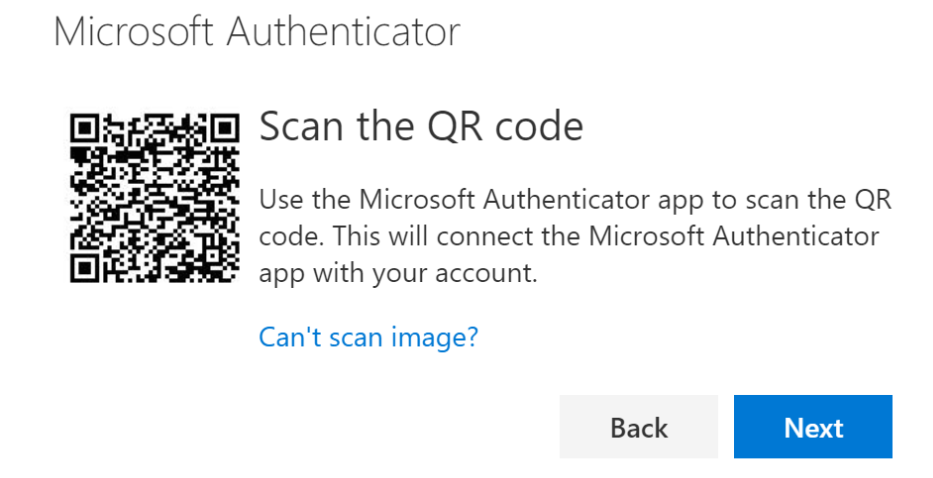
    4. When you reach a screen showing a QR phone, set your computer aside with the QR code displaying on screen
  3. Configure your mobile phone:
    1. On your mobile device, go to the App Store (iOS) or Google Play (Android).
    2. Search for Microsoft Authenticator and install it.
    3. With Microsoft Authenticator App open:
      1. click + (i.e. add account) at top right or left of your screen
      2. click open the option to scan QR code
      3. Allow permissions for your app to use your camera
      4. Scan the QR code showing on your computer screen with your phone
      5. go back to your computer and click Next

microsoft authenticator qr code

Remember to click (below the QR code) on your computer after you have scanned the QR Code with your phone.


Once you have successfully scanned the QR code with your phone and clicked <Next> on your computer’s security center page (below the QR code), the process is complete. There are two more steps for you to take:

  1. Test your configuration:
    1. Entra will send you an MFA input code to test the setup as soon as the server detects the succesful QR scan. The procedure operates in the same way as SMS verification, but using Microaoft Authenticator App. The graphic at the top of this article demontrates what you can expect to see. Having gone to so much trouble to get this far, allow yourself the thrill of seeing this work – it is actually pretty cool!
  2. Review Microsoft Authenticator App settings, and also your mobile phone settings if necessary to choose personal preferences. For instance:
    1. You may want verification to include the added security of validating your fingerprint or retina.
    2. In some instances, your phone might ask you to sing into your phone before you can access Authenticator. Some people prefer this. Others prefer to bypass their phone sign-in screen so that they can respond to their MFA codes faster. This is a matter for personal preference.
    3. Lastly, you should enable backups and accept periodic updates.

Additional authentication methods using Microsoft Authenticator MFA for 365

The steps above are needed to minimally configure Microsoft Authenticator MFA setup. Read the next section to learn how to add optional authentication using SMS for redundancy.

Also, you can configure Microsoft Authenticator MFA for 365 with a second mobile phone. This is useful where in situations where an email account is shared between two geographically separate offices. Also, setting up Microsoft Authenticator MFA for 365 on an extra phone might be useful in situations where the first phone is at risk of loss or damage.

Create another Global Administrator account

Another way to protect access to your tenancy is to create another Global Administrator. You do not need to have a Microsoft 365 license to add a Global Administrator, and in large organizations the principal Global Administrator does not even use an email account – that way sensitive server-side functions can be handled without the usual risks associated with an email-enabled user. There are some considerations that need addressing to elevate privileges to enable some seucurity functions that are normally reserved for the tenancy owner. We can help configure a secondary Gloabl Administrator.

MFA - What To Do If You Change Your Phone

The easiest way to configure a new mobile phone is to do setup Microsoft Authenticator on your new phone while the old one is still working. With both phones available:

  • Log into your security info page with your laptop/desktop
  • Click + Add sign-in method
  • Choose Authenticator App
  • generate a QR code and set the computer aside for the time being

On your NEW phone:

  • Install Authenticator and select Work or School account.
  • Scan the QR code shown on your computer.
  • Approve the authentication request on your new device.
  • Remove the old device from the Security Info page.
Enable SMS Authentication (Optional but Recommended)

If your organization allows SMS as an MFA method:

  1. In the Security Info portal, click + Add sign-in method
  2. Select “Phone”
  3. Enter your mobile number and choose Text me a code
  4. Enter the verification code received via SMS when your mobile phone receives it

SMS is considered less secure than app-based authentication. So, by default, Microsoft Authenticator app will use MFA using either available WiFi or mobile phone signal to authenticate your Microsoft 365 sign-ins. SMS is a valuable backup method—especially if your primary device is unavailable.

Add a Second Device for Secondary Access

Sometimes, it helps to include a second mobile device to authenticate your Microsoft 365 sign-in. This might be necessary where authentication is necessary from two geographically separate locations. In this situation, the same mobile phone cannot be at the each location simultaneously. Also, a second phone might help avoid lockouts. This is optional, and not usually necessary However, if you need to include a second device for authenticating you can configure Microsoft Authenticator MFA for 365 with this additional step:

  1. Install Microsoft Authenticator on your second mobile phone
  2. Log into https://mysignins.microsoft.com/security-info from your desktop/laptop computer
  3. Add a new sign-in method and repeat the QR code scan process
    1. Be sure to scan the QR code with your SECOND DEVICE per the workflow outlined above
  4. Verify the second device by approving a test notification

This ensures you can still access your account if your principal mobile phone is lost or damaged.

When SMS is enabled, notice that when trying to sign in with an Autheticator code you will find options in your Authenticator pop up that provide for authentication by other means. This way, if MFA does not authenticate, you can opt to receive a conventional SMS/text.

Summary and Next Steps

Setting up and managing Microsoft Authenticator MFA for 365 helps to secure access to your Microsoft 365 account. If your organization has documentation for compliance, you should update it with your procedures so that you have a stated policy giverning sign-ins.  

Next step – backup your MFA credentials

For added security, you can backup your Microsoft Authenticator App sign-in accounts. Even if your mobile phone is configured to backup your data, MFA credentials are excluded from Android/iOS backups unless provisioned in Microsoft Authenticator App.

Read this article to learn how to back up your Microsoft Authenticator settings and avoid losing access. Remember, MFA is now a user-level utility and admins/global admins cannot intervene on a user’s behalf. So, it is important to be sure that organizational users have MFA credential backups to ensure rapid restoration of services if they lose or damage their mobile phones.

Also, consider a stress test to learn what you need to be able to demonstrate to Microsoft if your Global Administrator loses MFA credentials. Read this article to learn about force majeur MFA recovery.

About ComStat.uk: Internet Service Provider Comstat provides IT support, web hosting, and media services including website design, Microsoft 365 setup, and audio/video production, serving businesses across Denbighshire, North Wales and Wirral from Ruthin, and Lancashire and the Northwest from Bolton.