
How to Change Your Email Password in Roundcube Webmail
How to Change Your Email Password using Roundcube Webmail
The easiest and safest way to update or change your email password is through Roundcube Webmail. Roundcube is the Webmail utility you access your email with using a laptop or desktop computer.
You could change your email password using cPanel. Unlike cPanel, which includes advanced server management tools, Roundcube focuses on email functionality. So, managing your email preferences including out-of-office responders, redirects, etc. reduces the risk of accidental changes to your other web server settings while still giving you full control over your account credentials.
When you need to contact us
If you do not know your current password, please contact Comstat Support so we can securely reset it for you.
Click open the headers below to learn how to change your email password.
Step 1: Log in to Roundcube
Using your desktop computer, laptop, or tablet, open your web browser and go to your webmail login page using your browser’s navigation field, not your Google Search field.
Your Webmail URL will depend on the domain name you own. For example, if your domain name you use for your email is “yourdomain.com” you would follow these steps.
- Point your browser to https://yourdomain.com/webmail substituting your own domain name.
- Enter your email address
- Enter your password
- Click “Log In”
Step 2: Access Settings
Once you have succesfully log in to Roundcube, you will either land on your Roundcube home page. You might have configured Roundcube to go straight to your inbox.
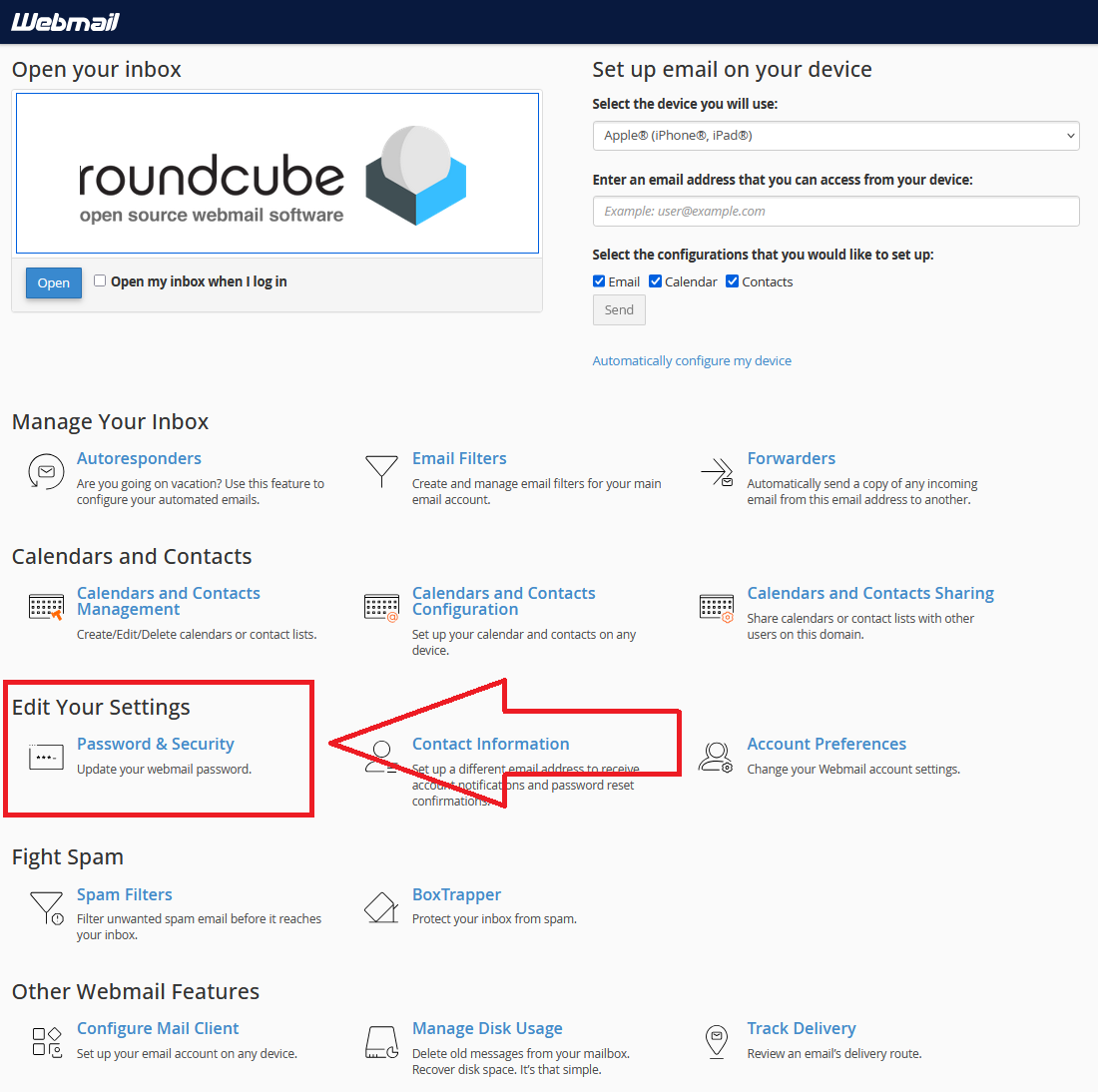
Change your email password using Roundcube Home Page
- Scroll down to <Edit Your Settings>
- Click <Password & Security>
- Change your password
- Click Save or Update
Tip: Use a strong password with uppercase, lowercase, numbers, and symbols. Avoid reusing old passwords.
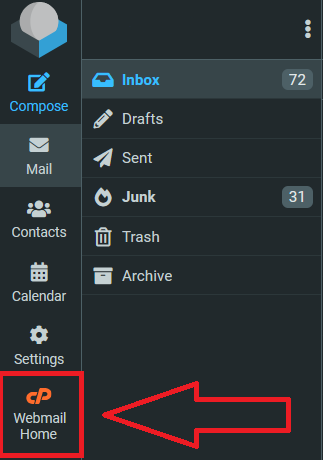
Change your email password from your Inbox
From the preferences bar on (usually on the left of your Inbox page)
- Click <Webmail Home>
- Scroll down to <Edit Your Settings>
- Click <Password & Security>
- Change your password
- Click Save or Update
Tip: Use a strong password with uppercase, lowercase, numbers, and symbols. Avoid reusing old passwords.
Your Webmail home page includes a fully featured list of utilities, including:
- instructions for configuring email accounts on Windows, Apple, Linux, and Android devices.
- Spam controls.
- Autoforwarding
- email tracking
- much more.
Step 3: Update Your Devices
After changing your password, you will have to modify the password in al the devices that you use to connect to your email account.
Best Practices and Summary
- Change passwords regularly.
- Never share your password.
- • Contact support immediately if you suspect unauthorized access.
Roundcube is a comprehensive email solution and you can find answers to issues here.


