How to manage a web site contact form

Contact forms - understand your risk

Website contact forms are a convenient way for visitors to get in touch with you. However, they introduce potentially catastrophic risks that you should be aware of.
Contact form field validation

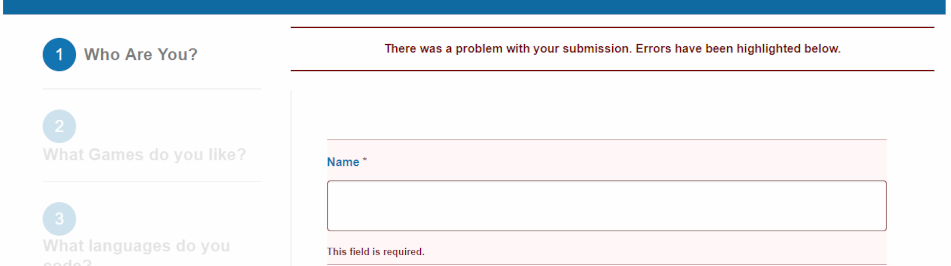
Validating form fields helps reduce risk of malicious injection which could hijack or destroy your web site.

Browse this article to explore inherent contact form risks and how to manage them, especially if you are a “self-serve customer. If you do not rely on our optional support, there may be charges for support requests.

Click on the headers below to find out how to find out more about contact form issues. Click on images to view at full-sized resolution.

Malicious infiltration, abuse, and DNS

Web site forms are problematic. It should be easy to display a form that asks for a name, email address, phone number, and message. It is easy to make the form look attractive. However each field in a contact form is an open invitation for a hacker to destroy your web site or orchestrate a bulk email of thousands of emails that you end up bearing the cost of. Without concerted attention, it is a matter of time before a hacker finds a vulnerable contact form.

Contact form problems fall into two areas:

Malicious infiltration and abuse

Contact forms are a significant target for malicious activity. Hackers look for vulnerable contact forms to inject harmful code into your website. Statistically, small businesses are the most frequently exploited victims. Malicious infiltration causes catastrophic trouble like data breaches or site crashes. Common attacks include SQL injection (aka vector attack) or cross-site scripting (XSS). Additionally, spammers might flood your form with junk messages, making it hard to find genuine inquiries.

DNS Issues and Email Validation

When someone submits a contact form message at your web site, the information is often sent to an external email address. If there are issues with your Domain Name System (DNS) settings, these emails will probably be dropped without notice to anyone. Since contact form abuse is such a significant target for abuse, email gateway servers are especially sensitive to improperly validated email headers. This means your email server has to be correctly configured with your web site’s IP address using SPF, rDNS, DKIM, and DMARC.

Usually, resolving your DNS for contact form validation needs expert attention and may be beyond the scope of a web designer or in-house expertise. This does not mean web designers do not know their job. Intead, DNS is its own skillset, requires specialised knowledge,and also needs to take account of broader IT processes in your organization.

How to secure your contact form

Here are the three most important things you can do to secure your contact form:

Validate form fields

If you do not restrict the size and content of a form field, anyone can inject source code (an executable program), click <send> and your web server will execute the code which could mean web site destruction or hijacking your identity. Either eventuality is catastrophic and it is easier to do than reading this article.

Therefore, validate fields to limit the length of text. For instance,

  • <name> fields could be restricted to 20-30 characters
  • numerical composition of a phone number might have to comply with a special formatting, like aaaaa bbb ccc
  • email addresses might need to contain “@”, include a valid domain extension like “.co.uk”, and be limited to 40-50 characters
  • “message” field could be restricted to 150, 250, 350 characters

This is all “client-side” operation. All of these seriously curtail options for hackers. 

DNS

DNS is especially problematic. For instance, your email might be handled by your domain name registrar, or Microsoft 365, and your contact form has nothing to do with your organisation’s usual email server.

Usually, your domain name needs to be customised to include the location and characterisitcs of your contact form. This is “server-side”, and actually not even that because often these modifications might need scripting at a domain name registrar. This is what is called DNS, and it is one of the most difficult technologies to handle – even most web designers rely on upstream support for help with DNS. 

Regular testing

Test your contact forms regularly. Keeping spam out of email Inboxes is a moving battlefield. The web server itself is not the problem – when instructed, it acts, and in some ways that is part of the problem – it does not know how to discriminate between good and bad content without form validation.

Hackers are creative, and organizations like Google, Microsoft, and Yahoo spend billions to keep up with evolving threats. In so doing, new security may render the source code you rely on for your contact form irrelevant, and the contact form programmer might not even know their source code is now outdated. Large organisation pay full time salaries just for someone to manage a contact form – daily. Moving to text-based chat bots is not designed to annoy customers – it is an attempt to avoid contact forms in the first place.

Summary and alternatives

Contact forms require constant owner-maintenance and are subject to ever-changing security threats. Also, because your form is programmed on “client-side” (e.g. in WordPress), owners assume responsibility for secure operation of their contact form.

Even if you undertake the overheads of managing your contact form, your contact form should only be one way for customers to contact you. For example, alternate channels like those below move direct risk away from your web server:

  • Social media contact options like WhatsApp for Business, Facebook, Insta, etc.
  • Microsoft 365 Forms or Google Forms, which can be embedded on your web site

Professional DNS annual support available

If you purchased your domain before you began using our servers and you want us to manage your domain for you, we can administer your domain name records (DNS) annually for £75, including periodic updates as they are required. Use the PayPal QR code on our home page for payment, or contact us to arrange invoicing for our DNS service. This is included in optional support arrangements that you may already subscribe to. 

About ComStat.uk: Internet Service Provider Comstat provides IT support, web hosting, and media services including web design, Microsoft 365 setup, and audio/video production, serving businesses across Denbighshire, North Wales and Wirral from Ruthin, and Lancashire and the Northwest from Bolton.
 

Configure SPF, rDNS, DKIM, and DMARC for email

Introduction

Sending and receiving email should be straightforward, but a lot of background checks happen before your organization’s email is delivered reliably and securely. Use this article to activate SPF, rDNS, DKIM, and DMARC to make sure your email reaches recipients, and protects your email server from crippling outcomes like dropped email and public blacklisting.

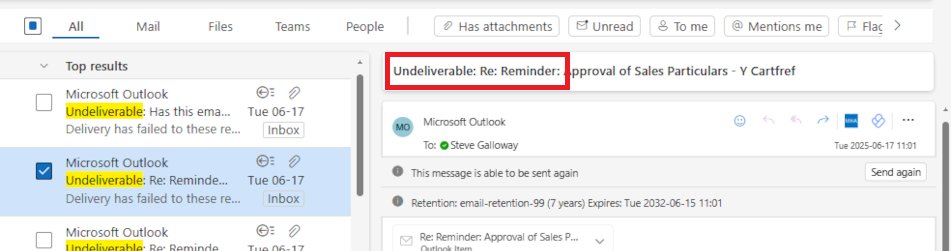
undeliverable email header

“Undeliverable”: What cost a lost email that you never know a recipient has not seen?

Click open the headers below to learn about email deiverability and “trust”. Please read through this entire article before starting to engage individual modifications to your email server. Changes you make are done so at your risk so be sure to contact us for general advice if you are in doubt. Support options are available for professional assistance. Click on images to view at full-sized resolution.

Why do these protocols matter?

If you do not put a postage stamp on a letter, it probably will not reach its destination, and without a return address you will certainly never know what happened to the letter.

Similarly, without SPF, rDNS, DKIM, and DMARC, email that you send will be erratic and unpredictable. This is because industry tools to assess “trust” are not operational. These protocols are like postage stamps. You may think “it has never been a problem before”. Partly this is because when email does not reach a recipient, you know you sent it but the recipient does not know it was supposed to be received.

Everyone has sent an email that has never reached its target. These protocols are why most failures happen, and in business communications…. it matters. The protocols we cover in this article enable your suppliers’ and customers’ email servers to “trust” your email and its “brand”.

“Postage stamps” for email

The one question we are posed by clients in 25 years of IT support more than anything else is the plaintive “why aren’t my emails getting through?”. Hopefully, it is only because of a badly spelled email address. Often, though, the answer is that outgoing email is not sending adequately “stamped” emails with “return addresses”.

Protecting your identity – “trust”

Protocols like SPF, rDNS, DKIM, and DMARC are email’s a little bit like postage stamps. When the bar code on a postage stamp is recognized as authentic, the envelope is sent to its destination. Similarly, protocols enable receiving email servers to measure and “trust” the authenticity of your communication. Put another way, these protocols protect your email from being measured as spam or malicious email.

Self serve guides for implementing email protocols

Your web server is optimised for delivering your web pages. If email is included in your package, we have made sure that an email server is enabled with necessary email tools. However, like flat-pack furniture, your email server is minimally configured and the protocols described here need to be aligned with your domain name.

These domain name modifications can only be manually configured by you or your agent. If we look after your domain name, we would configure these modifications within your ongoing support. If we do not have admin privileges for your domain name’s “zone record”, and you have elected against support, then you need to configure your domain name’s zone record.

If you do not have expert in-house IT skills, consider our DNS configuration service and ongoing support plans.

DNS Configuration – Professional support

DNS is awkward technology, even for IT pros. If you purchased your domain before you began using our servers and you want us to manage your domain name records for you, we can still administer your domain name records (DNS) annually for £75, including periodic updates as they are required. Use the PayPal QR code at the bottom of our home page for to send us payment, or contact us to arrange invoicing for our DNS service. This is included in optional support arrangements that you may already subscribe to.

DNS Configuration – self-service option

Use our “self-serve” guides linked below to implement SPF, rDNS, DKIM, and DMARC. There are a few ways to deal with these modifications, and it really depends on how your domain name, and your authoritative nameservers are configured. Read more about deciding where to manage your authoritative nameserver here. So these articles might not be exactly on point for your situations. Again, ask us for advice. Implement the protocols in the order listed:

  1. How to configure SPF
  2. How to configure rDNS
  3. How to configure DKIM
  4. How to configure DMARC

Tips and tricks

  • some protocols may take up to 24-72 hours to resolve
  • read through each guide before starting
  • monitor email for a week or so before enabling the next protocol
  • do not make DNS modifications during heavy traffic/important projects
  • document what you do (e.g. screen shots) so that you have a note of “last known” working state

Bear in mind that changes made to domain names happen in real time, and errors can cause web site and email outages that could take up to 72 hours to restore. If in doubt, contact us first.


Summary

Email is vulnerable to malicious attacks that pose risks to your online identity, reputation, and hijack. Implementing SPF, rDNS, DKIM, and DMARC helps to ensure that your outgoing email reaches recipients.

Implementing these kinds of services is challenging without experience. If you do not have expert in-house IT skills, consider our email configuration service and ongoing support plans. We are glad to quote on request.

Configure DMARC using cPanel

Authenticate outgoing email with DMARC

Configure DMARC (Domain-based Message Authentication, Reporting, and Conformance) to help protect your domain name from being used for email spoofing. Unless you configure DMARC, email that you send can be dropped by a receiver’s email server before reaching that user’s Inbox.

dmarc txt record using cpanel

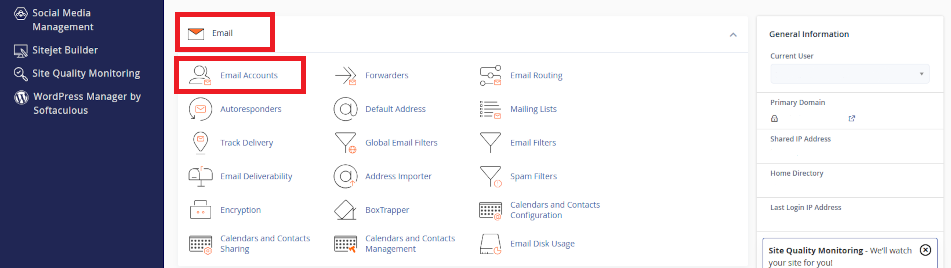
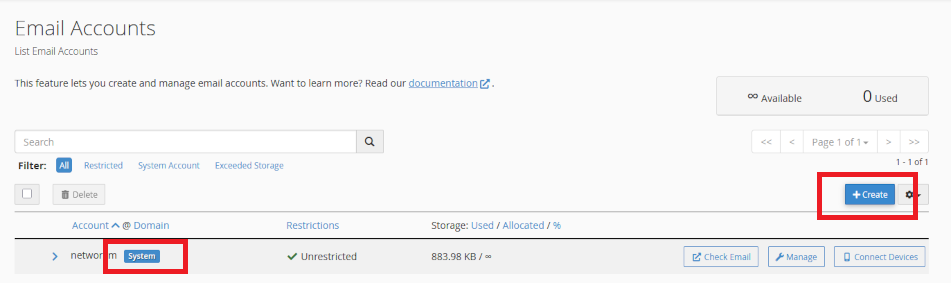
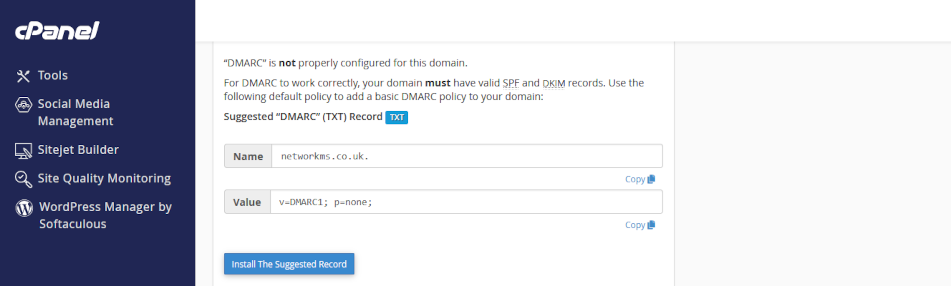
Click on the headers below to follow our guide to obtain a DMARC record using cPanel WHM and then configure your DMARC record in your domain name’s zone record at your domain registrar. Click on images to see in full resolution.

How to prepare

DMARC is already enabled on your web server. DMARC builds on DKIM and SPF, so before implementing DMARC, be sure to implement DKIM first.

Before you configure DMARC in your domain name’s zone record, you will need to understand where your domain name is managed. If your domain name is held at a domain name supplier using their nameservers, you will need to configure DMARC records in your domain name’s zone record at your supplier. If you own the domain, but we hold it in our management portfolio, then you might only need to make amendments in cPanel which will make things easier.

Therefore, before you start, prepare as follows:

  1. if in doubt, check with us where your records need modifying
  2. find your cPanel login credentials from your server information sheet
  3. (optionally) find the login credentials for your domain name supplier

We recommend you add a DMARC record to your domain name’s zone record which initially operates DMARC in test mode. Our workflow therefore is designed to accomplish this preliminary objective.

Making adjustments to your domain name’s zone record requires exacting language and sytax. A missing character can cause a web site to cease functioning and disable your email. Nor can you test it – changes made have effect in real time. Be sure to copy records before overwriting “last known working” states.

We have decades of experience managing domain names on behalf of clients. If you are nervous about dealing with this technology, we can provide admin support for domain names and ongoing services – ask for help.

Step-by-step instructions

Follow these instructions caefully to configure DMARC and activate the service. Each step is important. Missing characters like colons, semi-colons, and spelling mistakes can cause a lot of work.

1. Log in to cPanel:

  • open your web browser
  • enter your cPanel URL (e.g., https://yourdomain.com:2083)
  • log in with your cPanel credentials

2. Navigate to <Zone Editor>

  • in cPanel dashboard, scroll to <Domains> section
  • find and click open <Zone Editor>

3. Look for a DMARC Record:

  • in Zone Editor, find the domain you want to check
  • click <Manage> next to the domain
  • look for a TXT record with the name: _dmarc.yourdomain.com
  • if you do not see one, you will need to create it

4. Create or Modify a DMARC Record:

  • if you need to create a new DMARC record, click <Add Record>
  • choose <TXT Record> from the <+Add> dropdown list
  • in the <Name> field, enter: _dmarc
  • in the <TTL> field, leave the default value
  • in the <Type> field, select: TXT
  • in the <Record field>, enter your DMARC policy. For now, use:
    • v=DMARC1; p=none; rua=mailto:dmarc-reports@yourdomain.com; ruf=mailto:dmarc-failures@yourdomain.com; sp=none; pct=100
  • for <mailto:> substitute your preferred email address• see notes below
  • select and copy the record field to clipboard or notepad. You will need this later

5. Save the DMARC Record:

  • Click <Save Record> to apply the changes

6. Log in to Your Domain Registrar:

  • in a new browser window, go to your domain registrar’s website
  • log in with your credentials

7. Access DNS Management:

  • find the DNS management or zone file settings
  • this section allows you to add or edit DNS records

8. Add the DMARC Record you created in steps 4 and 5 above:

  • Add a new TXT record
  • in the <Name> field, enter: _dmarc
  • in the <Value> field, paste the DMARC policy you created and copied earlier in cPanel
  • Save the changes

9. Verify the new DMARC record:

  • Use online tools like MXToolbox to verify your DMARC record
  • Check for typos like missing colons or spaces, or inaccurate spelling

Notes:

DMARC is a technology that operates on a few levels. The record we gave an example for you to use above is for a DMARC policy that shows DMARC is enabled, but not reactive (p=0). The record can be modified to p=quarantine and p=reject which cause emails that fail a test to be either quarantined or rejected by a receiver. In some circumstances like emails sent to a mailing list, values for sp and pct can also affect how your outgoing email is received.

By using policy p=0 and establishing the email address of the person you want to receive DMARC reports, you have a minium valid record. Once this tests positive, consider upgrading the policy to p=quarantine.

Summary

DMARC builds upon existing protocols like SPF and DKIM to help domain name owners specify how their organisation’s emails should be treate by receiving email servers that fail authentication checks. This is important because it helps to prevent a malicious party from attempting to use your email addresses to purport to be you using spoofing and phishing attacks. Consequently, you can configure DMARC a few ways.

Making adjustments to your domain name’s zone record requires exacting language and syntax. A missing character can cause a web site to cease functioning and disable your organisation’s email. Nor can you test a modification first – changes made have effect in real time.

Expert help available

We have decades of experience managing domain names on behalf of clients. If you are nervous about dealing with this technology, we can provide admin support for domain names and ongoing services. We can turn modifications in minimal time at reasonable cost while saving you from risk of web site and email disruption – please ask for help if in doubt.

Configure DKIM in cPanel

Verify outgoing email with DKIM

Use DKIM (DomainKeys Identified Mail) to reduce the chance of your users’ outgoing emails ending up in customer/supplier Spam or Junk folders.

DKIM configuration tool

Click on the headers below to follow our guide to configure DKIM using cPanel WHM and post your DKIM records in your domain name’s zone record at your domain registrar. Click on images to see in full resolution.

How to prepare

DKIM is already enabled on your web server. However, the service needs to be implemented. This is because the verification process requires checking a unique DKIM record which only you can add to your domain name’s “phone book” – we call the phone book a zone record. If we have ongoing access to your domain name, we would take care of this as part of the support we provide.

Before starting, you will need to understand where your domain name is managed. If your domain name is held at a domain name supplier using their nameservers, you will need to create DKIM records in the zone record at your supplier. If you own the domain, but we hold it in our management portfolio, then you might only need to make amendments in cPanel which will make things easier.

Therefore, before you proceed, prepare as follows:

  1. if in doubt, check with us where your records need modifying
  2. find your cPanel login credentials from our server information sheet
  3. (optionally) find the login credentials for your domain name supplier

We are able to manage domain names on behalf of clients. Domain name management is a critical function and unwitting errors can cause email and web site failure. If you are nervous about dealing with this technology, we can provide admin support – ask for help. For instance, if you do not have in-house expertise, we can take administrative custody of your domain to manage these kinds of jobs.

Step-by-Step instructions

1. Log in to WHM:

2. Access the DKIM Settings:

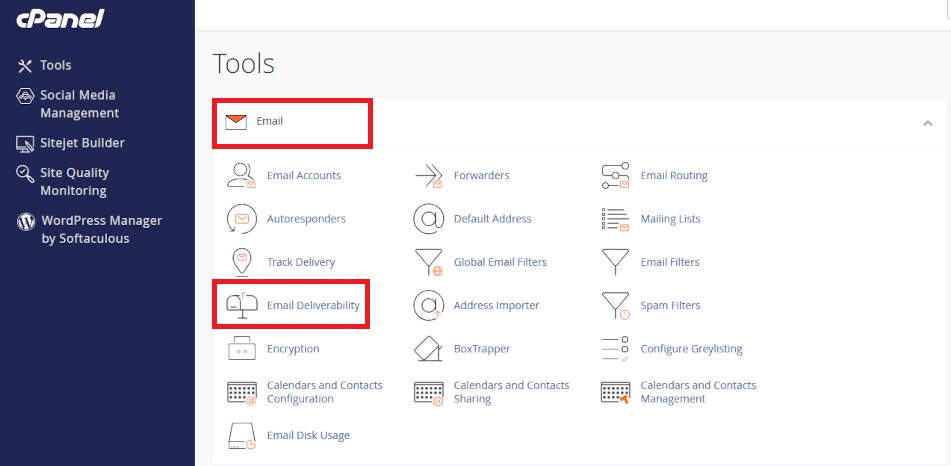
  • In the WHM dashboard, search for <Email>.
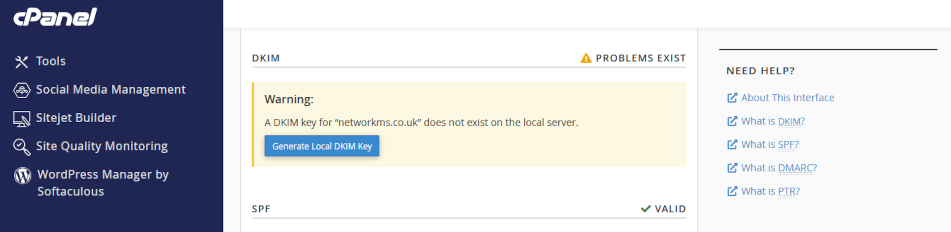
  • Click on <Email Deliverability>.

dkim configuration module

3. Select the Domain:

  • Choose the domain you want to configure DKIM for.
  • Click <Manage> next to the domain.

4. Enable DKIM:

  • In the DKIM section, click <Install the Suggested Record>.
  • WHM will automatically generate the DKIM record.

5. Copy the DKIM Record:

  • After generating the DKIM record, you will see a TXT record.
  • Copy the entire TXT record, including the v=DKIM1; part.

6. Log in to Your Domain Registrar:

  • Open your domain registrar’s website.
  • Log in with your credentials.

7. Access DNS Management:

  • Find the DNS management or zone file settings.
  • This section allows you to add or edit DNS records.

8. Add the DKIM Record:

  • Add a new TXT record.
  • In the Name field, enter the selector and domain (e.g., default._domainkey.yourdomain.com).
  • In the Value field, paste the DKIM record you copied from WHM.
  • Save the changes.

9. Verify the DKIM Record:

  • Go back to WHM.
  • In the <Email Deliverability> section, click <Manage> next to your domain.
  • Click <Check> to verify the DKIM record.

10. Test Your DKIM Setup:

  • Send a test email to ensure DKIM is working.
  • Use online tools like DKIMValidator to check if your email passes DKIM checks.

Tips for Non-IT Users

  • Take Your Time: Follow each step carefully.
  • Ask for Help: If you get stuck, don’t hesitate to ask your registrar’s support team.
  • Double-Check Entries: Ensure there are no typos in the DKIM record.
Summary

Business users do not have a lot of patience when it comes to email, and not a lot of people check Spam or Junk occasionally if at all. Email that is lost in this way costs business so DKIM, along with SPF (automatically configured for you already, DMARC, and Reverse DNS are necessary utilities for providing resilient email delivery.

Making adjustments to your domain name’s zone record requires exacting language and syntax. A missing character can cause a web site to cease functioning and disable your organisation’s email. Nor can you test a modification first – changes made have effect in real time.

Expert help available

We have decades of experience managing domain names on behalf of clients. If you are nervous about dealing with this technology, we can provide admin support for domain names and ongoing services – we can turn modifications in minimal time at reasonable cost and while saving you from risk of web site and email disruption – please ask for help if in doubt.