How to configure DNS for a contact form

Integrating contact forms with an external email service

This guide walks you through modifications you need to make to your domain name’s DNS zone record so that your contact form mail can reliably connect to your external email service, like Microsoft 365 or another email supplier.

configure DNS for contact forms

This article is written for web designers who know websites but may not be as familiar with DNS.

Click on the headers below to find out how to modify DNS records and other steps in the order shown. Click on images to view at full-sized resolution.

1. Why?

One of the biggest reasons spam happens is because a hacker can purport to be you by sending email using your email address from email servers that you do not control. This means end users have to constantly combat rogue email, and email services have to make educated guesses about what is good email before passing it to your Inbox.

These modifications to SPF, rDNS, DKIM, and DMARC help a receiving email server determine that the email it receives really does come from an email server in your control.

If a receiving server cannot validate the source of your email, the receiving server is likely to conclude that your email has been sent from a spammer, in which case the email will be dropped. Your server can implement some tools, but your domain name has to be configured to co-ordinate with your server too.

2. Scenario

This example assumes that a web site owner uses Microsoft 365 for email and the domain name which governs the web site and email is managed at a registrar like GoDaddy where the authoritative zone record is held. In reality, the registrar might be different. For instance, the domain name might be managed at Cloudflare or even Microsoft 365 itself.

The important point is to understand where your authoritative zone record is managed. the web server will have a zone record. However, if the domain name is regitered at a regisrar like Tucows and the domain name uses Tucow’s nameservers, then the authoritative nameserver for your domain is at Tucows.

This workflow assumes:

  • Your website is hosted on at IP address 88.202.183.10
  • The domain’s authoritative DNS is managed at a registrar like GoDaddy
  • Email for the domain (e.g., yourdomain.co.uk) is handled by Microsoft 365
  • You want your contact forms to send email from the domain (e.g., info@yourdomain.co.uk) using your web server’s mail system

This assumes that you already have a valid email address called info@yourdomain.co.uk. Also, this assumes that DKIM and DMARC are already configured for Microsoft 365. Microsoft organises its DKIM records using CNAME records – this means that Microsoft can handle DKIM identifiers in-house.

This is useful because most other entities use an A record which means multiple there would be multiple DKIM records in your authoritative zone. This is possible, but it might affect reliability. So, if you already have DKIM records in your authoritative zone to cope with another email server, it might be worth considering options.

Preparation

Review the existing authoritative zone record to check for SPF, DKIM, and DMARC. You will need:

  • credentials for the domain name registrar control panel access
  • credentials for cPanel to edit and get records from your web server
  • credentials for any other services that might be implicated, like Microsoft 365
  • if DKIM is not already configured, refer to this guidance note
  • if DMARC is not already configured, refer to this guidance note
3. SPF (Sender Policy Framework)

SPF tells receiving email servers which IP addresses you have approved to send mail for your domain. Usually, this record is already posted in your zone record. In the example below, the record is only configured to recognize Microsoft 365:

v=spf1 include:spf.protection.outlook.com -all

So, now we need to include your web server’s IP address to verify that your web server is a valid email server too.

What to do:

  • Log into the DNS editor where your domain name is managed (e.g. GoDaddy)
  • Find your existing SPF TXT record (it starts with v=spf1).
  • Add your server’s IP: ip4:88.202.183.10 before the -all.

Example:

v=spf1 include:spf.protection.outlook.com ip4:88.202.183.10 -all

The syntax is not absolute. For instance, the following record also works:

v=spf1 ip4:88.202.183.10 include:spf.protection.outlook.com -all

Adding your web server’s IP address to the SPF record authenticates both Microsoft 365 and your web server as valid mail servers for your domain.

4. rDNS (Reverse DNS / PTR Record)

Unless you rely on exceptional settings, you do not need to do anything about rDNS. A PTR record is already established in the reverse zone for our servers. This means that the IP address for your server is already mapped to your hostname.

A PTR record can only be created where a reverse zone is accessible. Usually, this means having to post a support ticket at your domain registrar, or asking the owner of the IP address you have been granted to map the setting for you.

5. DKIM (DomainKeys Identified Mail)

DKIM adds a digital signature to your emails.

Usually, DKIM is established with an A record. Microsoft 365 already uses DKIM via CNAME records. This is convenient. Other registrars might already require an A record that you rely on. It is possible to have multiple A records establishing DKIM records for different servers. This might cause some reliability issues though. So, you might need to monitor traffic flow after making this kind of change. In any event,  your web server needs its own DKIM setup if it sends mail too.

What to do in cPanel:

  • Log into cPanel
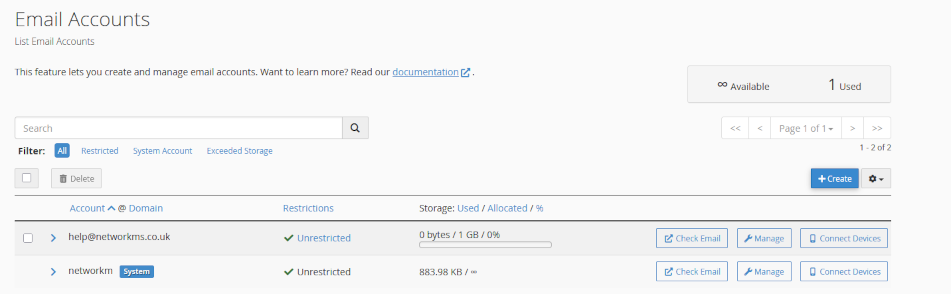
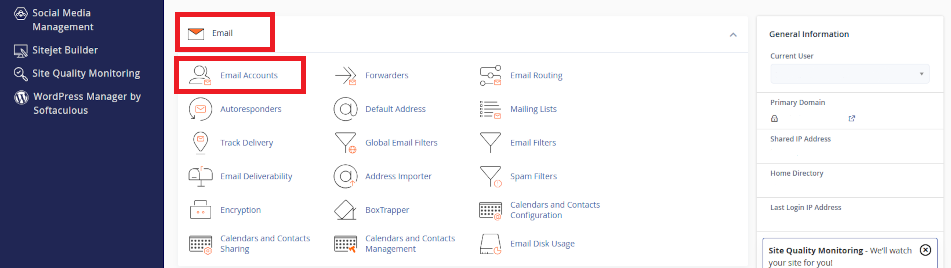
  • Go to Email  > Email Deliverability
  • Click open <Manage>
  • Do not enable DKIM. Instead:
  • Copy the TXT Name and Value fields shown for DKIM
  • Add this TXT record to your DNS at GoDaddy

This allows receiving servers to verify that your server’s emails are legitimate.

6. DMARC (Domain-based Message Authentication, Reporting & Conformance)

DMARC tells receiving servers how to handle emails that fail SPF or DKIM checks. settings. This may already be established in your authoritative zone and that record would already be valid as long as:

  • your SPF record already includes for your web server’s IP address
  • or DKIM passes for your server (if you set it up)

 Example

You can use the values suggested in cPanel > Email > Email Deliverability to create a DMARC record. DMARC uses an industry defined instruction set which is universally adhered to. For now, it is probably only necessary to operate DMARC in “test” mode. However, some services like Microsoft 365 may be sensitive (especially to “contact form” mail and require an elevated metric like p=quarantine.

Name: _dmarc.domainname.co.uk
Value: v=DMARC1; p=quarantine; rua=mailto:your-alias@domainname.co.uk

The three incremental states for DMARC are:

  • p=none
  • p=quarantine
  • p=reject
8. cPanel Mail Routing

Lastly, check that your server expects email to be managed externally. As the records above are being added to your authotitative zone, cPanel will often detect that external email servers are now in use. However, you need to check this setting.

What to do:

  • log into cPanel > Email > Email Routing
  • check <Remote Mail Exchanger> if it is not already enabled
  • save the setting

This ensures your server sends contact form emails to Microsoft 365 instead of trying to deliver them locally.

Testing and Summary

After updating your DNS:

  • Use MXToolbox to check SPF, DKIM, and DMARC
  • Send test emails from your contact form to Gmail or Outlook and inspect the headers
  • Look for spf=pass, dkim=pass, and dmarc=pass

Summary

By configuring SPF, rDNS, DKIM, and DMARC correctly, your contact forms can send email reliably—even when Microsoft 365 or other suppliers handle your domain’s email. This setup helps prevent your messages from being flagged as spam and protects a client’s domain reputation and brand intact.

About ComStat.uk: Internet Service Provider Comstat provides IT support, web hosting, and media services including web design, Microsoft 365 setup, and audio/video production, serving businesses across Denbighshire, North Wales and Wirral from Ruthin, and Lancashire and the Northwest from Bolton.
Configure SPF, rDNS, DKIM, and DMARC for email

Introduction

Sending and receiving email should be straightforward, but a lot of background checks happen before your organization’s email is delivered reliably and securely. Use this article to activate SPF, rDNS, DKIM, and DMARC to make sure your email reaches recipients, and protects your email server from crippling outcomes like dropped email and public blacklisting.

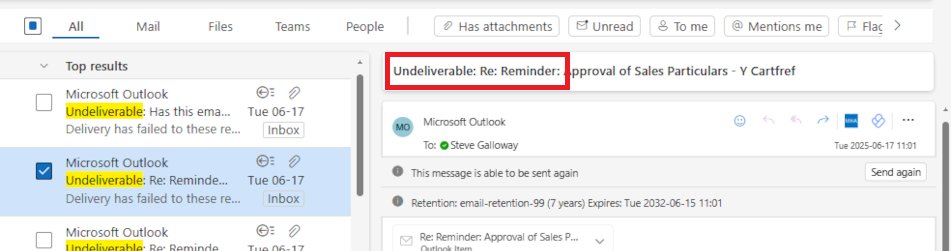
undeliverable email header

“Undeliverable”: What cost a lost email that you never know a recipient has not seen?

Click open the headers below to learn about email deiverability and “trust”. Please read through this entire article before starting to engage individual modifications to your email server. Changes you make are done so at your risk so be sure to contact us for general advice if you are in doubt. Support options are available for professional assistance. Click on images to view at full-sized resolution.

Why do these protocols matter?

If you do not put a postage stamp on a letter, it probably will not reach its destination, and without a return address you will certainly never know what happened to the letter.

Similarly, without SPF, rDNS, DKIM, and DMARC, email that you send will be erratic and unpredictable. This is because industry tools to assess “trust” are not operational. These protocols are like postage stamps. You may think “it has never been a problem before”. Partly this is because when email does not reach a recipient, you know you sent it but the recipient does not know it was supposed to be received.

Everyone has sent an email that has never reached its target. These protocols are why most failures happen, and in business communications…. it matters. The protocols we cover in this article enable your suppliers’ and customers’ email servers to “trust” your email and its “brand”.

“Postage stamps” for email

The one question we are posed by clients in 25 years of IT support more than anything else is the plaintive “why aren’t my emails getting through?”. Hopefully, it is only because of a badly spelled email address. Often, though, the answer is that outgoing email is not sending adequately “stamped” emails with “return addresses”.

Protecting your identity – “trust”

Protocols like SPF, rDNS, DKIM, and DMARC are email’s a little bit like postage stamps. When the bar code on a postage stamp is recognized as authentic, the envelope is sent to its destination. Similarly, protocols enable receiving email servers to measure and “trust” the authenticity of your communication. Put another way, these protocols protect your email from being measured as spam or malicious email.

Self serve guides for implementing email protocols

Your web server is optimised for delivering your web pages. If email is included in your package, we have made sure that an email server is enabled with necessary email tools. However, like flat-pack furniture, your email server is minimally configured and the protocols described here need to be aligned with your domain name.

These domain name modifications can only be manually configured by you or your agent. If we look after your domain name, we would configure these modifications within your ongoing support. If we do not have admin privileges for your domain name’s “zone record”, and you have elected against support, then you need to configure your domain name’s zone record.

If you do not have expert in-house IT skills, consider our DNS configuration service and ongoing support plans.

DNS Configuration – Professional support

DNS is awkward technology, even for IT pros. If you purchased your domain before you began using our servers and you want us to manage your domain name records for you, we can still administer your domain name records (DNS) annually for £75, including periodic updates as they are required. Use the PayPal QR code at the bottom of our home page for to send us payment, or contact us to arrange invoicing for our DNS service. This is included in optional support arrangements that you may already subscribe to.

DNS Configuration – self-service option

Use our “self-serve” guides linked below to implement SPF, rDNS, DKIM, and DMARC. There are a few ways to deal with these modifications, and it really depends on how your domain name, and your authoritative nameservers are configured. Read more about deciding where to manage your authoritative nameserver here. So these articles might not be exactly on point for your situations. Again, ask us for advice. Implement the protocols in the order listed:

  1. How to configure SPF
  2. How to configure rDNS
  3. How to configure DKIM
  4. How to configure DMARC

Tips and tricks

  • some protocols may take up to 24-72 hours to resolve
  • read through each guide before starting
  • monitor email for a week or so before enabling the next protocol
  • do not make DNS modifications during heavy traffic/important projects
  • document what you do (e.g. screen shots) so that you have a note of “last known” working state

Bear in mind that changes made to domain names happen in real time, and errors can cause web site and email outages that could take up to 72 hours to restore. If in doubt, contact us first.


Summary

Email is vulnerable to malicious attacks that pose risks to your online identity, reputation, and hijack. Implementing SPF, rDNS, DKIM, and DMARC helps to ensure that your outgoing email reaches recipients.

Implementing these kinds of services is challenging without experience. If you do not have expert in-house IT skills, consider our email configuration service and ongoing support plans. We are glad to quote on request.

How to use cPanel Web Disk

cPanel Webdisk

Use cPanel Web Disk as a Cloud storage facility for managing and sharing your documents and files. Create Web Disk accounts in cPanel and save connections in your devices as network drives to provide access on your local devices.

cpanel web disk landing page


Click on the headers below to find out how to use cPanel’s Web Disk module. Click on images to see in full resolution.

Plan a Web Disk folder structure

Web disk is a useful resource for saving files for access from computers and mobile devices that have been configured to connect to Web Disk user profile. Some organizations use the utility for off-site file backup.

Create a folder structure with user accounts

First, plan a folder structure (directory in Linux parlance) that can scale as your needs grow and change. For instance, you might create a user account for Accounting, and a user account for Marketing. This way, you can control how staff connect to the right files. Web Disk may be a useful mechanism for backing up local files, too.

Next, create a “sandbox” account to test account creation and connectivity. Then, you ca establish user accounts in cPanel and download connection scripts which can be installed on desired devices.

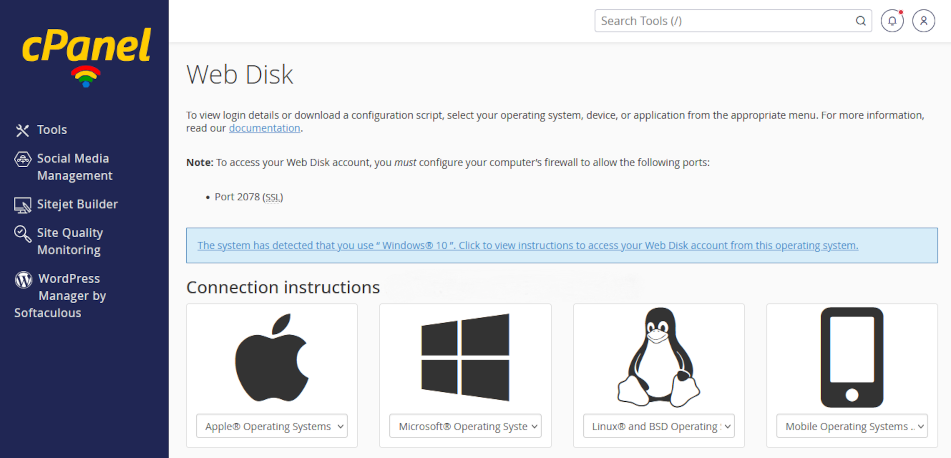
web disk connection screen

Your server can generate cconnection scripts that you can install on devices to create a permanent connection to files from computers and mobile devices.

Secure data transfer

Connections between your web server and connected devices leverage your web server’s SSL certificate. This means that your connected computer can connect to a Web Disk drive so that the Web Disk location appears in Windows File Explorer or Mac OS Finder. If you need to connect to multiple Web Disk accounts, download a script for each account you have privileges to connect to.

File sharing

Modern approaches to file sharing reduce the risk of duplication and version problems that have plagued workgroups in the past. Solutions like Microsoft 365 provide GDPR-compliant utilities to control versions and multi-user editing in real time. Web Disk does not include these kinds of tools.

There are third party add-on solutions that expand file sharing options for Web Disk to emulate Microsoft 365’s capabilities. Be aware that Web Disk may not be a suitable for you if your organization relies on version control and simultaneous multi user editing. 

Create a new Web Disk account

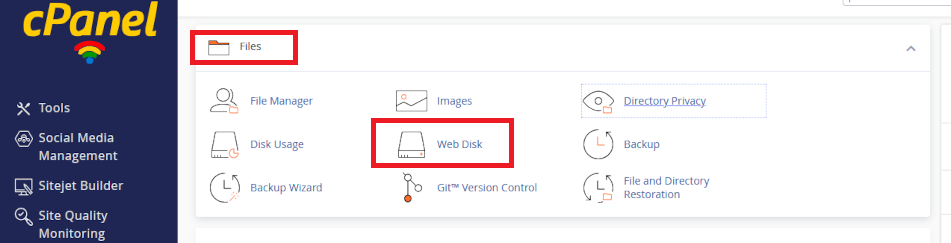
Only the web site owner can create Web Disk Accounts. Log into cPanel using the data sheet we have provided you with and navigate to Files > Web Disk. Click open the utility.

web disk utility

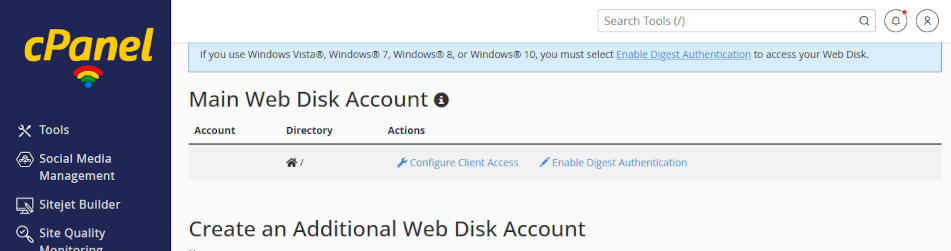
Leave your primary user account alone

When you open Web Disk, you will see that a user account is already established. Leave this primary account alone. Your primary Web Disk account has access to all directories on your web server, including your web site pages and database. Sharing credentials for the primary accounts which poses a catastrophic risks if shared.

Instead, adding accounts makes it is easier to manage and revoke access for individual users without affecting the primary account. Also, creating a hierarcy of accounts helps you track/change/remove users and privileges.

 Add an account

  1. Scroll down the Web Disk page and click open Create an Additional Web Disk Account
  2. Fill in the fields, including user name and permissions
  3. Use the recomended directory location
  4. Enable <Digest Authentication> (for Windows users)
  5. Review the account privileges and click <Create>

web disk additional account

Edit new and existing accounts under the <Manage Additional Web Disk Accounts> heading

Download and install connection script

Once your account is created you can edit properties, change passwords, and download connection scripts for that account. Distribute connection scripts to users or devices that need connecting to the account.

To install the installation script, click on the downloaded file and follow the prompts. When you enter your login credentials you will need to enter the full syntax for the account (e.g. marketing@my-server-name, not “marketing”). This will connect you to your web disk account on your web server. In future, you will find a link to your Web Disk account in File Manager or Finder.

web disk connection screen

Your server can generate connection scripts that you can install on devices to create a permanent connection to files from computers and mobile devices.

If you are connecting to multiple folders, download a script for each account. Also, if you are the web site owner, you have automatic privileges to all directories on your server.

Create file links for email

Today, organizations send file attachments using links. Email file attachment links:

  • reduces email storage costs
  • reduces bandwidth usage
  • helps control file version problems
  • reduces the risk of emails being rejected by recipients who restrict file attachment sizes.

As email users and storage increase over time, organizations of all sizes have to deal with bloat. So it is important to establish a policy to address this looming problem. There are options to do this with Webdisk and add-on software.

    Enable file sharing permissions individually

    To grant an email recipient access to a linked file, access Webdisk using cPanel File manager, right clicking on a file and changing permissions to 644 and finally right clicking on the file to get a direct link to paste into your email. This is less tricky than it sounds. However, making files publicly accessible over time poses problems over time and may not be suitable for GDPR compliance.

    Enable file-sharing permissions at directory level

    Files for email attachment can also be stored in a public directory which can be created with 755 permissions. This kind of directory could be called “email attachments” or “shared with everyone. Since sharing permissions are already established, it only remains for a user to get the file link to include in an email. Also, directory contents can be reviewed over time to deal with compliance issues. 

    Third party add-ons and Webdisk customization

    You can use third party apps like Cyberduck to extend Webdisk’s finctionality to include more streamlined file links and more. Also, link expiration policies can be set at server level to control data loss or leakage. Please contact us for help with Webdisk customizations.

    Summary

    Web Disk provides a simple centralised file management system. Using Linux “user” privileges, you can create a directory hierarchy to manage user or device access to “departmental” files.

    Web Disk does not natively provide multi-user real time editing or document version options. You can use add-on software to improve functionality. You may need to develop an in-house system to notify workgroup users when a file they may want to edit is already being edited by another user. As files become more widely shared and/or users need to collaboratively edit documents, consider Microsoft 365 to address workgroup needs.

    Web disk might be a good way to back up files stored on premises. However, if Web Disk is your primary file location, be aware that backup remains your responsibility and you should implement a workflow within your GDPR documentation to manage backups.

    For expert help about Webdisk, and fully supported management please contact us.

    About ComStat.uk: Internet Service Provider Comstat provides IT support, web hosting, and media services including web design, Microsoft 365 setup, and audio/video production, serving businesses across Denbighshire, North Wales and Wirral from Ruthin, and Lancashire and the Northwest from Bolton.
     

    How to back up your web server with cPanel

    Backup vs Backup Wizard

    Use our cPanel utilities to backup and restore web site data content, databases, and other data on your web server.

    cPanel backup wizard

    cPanel backup utility provides workflows for backing up and restoring web site and email content

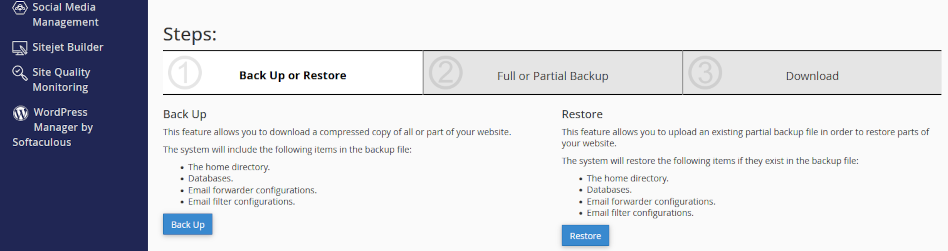
    Using cPanel’s Backup utility, you can select from data sets we have already backed up and download the files to your local drives for safekeeping.

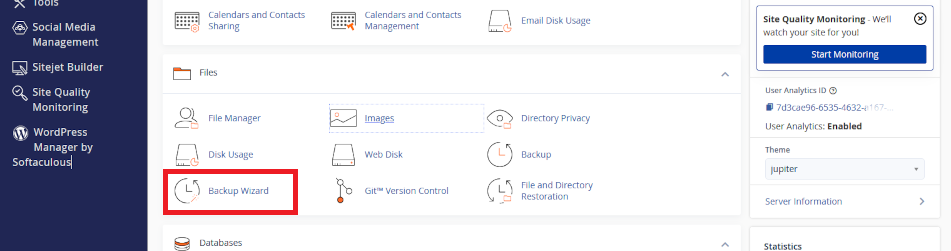
    Using cPanel’s Backup Wizard utility, you can design your own backups. You can backup some or all or your content. Also, you can backup incremental backups which are useful when you only need to backup minor changes since your last full backup. You can store your files locally, restore them to your server, and you can use the content when migrating to a new server.

    Click on the headers below to find out how to use cPanel Backup and Backup Wizard. Click on images to view full size.

    Download Backups using cPanel Backup

    Log into your web server’s control panel – we call it cPanel. You can find how to log into your services from the web server data sheet we have provided you with.

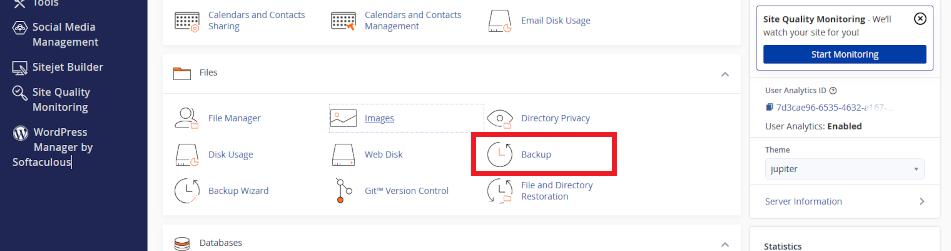
    At your cPanel dashboard, either search for Backup or scroll to the section called Files and click on the optin called Backup.

    cPanel backup option

    About cPanel Backup

    cPanel Backup lists backups that are already made and stored on your web server. These are available in a pulldown list, including full and partial backups, that you can download. The list includes backups that we have executed as we deal with daily mantenance. You can download these backups,

    Export backup from server

    We recommend that you download backups to your local drives, and you can find help for copying backups at datacenter speeds to Google Drive, OneDrive, Dropbox, etc. Also, to conserve space and improve web page delivery speeds, note that we rotate backups so that (at time of writing) we only maintain the two latest backups.

    About Restore

    In cPanel Backup, there is an option to restore backups. If you are restoring full and partial backups, be aware that you should restore data sets in date order, starting with the earliest date stamp. 

    Create backups and restore with Backup Wizard

    Use cPanel Backup Wizard to create and download backups. Also, you can restore backups using this option.

    cPanel backup wizard


    Backup Wizard – more options

    Backup Wizard offers more granularity, giving you the option to select individual data sets, like your WordPress site, or your MySQL database which attaches to your WordPress site, or your email. Also, you can execute partial backups if changes that you have made to your web site are minimal.

    Using Backup Wizard you can create your own backup profile. Downloading files that we have created may limit what you are able to do.

    Summary

    cPanel’s backup utilities have proven to be reliable, however a lot of things can go wrong with backups. Your server might backup files accurately, but the data could be corrupted as it is saved because of a power brownout. Or, data might be damaged in transit as the data set is transferred elsewhere. So, although we take “snapshots” of your web site, they are not guaranteed, and we only keep updates that are current over the last 2-4 weeks.

    Therefore, you should only rely on our working backups as part of your risk management. Professionals use an array of tools to provide duplication and/or availability. In some cases, professionals mirror two or more geographically remote servers to cover a primary server failure. In some cases, this is economical and we can implement these kinds of services.

    You can protect against a single point of failure failure by developing a strategy which covers two or more methods to secure data. For instance, your web designer may keep backups. Usually these conserve work in progress so that there is a “last known working state”. You might need to maintain a longer history of backups.

    Your web designer will be glad to discuss backup strategies with you because you might mutually and economically share utilities and avoid extra cost. Also, we are always glad to help if you do not have a professional developer but need advise about strategy and products. 

    About ComStat.uk: Internet Service Provider Comstat provides IT support, web hosting, and media services including web design, Microsoft 365 setup, and audio/video production, serving businesses across Denbighshire, North Wales and Wirral from Ruthin, and Lancashire and the Northwest from Bolton.