Improving Home Wi-Fi with BT Broadband and TP-Link Deco
If your home has a BT broadband router and two or more TP-Link Deco units, the recommended setup is to use the Deco system to provide all Wi-Fi coverage throughout the property, while the BT router continues to manage the internet connection. TP-Link recommends operating Deco in Access Point (AP) Mode when used alongside an existing router, and Ethernet backhaul is fully supported in this mode.
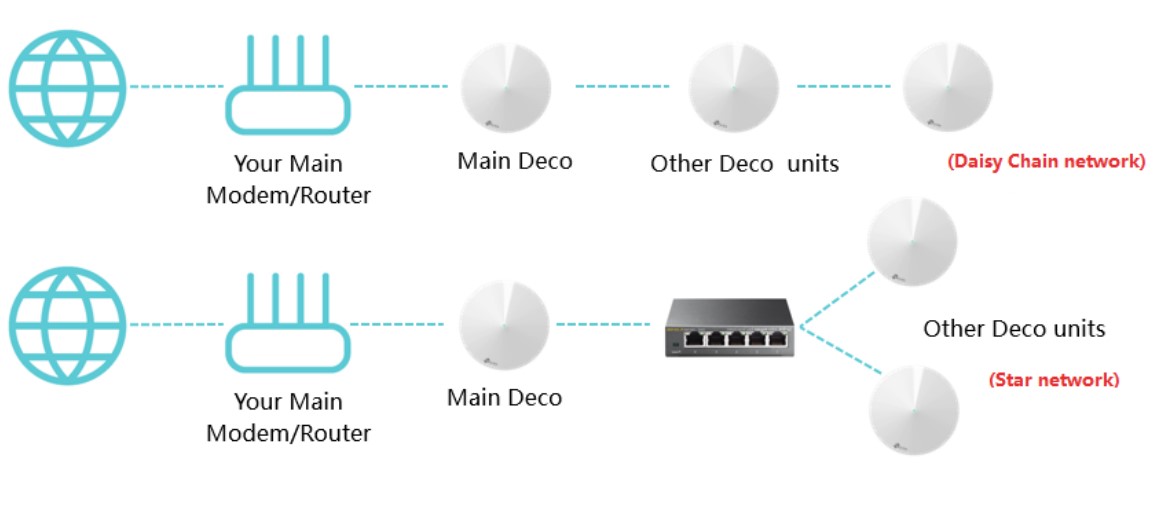
Click open the headers below to learn how to install a TP-Link Deco WiFi network using your BTInternet router. There are a few methods, one of which replaces the BT router altogether, however we recommend plugging your main Deco unit into your router or connecting via a switch which is plugged into the router. Use Ethernet backhaul in your Tp-Link phone app to interconnect devices using ethernet cabling, or WiFi backhaul if you do not have Ethernet cabling. Support options are available for professional assistance. You can return to our Index of Articles by clicking here.
Recommended Connection Layout for wired Ethernet networks
Where Ethernet cabling is available throughout the property. Firstly, inspect ethernet cabling making sure that plugs and connections are firmly seated. Connect the equipment as follows:
Internet
|
BT Router
|
Ethernet Switch (if required)
|
+————+————+—–
| | |
Deco 1 Deco 2 Deco 3 …etc
Alternatively, all Deco units may be connected directly to the BT router or to a network switch connected to the router.
Why Ethernet Backhaul?
Using Ethernet between Deco units is generally the best-performing option because:
- Faster and more reliable than wireless backhau
- Less affected by thick walls and interference
- Provides better roaming between rooms
- Leaves more wireless capacity available for phones, tablets, TVs and laptops
TP-Link specifically supports Ethernet backhaul while operating in Access Point Mode.
Checking That Deco Is Configured in Access Point Mode
Microsoft includes a built-in reset mechanism for the OneDrive client.
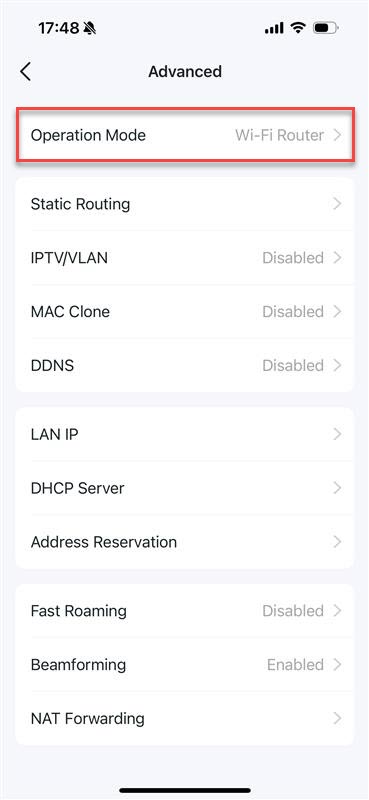
Using the TP-Link Deco app on your phone:
- Open the Deco app
- Select More
- Select Advanced
- Select Operation Mode (or Operating Mode on some versions)
- Confirm that Access Point is selected
- If not, select Access Point and save the change
- Allow the Deco system to reboot
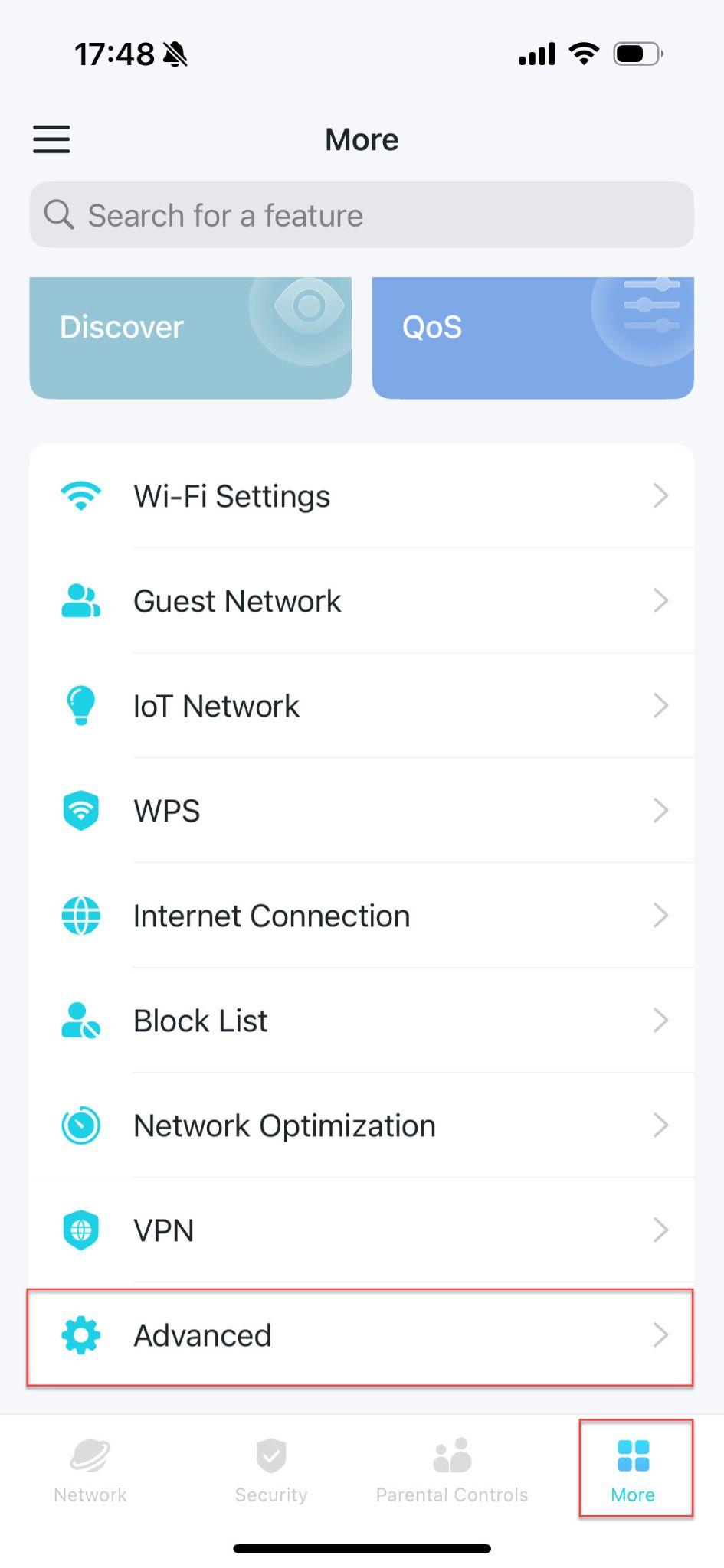
Finding Advanced settings on TP-Link Deco app
Finding Advanced settings on TP-Link Deco app
Once complete, the Deco system will provide the Wi-Fi service while the BT router continues to perform routing and DHCP functions.
Optional: Disable Wi-Fi on the BT Router
To avoid interference between the BT router and the Deco system, it is usually advisable to turn off the BT router’s own Wi-Fi and use only the Deco Wi-Fi network. Partly, this is because the main Deco unit can be operated as your router instead of your telco supplied router. Also, bandwidth between two operational WiFi networks can cause interruption or disruption. TP-Link also recommends disabling the existing router’s Wi-Fi when using Deco with an existing router.
For most BT Smart Hubs:
- Open a web browser
- Go to http://192.168.1.254 (this assumes default supplier settings)
- Log in to the Hub Manager (you will need your router credentials)
- Open Wireless settings
- Turn Wi-Fi Off
BT provides these controls through the Hub Manager on supported Hub models.
Next Styeps/If Problems Continue
If your Wi-Fi remains slow, unreliable or does not function correctly after following the above guidance, problems are posible in damaged or improperly cabling pin-outs, misconfigured telco router, poor Deco placement, or possibly broadband connectivity.
Check broadband connectivcity by disengaing all equipment from your router and testing service with a PC or laptop. Introduce device sequentially to check for faulty hardware.
If wired Ethernet backhaul to the router is not providing good service, opt for WiFi backhaul by disconnect remote Decos from cabling, make sure units are in range of main Deco unit. Check settings in your mobile phone app. Then, check WiFi services by grdually moving remote Deco units towards target destinations. Some versions of your phone app include statistics for checking signal performance between Deco units.
If the network is still not operating, professional assistance may be required. On-site diagnosis and remediation can be arranged at my standard call out charge for 90 minutes, and either an hourlyor daily rate, whichever is the lesser.
Comstat provides independent advice on business IT choices that reduce risk, protect continuity, and support long‑term growth. If you need help managhing email, please get in touch, or use our contact page to organize an appointment which suits your timetable. You can return to our Index of Articles by clicking here.