Microsoft OneDrive DLL Error: How to Fix a Corrupted DLL Using a OneDrive Reset
A client recently reported a startup error on a Windows 11 laptop. The message referenced a corrupted DLL file within the Microsoft OneDrive installation directory:
C:\Users\*user-name*\AppData\Local\Microsoft\OneDrive\Codecs\8.1.2\acutil-60.dll
The error stated that the DLL was either not designed to run on Windows or contained an error. Following additional restart attempts, the client believed Windows itself had become unusable.
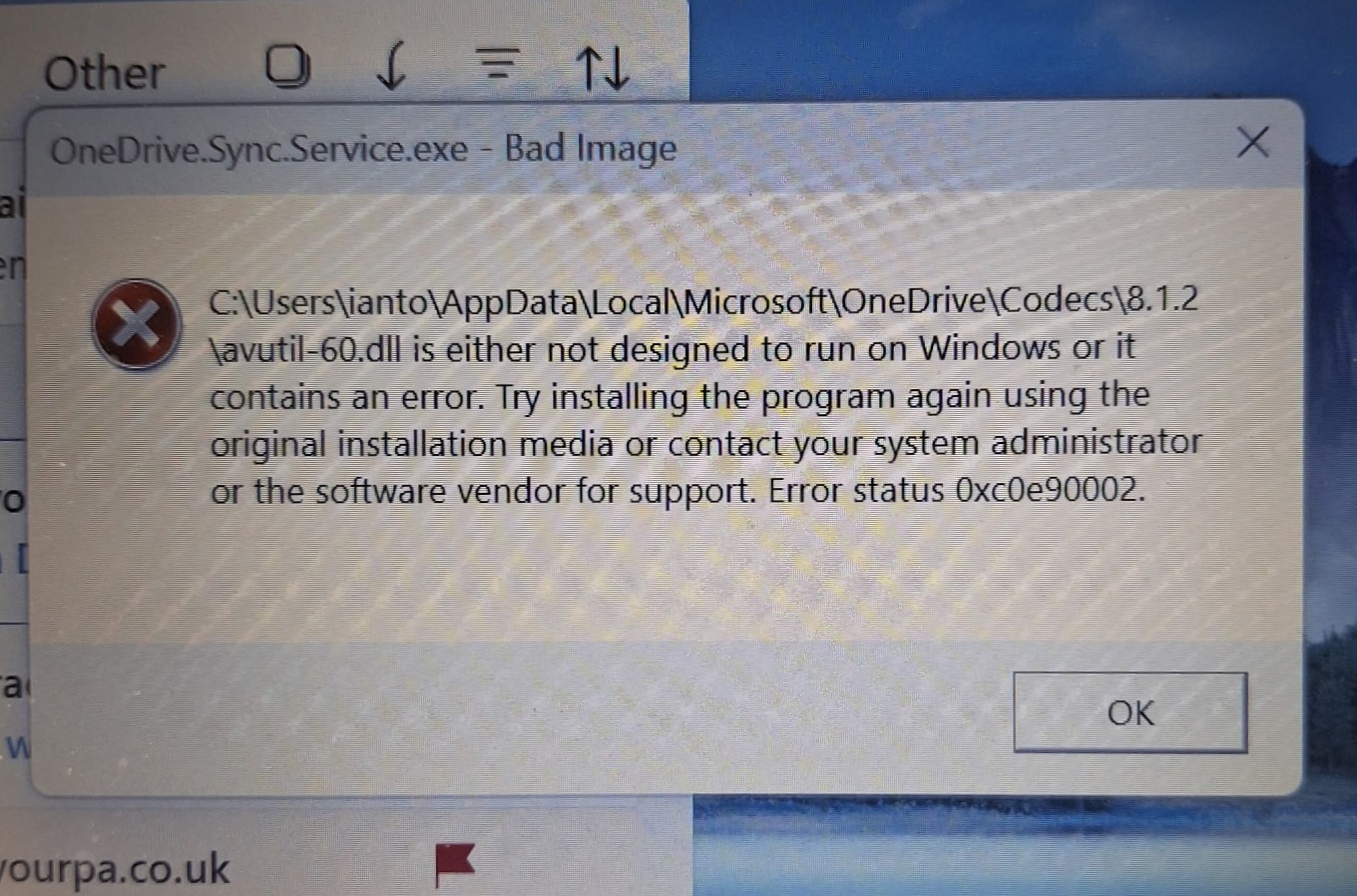
Seemingly terminal error messages of this kind are not usually a fatal error message concerning Windows operating system or hardware.
At first glance, this appeared to be a serious operating system failure. However, investigation showed that the issue was most likely a corrupted OneDrive component rather than a broader Windows or hardware problem.
Click open the headers below to learn how to interpret a DLL error message using this case study for repairing a corrupted OneDrive DLL. Support options are available for professional assistance. You can return to our Index of Articles by clicking here.
Understanding the OneDrive DLL Error
DLL files, or Dynamic Link Libraries, contain code and resources used by Windows applications. If one of these files becomes corrupted, Windows may generate a Bad Image error during startup or when launching an application.
A corrupted DLL can occur for several reasons:
- Interrupted software updates
- File system corruption
- Unexpected shutdowns
- Third-party security software interference
- Storage issues affecting application files
Although the error appeared severe, there was no immediate evidence that Windows itself was damaged.
First Rule: Identify the Application
When you receive a DLL error message, put concern to one side and first determine which application owns the file before taking further action.
In this case, the directory structure clearly indicated Microsoft OneDrive:
C:\Users<username>\AppData\Local\Microsoft\OneDrive
This meant troubleshooting could focus on OneDrive rather than immediately considering a Windows rebuild or hardware replacement.
As a general rule, DLL files found after:
AppData\Local
usually belong to user-installed applications or application components rather than the operating system itself.
The Fix: Reset OneDrive
Microsoft includes a built-in reset mechanism for the OneDrive client.
Using Command prompt, or even by typing <run> in the Windows Search tool on the Windows task bar, this command, the following command can be performed.
%localappdata%\Microsoft\OneDrive\OneDrive.exe /reset
The easiest way to run this command is:
- Press Windows + R
- Paste the command
- Press Enter
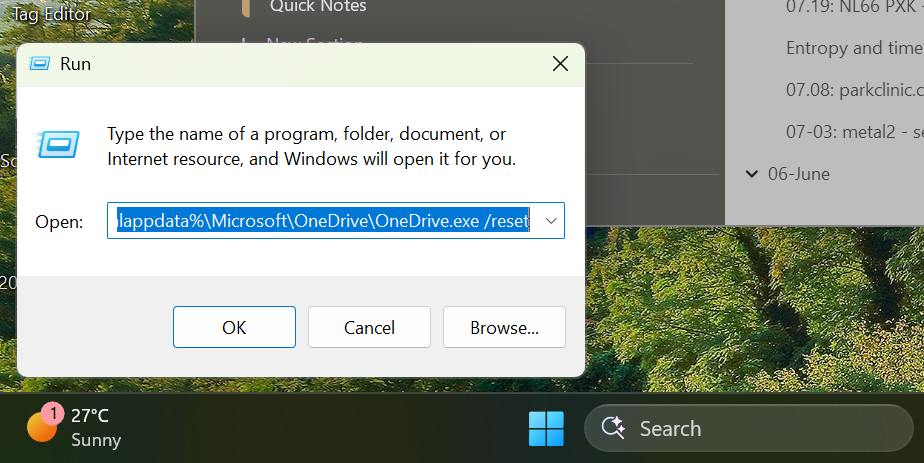
Enter Use Windows search to open the
The command stops the OneDrive client, rebuilds local configuration files, clears cached information and restarts the synchronisation engine. Windows may take a minute to execute the reset stages, so we allowed a short while for the computer to process instructions. Depending on your instance of Windows, this command might need modifying. Contact us for help in this case.
In this case, the result was immediate. The client regained normal access to Windows, and the OneDrive DLL error disappeared. This strongly suggested that the underlying problem was a corrupted OneDrive component rather than a damaged Windows installation.
Additional Checks After Fixing the Error
Even when a DLL reset resolves the issue, it is important to verify that deeper corruption does not exist elsewhere.
Open an elevated Command Prompt (use Run in the first instance) and run:
sfc /scannow
System File Checker scans protected Windows files and replaces incorrect versions with known good copies.
If corruption is reported, run:
DISM /Online /Cleanup-Image /RestoreHealth
This command repairs the Windows component store used by System File Checker.
Check the Disk for Problems
Whenever a corrupted DLL is discovered, it is worth checking the storage device for underlying faults.
Run:
chkdsk C: /f
If prompted, schedule the scan for the next restart.
For a more comprehensive examination:
chkdsk C: /f /r
This scans for bad sectors and attempts recovery where possible.
Although the OneDrive reset resolved the immediate issue, disk diagnostics remain an important step because file corruption can sometimes be an early sign of storage problems.
Why This Works for Other Microsoft DLL Problems
This case involved OneDrive, but the same troubleshooting principles apply to many Microsoft applications including:
- Outlook
- Teams
- OneNote
- Microsoft 365 Apps
- Edge
- Windows components
When a DLL error references a file within an application’s own folder structure, a repair, reset or reinstall of that application is often more effective than making direct changes to the DLL itself.
Downloading replacement DLL files from third-party websites is strongly discouraged. These files may not match the installed software version and can introduce security risks.
Instead:
- Identify the owning application.
- Use the application’s repair or reset function.
- Run SFC and DISM if required.
- Perform a disk health check.
- Reinstall the application only if the problem persists.
Summary
This case demonstrates that not every DLL error indicates a failing computer.
A startup error referencing a corrupted OneDrive DLL initially appeared to be a potentially serious Windows failure. In reality, resetting OneDrive reset restored normal operation within minutes.
For IT professionals and home users alike, the key lesson is straightforward: identify the application responsible for the DLL, use the application’s repair tools first, and then verify overall system health with SFC, DISM and CHKDSK.
In many cases, that approach resolves the issue without requiring a Windows reinstall, profile rebuild or hardware replacement.
Key Takeaway
If you encounter a OneDrive DLL Error, start by resetting OneDrive using:
%localappdata%\Microsoft\OneDrive\OneDrive.exe /reset
Then follow up with SFC, DISM and CHKDSK checks to confirm that the corruption was isolated and not part of a larger storage or operating system issue. This simple process can save hours of troubleshooting and quickly return a Windows PC to normal operation.
Comstat provides independent advice on business IT choices that reduce risk, protect continuity, and support long‑term growth. If you need help managhing email, please get in touch, or use our contact page to organize an appointment which suits your timetable. You can return to our Index of Articles by clicking here .