
How to Search by Category in Outlook (Using Favourites & Search Folders)

Using Categories to search for emails

Searching your email by category is a fast way to stay organised, especially for volume email users and if you rely on colour‑coded workflows. Outlook now offers two reliable ways to do this. The simplest method uses categories which you have saved as favourites in your Outlook folder pane.

For more complex needs, Search Folders still offer the most control. This guide shows Microsoft’s recommended approaches and explains what currently works on Windows, web, and Mac.

Hot Tip!! This guidance is written for “New” Outlook. Outlook Classic is scheduled for deprecation in the medium term.

Click open the headers below to learn more about how you can use categories to simplify your searches in Outlook. You can jump to associated articles about Outlook Categories here:

You can return to our Index of Articles by clicking here.

1. The fastest method: using favourited categories in New Outlook

If your goal is simply to search by category in Outlook, the quickest method is to favourite the categories you use most.

How it works

When you favourite a category, it appears in the left‑hand folder pane. Selecting a favourited category instantly filters your mailbox to show every message tagged with that category. It behaves like a dynamic “saved search” without requiring any setup.

Why use this method?

  • Instant filtering without typing a query
  • Always up to date as new mail arrives
  • No Search Folder required
  • Works in:
    • New Outlook for Windows
    • Outlook on the web
    • New Outlook for Mac

Find out how to create Outlook Categories in this article.

2. When you need more: use Search Folders for complex searches

Favourited categories handle single‑category scenarios well. But if you need multi‑criteria filtering—for example:

  • Category + specific sender
  • Category + unread items
  • Category + timeframe
  • OR combinations (e.g., Category A or Category B)

…then a Search Folder is still the best solution.

What is a Search Folder?

A Search Folder is a virtual folder that stores criteria and updates in real time. It works like a reusable saved search. Although the new Outlook does not let users “save a search,” it does support Search Folders.
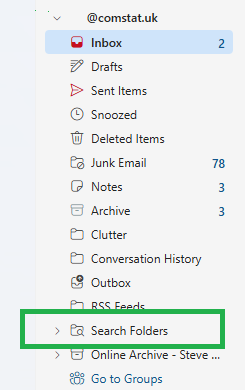
Outlook default saved search folder

Outlook provides a saved searchesd folder in your folder pane to which you can add search folders.


Creating a Search Folder (New/Classic Outlook for DESKTOP)
  1. Right click on Saved Searches Folder → select New (or Add) Search Folder
  2. Choose a preset, or select Create a custom Search Folder
  3. Select Criteria to define filters such as:
    1. Category
    2. From:
    3. Subject
    4. Keywords
    5. Date
  4. Name the folder clearly (e.g., Finance, Categorised, 2026 invoices) and Save.
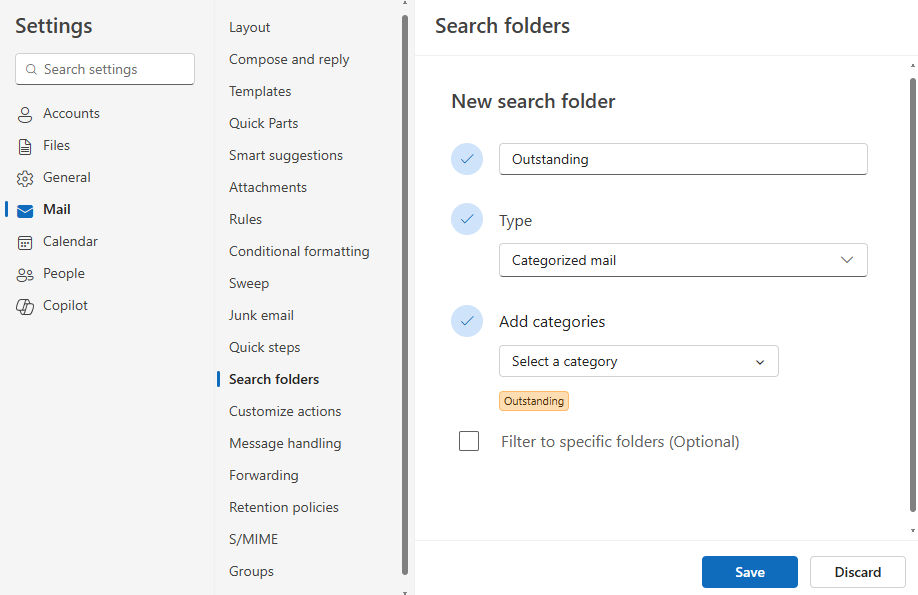
in this example, a category caslled “Outstanding” has been selected. More attributes can be added to filter your search further.

Add your saved search to Favourites

For extra convenience you can make your saved search a Favourite. This puts a shortcut towards the top of your folder pane near Inbox, Sent, etc. The folder still resides in your Saved Searches folder.

Outlook on the Web: mixed support

Outlook on the web supports Search Folders at the mailbox level, but it does not allow you to pin them to Favourites in the same way the Windows desktop app does.

Practical notes:

  • Search Folders still work and remain visible
  • You cannot favourite saved search folders
  • For quick access, Microsoft recommends using favourited categories instead

If you need to reliably search by category in Outlook on the web, favouriting categories remains the simpler option.

New Outlook for Mac: saved searches exist, but pinning does not

At time of writing, Outlook for Mac allows users to create search queries and save them. However, adding saved searches or Search Folders to the Favourites pane is not supported. Drag‑and‑drop behaviour sometimes appears to work, but it is inconsistent and not officially documented.

Mac users who need fast access to tagged mail should rely on favourited categories until Microsoft expands this feature.

Practical tips for smoother workflows
  • Use meaningful names
    • For Search Folders, name them for purpose: e.g., Client Work – Categorised or Finance – Outstanding.
  • Combine categories with other filters
    • Ideal when you need more than a simple category filter.
  • Keep the list clean
    • Remove old Search Folders to reduce clutter.
  • Use categories as your backbone
    • Especially if your primary aim is to search by category in New Outlook
  • Plan a taxonomy that can be managed over time
    • planning a structure helps to reduce bloat and redundant categories. Also, a documented taxonomy helps colleagues who may need to duplicate categories – remember. categories operate at a user level, not an organisational level.
Summary

If you want to search by category in Outlook, the fastest and most widely supported method is simply to favourite your categories and use the dynamic filter. This works across Windows, web, and Mac.

For advanced filtering, Windows users can rely on Search Folders, which remain the best way to create a complex, reusable saved search. On the web and Mac, Search Folder support is more limited, so categories offer the most consistent experience.

If you need help or want advice about planning a category taxonomy, please get in touch, or use our contact page to organize an appointment which suits your timetable. You can return to our Index of Articles by clicking here.
How Outlook Categories Transform Email Management: A Simple Guide for Everyday Users

Introduction

Most Outlook users still rely on folders to store and manage their email. It’s familiar, and for small volumes of email it works well enough. But as your mailbox grows, folders start to break down. Messages fit into multiple topics, threads get split across separate folders, and it becomes harder to find what you need quickly. Outlook categories solve this problem.

Outlook Categories turns your Inbox or Sent Items into a dynamic, instantly searchable workspace. Instead of dragging email into rigid folders, you add one or more coloured tags – i.e. Outlook Categories to an email. These tags make it possible to filter and group messages on the fly—exactly the way people already search the web using keywords, not folders.

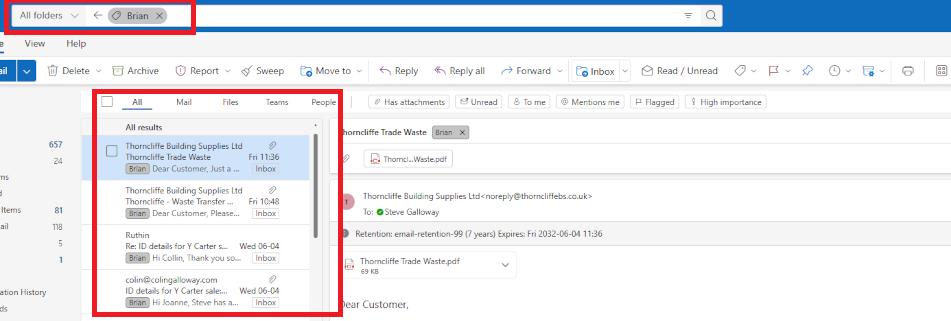
virtual email folder

Enter the name of a category you want to filter in “search” and turn your Inbox into a dynamically generated folder which lists activty associated with your tag, e.g all items tagged with “Brian” in this screenshot.

Click open the headers below to learn more about Outlook Categories. You may also be interested in these associated articles.

Support options are available for professional assistance.For help planning a taxonomy that can be managed over time, please contact us.

Why Folders Don’t Scale

Folders are great for tidy filing cabinets, but email doesn’t behave like paperwork. Common problems include:

  • Emails often belong to more than one folder. A message from a supplier might relate to two different projects. Which folder should it go in?
  • Moving an email breaks the thread. If part of the conversation is in another folder, you lose context.
  • Folder structures change over time. Projects evolve, businesses reorganise, priorities shift. Your folder tree becomes a maze.

As your mailbox grows, rigid storage (folders) become harder to maintain, not easier. This is why search engines like Google and Bing are so successful. We search by keyword (or category) and it works. So, we already use keywords every day to sort information. As your email volumes grow, keywords or categories become the logical way to rapidly find emails and threads.

Why Outlook Categories Work Better

Outlook Categories act like keywords or tags. An Outlook Category is a  flexible, stackable, colour-coded label that help you recognise and organise email instantly. You can:

  • apply multiple categories to a single email
  • search or filter by category in seconds
  • change categories without moving the message
  • build dynamic, instant “views” of your Inbox

In other words, your Inbox becomes a smart workspace—no filing cabinet required.

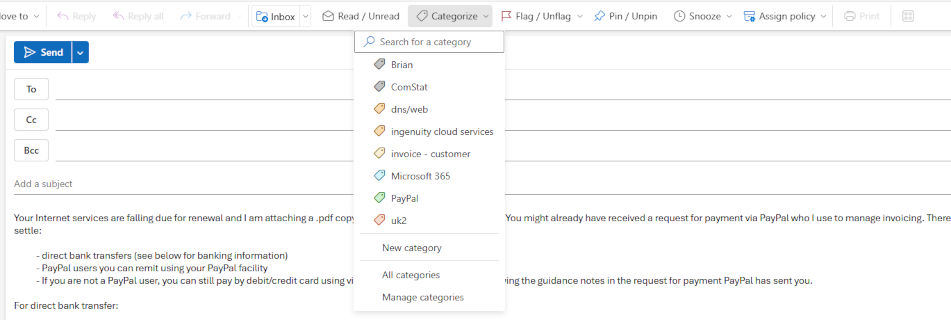
outlook categories

Use categories to filter large Inboxes for emails tagged with a category to create a dynamic folder from your Inbox or Sent Items

Real Example: Tracking Deliveries Using Outlook Categories

Consider this scenario: at any one time we might have several outstanding orders from retailers or suppliers. If everything is delivered “next day”, that’s fine. Sometimes, though, a delivery may take weeks to despatch. We can put our Inbox to work to track deliveries using Outlook Categories to know what you have ordered and what has arrived.

Outlook Categories: example workflow setup

You need two categories (see this article to learn how to create a category):

  • Outstanding (colour-coded, for items not yet received)
  • Delivered (or “Complete”, for orders that have arrived)

Outlook Categories: track deliveries

This how the workflow looks once your categories are established:

  1. When you receive an order confirmation, apply the Outstanding category.
  2. When the goods arrive, change it to Delivered
  3. Use Outlook’s filter (i.e. Search) options to show only Outstanding emails when you want to check what you’re still waiting for.
  4. Switch filters to Delivered if you need to confirm what has arrived

Rather than using a tag called Delivered, you could call the tag Completed – this way you could use one tag to deal with other projects or tasks that are completed. This becomes an issue of planning and category management. When creating categories it is helpful to have a plan of how tags should be organised to make it easier to manage your “taxonomy” over time.

At their simplest level, Outlook Categories can manage individual recipients, groups, subjects/projects, and more.

To find out how to create an Outlook Category, see this article.

How to Filter Emails by Category

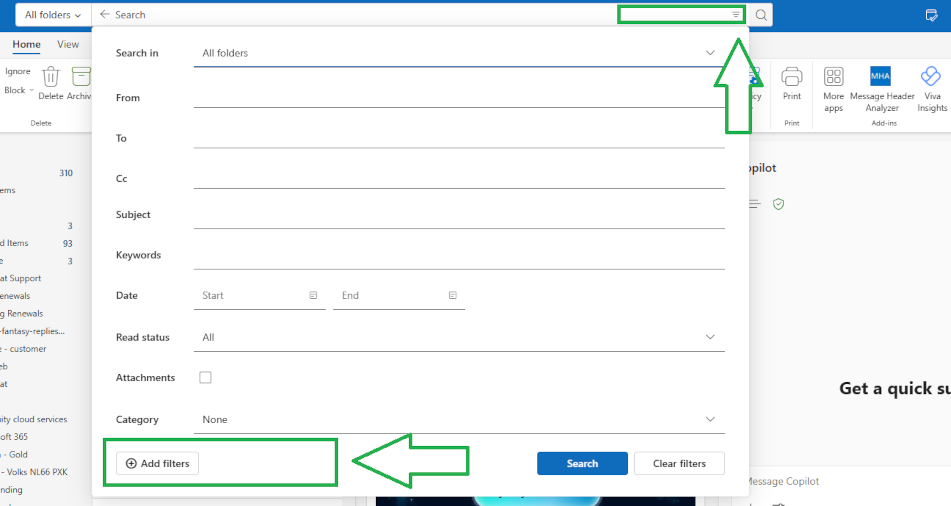
To bring fingertip power to Categories powerful, first add them to Outlook’s filter options in the Search utility.

  1. Go to your Inbox or Sent Items
  2. Click the Filter icon at the right of the Outlook Search field*
  3. Choose Add, More Filters or Search Tools → Advanced Find (depending on version).
  4. Add Categories as a filter field

Optionally, you can add Categories as their own field to make frequently used or topically important Categoires available in your Search drop-down.

*Hot Tip: the fliter icon does not appear by default inthe Outlook Search field. Instead, hover your mouse over the right side of your Search field to reveal the filter options icon.

configure Outlook categories

Why Outlook Categories Beat Folders for Productivity

With Outlook Categories, you gain several long‑term advantages:

  • Speed: Find what you need in seconds
  • Flexibility: One email can have multiple categories
  • Reduced clutter: Your folder list stays simple
  • Consistency: Categories remain relevant even as your work changes
  • Better search: Filters turn your Inbox into a powerful, dynamic dashboard

Most importantly, categories match how people already think. We tag photos, tag social media posts, tag documents—and we search the internet using tags or keywords. Categories simply bring that same modern approach to email.

Try Outlook Categories

If you struggle to keep on top of overflowing folders, or if you feel like you can never find the right message when you need it, give Outlook categories a try.

Start small with your Outstanding and Delivered tags, and once you see how much time you save, you can expand categories into other areas—projects, clients, personal admin, travel, invoices, support requests, and more.

Your email doesn’t need more folders. It needs better visibility. For large volumes, several emails can be selected (for instance in a folder) and categorised. However, with long established folder structures it mighjt not be practical to try to convert all emails to categories. Often, categories and folders co-exist. Folders become important in situations where a multiple users need access to a folder. 

Lastly, note that categories are not easily assigned at an organizational level. So, if you work within an organizational group, it makes sense to establish a policy that colleagues can conform to.

About ComStat.uk: Internet Service Provider Comstat provides IT support, web hosting, and media services including website design, Microsoft 365 setup, and audio/video production, serving businesses across Denbighshire, North Wales and Wirral from Ruthin, and Lancashire and the Northwest from Bolton.

Windows 11 Setup for Privacy-Focused Users: Why Microsoft 365 Business Matters

Why Windows 11 Setup Matters for Privacy-Conscious Users

Setting up Windows 11 is not just about a sleek interface—it is about securing your digital environment from day one. For privacy-conscious users, your initial configuration is critical. Default settings often prioritize convenience over security, leaving sensitive data exposed. By taking control during Windows 11 setup, you can ensure your system aligns with your privacy and compliance goals.

Click open the headers below to learn more about how Microsoft’s security operates in Windows 11. Support options are available for professional assistance. You can return to our Index of Articles by clicking here.
The Role of Microsoft 365 Business in Secure Configuration

Microsoft 365 Business is a security backbone. When integrated during Windows 11 setup, Microsoft 365 Business adds enterprise-grade protections like conditional access, multi-factor authentication, and data loss prevention. These features safeguard your files, emails, and identity against breaches. Microsoft 365 Personal or Family subscriptions do not offer this level of security.

For users handling confidential data or operating in regulated industries, combining Windows 11 and Microsoft 365 Business is more than a convenience—it is a necessity, and an explicitly recommended Microsoft procedure.

Steps to Combine Windows 11 Setup with Microsoft 365 Business

1. Start with a Clean Install

  • Ensure your Windows 11 installation is fresh and free from legacy vulnerabilities.

2. Link Your Microsoft 365 Business Account Early

  • During setup, sign in with your Microsoft 365 Business credentials to enable policy enforcement.

3. Enable Security Defaults

  • Activate features like BitLocker encryption and Defender for Endpoint for layered protection.

4. Configure Compliance Policies

  • Use Microsoft 365 Business admin tools to enforce password complexity, device compliance, and secure sharing.
Final Thoughts: Privacy and Professionalism in the Modern Workspace

Windows 11 setup is your first line of defense. Pairing it with Microsoft 365 Business transforms your device into a secure, professional-grade workstation. For users who value privacy and data integrity, this approach is a stategic implementation to avoid unauthorised breaches and data theft. You can return to our Index of Articles by clicking here