Index of articles

Click open the Index headers below to browse FAQ

Our support articles address the most common issues we deal with “in the field” about Windows, Microsoft 365 Business, web server support, and web design. Click open the accordion sections below to look for self-serve help. Often, issues rely on a knowledge of IT concepts and language. Also, Microsoft, cPanel, and other software houses featured in these articles often update practice notes and procedures without notice. We review our pages regulalry, however you are advised to contact us for further help about these articles especially concerning issues around sovereign account identity and Multifactor Authentication (MFA).

Microsoft 365 configuration and user tips and tricks
  1. Why Professional IT Support Still Matters in the Age of AI
  2. How to Use Folder Color Coding in Microsoft 365 to Boost Productivity
  3. How to Set Up a Microsoft 365 SharePoint Site for a Small Business
  4. OneNote Sync Troubleshooting
  5. Create a Microsoft 365 Exchange Online connector
  6. Configure SPF, rDNS, DKIM, and DMARC for email
  7. How to Fix a Corrupted OneDrive DLL Using a OneDrive Reset

The following articles can be found using <Search> or scrolling through our list of articles. Procedures may have changed since and therefore this content is either being eidted or deprecated. So, although we are editing this content, you might still find useful information to help with issues.

  1. – Exchange Online – room and equipment resources
  2. – Reset Office 365 password expiration policy
  3. – Exchange Email – EOP antivirus/spam
  4. – Exchange Online Protection – EOP
  5. – Microsoft 365 Exchange Email – data leakage & loss protection
  6. – Microsoft ActiveSync

Windows Recovery Drive: How to Create a New Recovery Drive

Windows Recovery Drive: Why You Should Create a New One

A Windows Recovery Drive helps you repair your computer if Windows fails to start normally. It contains recovery tools that may help fix startup issues, restore your system, or reinstall Windows when other options have failed.

When should you create a Windows Recovery Drive?

When Microsoft installs a major Windows 11 feature update, it is a good idea to create a new Windows Recovery Drive. This ensures the recovery tools and system files on the USB drive match the version of Windows currently installed on your computer. Aim to create a new Windows Recovery Drive not less than annually.

What do you need?

You can either re-use an existing recovery USB drive from a previous year or create a new one using a spare 64GB USB flash drive. In an ideal world, we recommend using a new USB stick. This is because your Windows Recovery Drive is a tool of last resort. In other words, when you need your recovery tools, you need to be certain that the Windows Recovery Drive itself is unimpaired.

How long does it take?

The process takes a little time, but it could save you hours of frustration and costly disaster recovery work if your computer develops a catastrophic problem in the future. Fortunately, the process is straightforward and is accomplished with minimal risk if you follow these instructions. So, be sure to read through this entire article first to understand the methodology. If you are not confident and you need help,  please get in touch.

Click open the headers below to learn more about how to create your Windows Recovery Drive. Support options are available for professional assistance. You can return to our Index of Articles by clicking here.

Before You Start

Creating a Windows Recovery Drive will completely erase the contents of the USB drive you select.

Preparation

  1. We recommend using a new or unused USB memory stick:
    1. an existing USB memory stick used for Windows Recovery Drive is minimally acceptable.
  2. If you are using a spare USB memory stick, check for any files and save files you need elsewhere.
  3. Make sure you know which PC drive letter your computer will assign to your Windows Recovery Drive
  4. Leave any other USB devices connected exactly as they are

Taking a few minutes to identify the correct drive can help prevent accidental data loss. Also, ensuring that your “target’ drive is free of important files will save permanent loss of data you may need later. We will explain how to do this below.

Check Which USB Drives Are Already Connected

Before you insert the USB drive you plan to use for your Windows Recovery Drive, check which USB drives are already connected to your computer. Do not take a shortcut at this stage and skip this step.

  1. Open File Explorer from your Windows taskbar.
  2. Select This PC from the left-hand menu.
  3. Look under Devices and drives.
  4. Make a note of the drives currently displayed.

For example, you may see:

  • Local Disk (C:)
  • Data Drive (D:)
  • USB Drive (E:)

Making a note of the drive letters already in use will make it easier to identify the correct USB drive later when you insert your recovery drive USB drive. We call this the “target” drive.

Insert the USB Drive for your new Windows Recovery files

Insert the USB flash drive that will become your new Windows Recovery Drive.

Wait a few moments while Windows detects the device.

Return to This PC in File Explorer and look for a new drive letter that was not listed during your earlier check. For example:

Before insertion

  • Local Disk (C:)
  • Local Disk (D:)
  • USB Drive (E:)

After insertion

  • Local Disk (C:)
  • Local Disk (D:)
  • USB Drive (E:)
  • F:

In this example, F: is the newly detected drive. Windows has allocated it with “F”. In this example, F: is the USB stick you have just connected. In this way, remember which letter File Explorer has designated for the memory stick you have inserted to create your Windows Recovery Drive.

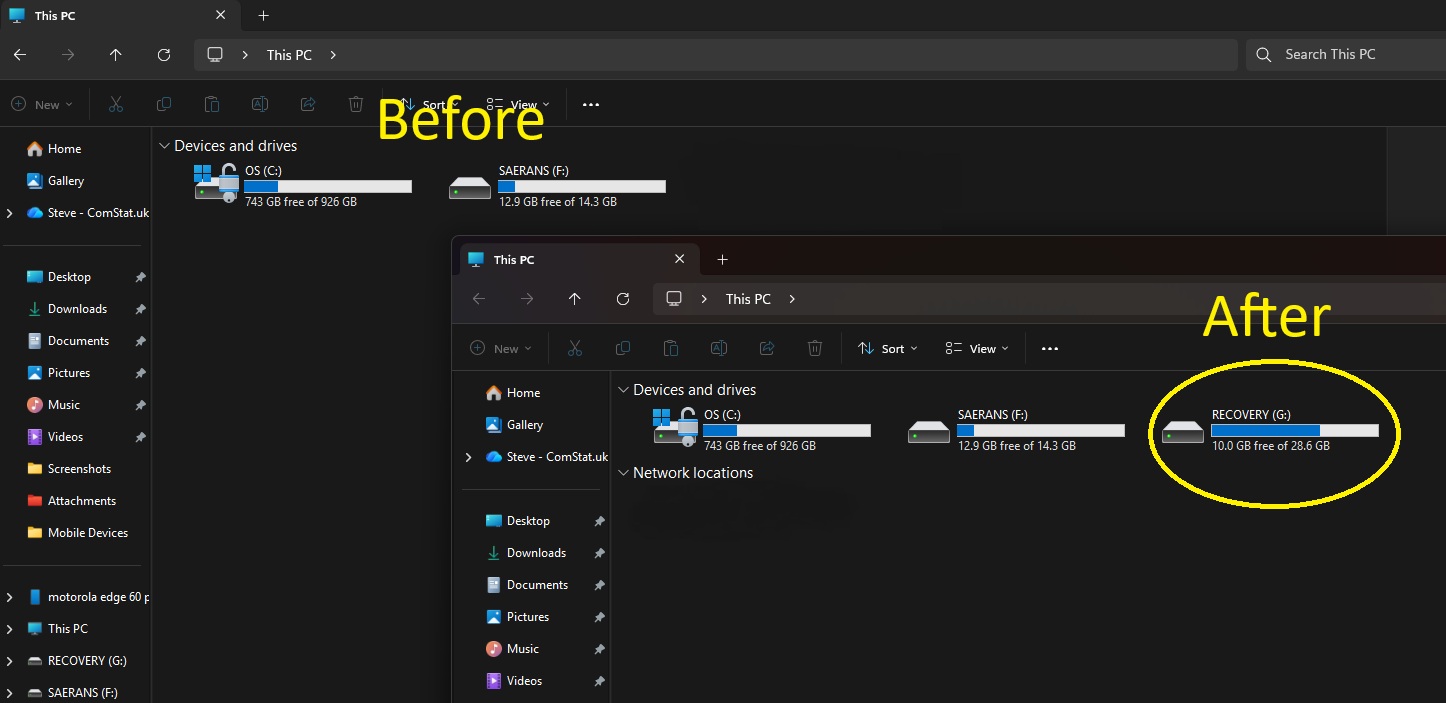
This simple check helps ensure that you do not accidentally select and erase important files from the wrong USB drive. Here, only two drive letters are assigned, and when we insert a new USB stick (which is incidentally an existing Windows Recovery Drive), we see that the drive assigned for our target is G:

windows recovery drive before and after 

Create the Windows Recovery Drive

Now that you have inserted your USB drive and you have identified which drive letter you need to use, you can create your Windows Recovery Drive without risking unintended data loss. Close File Explorer and follow these steps:

Windows Recovery Drive: How-to

  1. Click the Start button or click into the Search field, both on your Windows desktop taskbar.
  2. Start typing Recovery Drive into either search box.
  3. Click open Recovery from the search result
  4. Select Create a recovery drive.
  5. If Windows asks for permission, click Yes.

Windows will take a few moments to prepare the Recovery Drive wizard. Wait for the Recovery Drive wizard to open.

When the wizard appears:

  1. Make sure Back up system files to the recovery drive is selected*.
  2. Click Next.

* Including the system files makes the Windows Recovery Drive more useful because it can provide additional recovery and reinstall options if Windows becomes damaged.

You may notice a short pause while Windows prepares the required information. This is completely normal.

Select the Correct USB Drive

Windows will display the USB drives available for use.

Carefully select the drive letter you identified earlier. In the example we used above, we noticed that Windows designated our target drive as F:. The letter you are assigned depends on how many USB devices are already installed/engaged.

Check again!

Before continuing, Windows will display a warning explaining that all data on the selected drive will be deleted. Read the warning carefully. When Windows deletes the contents of your target USB drive, any data and files will be permanently lost. If in doubt, start again.

When you are certain you have selected the correct USB drive:

  1. Click Create.
  2. Allow Windows to begin creating the Windows Recovery Drive.
Wait for the Process to Complete

Creating a Windows Recovery Drive will take some minutes.

The duration of this kind of job depends on your computer’s processing power and the USB drive’s write (i.e. recording) speed.

The good news is that you can continue using your computer while the recovery drive is being created. You can browse the web, read email, or carry out most everyday tasks as normal.

Avoid removing your USB drive until Windows confirms that the process has completed successfully.

When the recovery process finishes, Windows will display a message confirming that the Windows Recovery Drive is ready.

Click Finish and safely remove the USB drive.

Store Your Recovery Drive Somewhere Safe

A Windows Recovery Drive is only useful if you can find it when you need it. Do not save other content on your Windows Recovery Drive

Consider:

  • Labelling the USB drive clearly.
  • Keeping it with important computer documents.
  • Storing it in a known drawer or filing location.
  • Attaching it to the computer’s power cable using a small cable tie.
  • Recording its location with your IT support provider.

Computer problems have a habit of happening unexpectedly. Knowing exactly where your recovery drive is stored can make recovery much quicker and less stressful.

Final Thoughts

A Windows Recovery Drive is one of the simplest forms of protection available to Windows users. Creating a fresh recovery drive after a major Windows 11 update ensures that you have the latest recovery tools available if something goes wrong. This avoids having to re-install Windows upodates that were installed after a Windows Recovery Drive was created. Also, compared to costly third party intervention, this is a cheap solution.

The task only takes a few minutes to do its job and Windows can work on this in the background while you continue working. For many users, it is a small investment of time that could prove invaluable when a computer refuses to start. In a worst case scenario catastrophic failures could lead to hardware loss and expensive disaster recovery costs. So an inexpensive 64GB USB stick and a few minutes taken to create a Windows Recovery Drive is cheap at the price.

Related Content:

See also:

If you would like help creating your Windows Recovery Drive, feel free to get in touch, or use out contact page to organize an appointment which suits your timetable. You can return to our Index of Articles by clicking here

Windows 11 System Restore: How to Create and Manage Restore Points Safely

What Is Windows 11 System Restore?

Windows 11 System Restore is a built‑in recovery feature that protects your PC by taking snapshots of crucial system files, settings, drivers, and registry entries. These snapshots are called restore points. If something goes wrong after installing software, drivers, updates, or after a malware incident, System Restore allows you to roll your computer back to a previous stable state.

System Restore does not delete your personal documents, photos, or emails. Instead, it focuses on parts of the system that can break Windows. Because of this, it is one of the simplest and most powerful safety nets for everyday users.

System Restore is especially valuable when reacting quickly to malware or virus infiltration. If the infection is recent, restoring the system to a point before the attack can help reverse harmful changes and reduce damage. While it is not a replacement for anti‑malware tools, it adds an essential extra layer of protection.

Click open the headers below to learn more about how to enable System Restore. Support options are available for professional assistance. You can return to our Index of Articles by clicking here.

How You Can Check That System Restore Is Enabled

Many users assume Windows 11 System Restore is switched on automatically. Often, it is not. Some OEMs ship devices with the feature disabled, and major upgrades can also turn it off. For anyone who is not IT‑literate, the most important advice is simple:

“Check once a month that System Restore is enabled“

This is how to verify System Restore is operational:

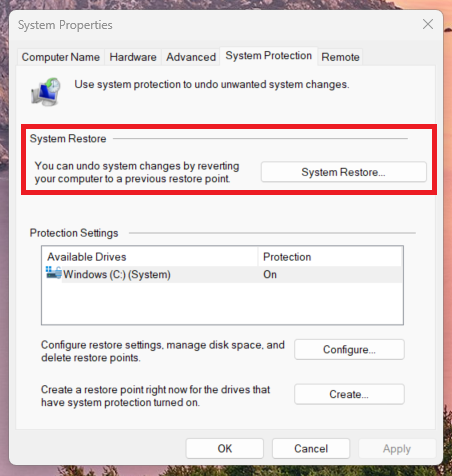
  1. Press Windows Key and type restore point
  2. In System Properties, open System Protection tab

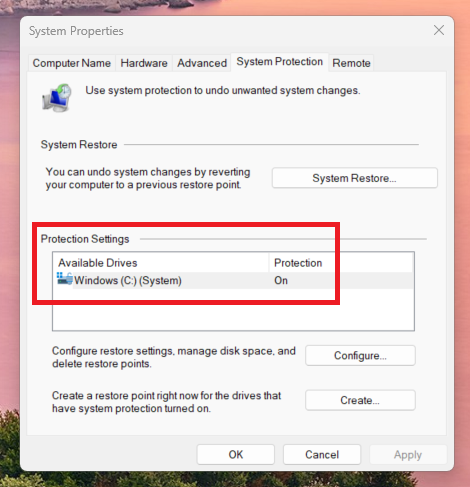
In the screenshot below, see how system restore status is enabled. If protection is off, Windows cannot create restore points automatically — and you won’t be able to roll back when things go wrong. 

system restore control panel

System Restore control panel allows you to enable services, check status, and restore Windows’ last known working state


How to Create a Restore Point in Windows 11

Configure automtatic restore point creation

Creating a restore point in Windows 11 System Restore takes less than a minute and can save hours of recovery work and consequential labour costs. This is how to configure System Restore:

  1. Press the Windows Key and type restore and click <enter>
  2. In the System Properties control panel, click open System Protection
  3. In the System Properties window, select your primary drive (C:) by clicking it to highlight row
  4. Click <Configure>
  5. Ensure Turn on system protection is selected
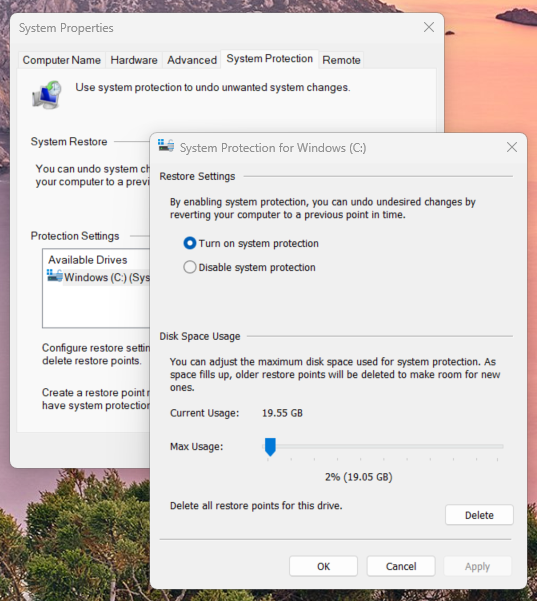
  6. Confirm that the Max Usage slider has at least 2–5% allocated

configure automatic restore point

Create a restore point manually

 You can also create a system restore point before major changes like:

  • Driver installations
  • Registry modifications
  • Software that affects system behaviour
  • Windows feature updates

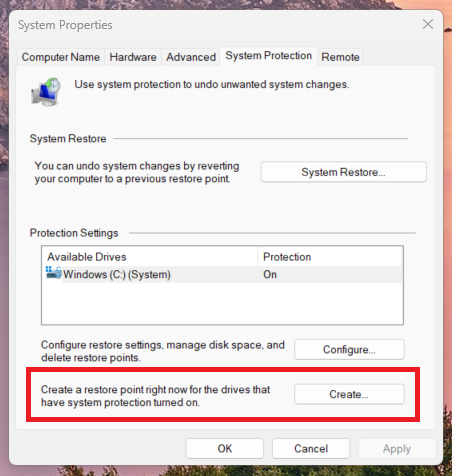
You can do this by navigating to System Restore control panel described above and clicking the <create> button.

create a manual restore point


How to recover a Restore Point

Sometimes, a Windows corruption or a malware infiltration needs correcting. Especially if this has happened in the last 2-3 days, you can use System Restore to reinstate Windows to the state it was in before Windows system files were compromised. If your buffer is large enough, you may be able to use earlier system Restore Points, but bear in mind that using old restore points might undo good updates that have been implemented, too.

To restore your system:

  1. Return to the same System Protection window as described above
  2. Click System Restore
  3. Choose your restore point
  4. Follow the on‑screen instructions (see screenshot below)

recovering ra restore point

Best Practices for Using System Restore

To get the most from System Restore, consider these simple tips:

  • Keep it enabled: Check periodically that protection has not been turned off
  • Create manual restore points before major system changes
  • Act fast after malware signs: restoring early increases the chance of reversing harmful changes that antivirus/anti-malware software could aggravate further
  • Do not rely on it as your only backup: use OneDrive, external drives, or full‑system imaging for complete protection.

Computer Life expectancy affects recovery options

In larger businesses, the average replacement cycle for computers used for desktop productivity is 3-5 years. Self-employed users demand much more from their computers. This kind of profile is more in line with a corporate power user, whose computers are replaced at 2.5 – 4 years. This is because this kind of useage imposes a heavier computational duty cycle on hardware. While System Restore and Windows Recovery can help mitigate running costs, these kinds of tools cannot perform when hardware has failed or is reaching the end of its duty cycle.

Hot Tip: System Restore is only designed to resinstate a last known working state of your Windows systems files. System Restore does not manage files or user data.System Restore is often more capable of resolving malicious infiltration that antivirus software. However, malicious attacks cause unpredictable consequences which may mean that you still have to resort to your recovery drive (see this article) to correct a serious Windows system problem.

Summary

Windows System Restore is one of the most valuable recovery features built into the operating system. When enabled, it can quickly repair software problems, undo bad updates, and help mitigate early‑stage malware infections. For everyday users and professionals alike, this simple tool offers powerful peace of mind.

If you need help configuring restore points across multiple devices or want deeper protection for high‑value systems, please get in touch, or use our contact page to organize an appointment which suits your timetable. You can return to our Index of Articles by clicking here .

PC Power Management Explained: Restart vs Shut Down and the Best Daily Power Habits

Restart vs Shut Down and the Best Daily Power Habits

Windows users—and even IT professionals—are unsure how PC power management really works. Two areas cause the confusion: the difference between Restart and Shut Down, and whether you should shut down or sleep your PC at the end of the day. These actions might look similar, but they behave very differently under the hood.

This guide brings both topics together in a simple, practical way to help users of all experience levels take better care of their computers while keeping performance stable and power use efficient.

Click open the headers below to learn more about how best to improve hardware performance with Microsoft’s tools for Windows. You can return to our Index of Articles by clicking here.

Restart vs Shut Down: Why They Are Not the Same

Most people assume that shutting down the PC is the most complete way to reset Windows. Surprisingly, that isn’t true. Thanks to a feature called Fast Startup, a normal shutdown does not clear everything from memory. Windows saves part of the system state to disk so it can boot faster the next time.

This means that using Shut Down often preserves the very problem you might be hoping to fix with a re-boot, whether that’s a misbehaving driver, a glitchy USB device, or a stubborn update. In contrast, Restart always performs a full reset of the Windows kernel, which clears system memory and loads all drivers from scratch.

So, if a user wants a “clean start” to flush out an issue, Restart is the correct choice. Shut down is still useful, but it is not a troubleshooting tool. Understanding this distinction is important, and it helps prevent wasted time and unnecessary frustration.

Daily Habits: Should You Shut Down or Just Sleep the PC?

When the workday ends, many users wonder what to do next: shut down, sleep, or something else? Advice varies wildly, and myths are common. Some people argue that turning the PC on and off wears out hardware. Others insist that leaving it on wastes energy and shortens component life. The truth lies somewhere between the two.

Modern PCs—especially those with Solid State Drives (SSDs)—are designed for frequent power cycling. SSDs do not suffer from mechanical wear caused by spin‑up or spin‑down, which used to be a concern with older hard drives. Components such as processors and RAM also handle start‑stop cycles with ease.

On the other hand, sleep mode is extremely energy‑efficient on modern hardware. A sleeping PC typically uses only a few watts, while allowing you to resume work instantly. This is ideal for office environments where you might take short breaks throughout the day.

Why Microsoft Advises a Policy, Not a Solitary Procedure

A simple rule for good PC power management is:

  • Use Sleep during the workday for short or medium breaks
  • Use Shut Down at the end of the day if you prefer a fully powered‑off system
  • Use Restart whenever the system is unstable or sluggish, or after updates

This approach balances energy conservation, hardware longevity, and overall system reliability—without relying on outdated advice from the mechanical‑hard‑drive era.

Summary

Understanding the difference between Restart, Shut Down, and Sleep helps users make better choices that keep Windows stable and hardware healthy. In modern computing, PC power management is about using each option for its intended purpose:

  • Restart for a true clean start
  • Shut Down for a full power‑off at the end of the day
  • Sleep for convenience and efficiency during regular working hours

Developiong good habits help prevent common issues, improve long‑term performance, and remove the guesswork from everyday PC use. It is true that inexpensive hardware is often built for comparatively limited processor duty cycles in its lifetime, so careful PC power management is especially useful with budget hardware used for critical production jobs.

For more help about improving Windows performance, feel free to get in touch, or use out contact page to organize an appointment which suits your timetable. You can return to our Index of Articles by clicking here

Windows Recovery Drive: Why Microsoft Recommends It

Windows 11 Recovery Drive: A Practical Safety Net, Not an Optional Extra

Microsoft explicitly recommends creating a Windows recovery drive so that your operating system can be repaired or reinstalled if your computer fails to boot, or if it becomes unstable. This guidance exists because some failures cannot be resolved from within Windows itself. Microsoft’s published recommendations are available here.

A Windows recovery drive is not a cure‑all. It will not fix every issue. However, it is one of the simplest and most effective tools for reducing downtime, avoiding data loss, and preventing expensive and prolonged recovery workarounds when things go wrong.

Click open the headers below to learn more about Microsoft’s Windows 11 Recovery Drive. Support options are available for professional assistance. You can return to our Index of Articles by clicking here.

Microsoft recommends Windows Recovery Drive

Microsoft advises users to create a Windows recovery drive as a precautionary measure. This “best practice” reasoning is straightforward. If Windows cannot start, built‑in recovery options may be inaccessible. A recovery drive allows access to advanced startup tools, system repair options, and, if required, a clean reinstallation of Windows.

When created correctly, a Windows recovery drive can also include include system files. This allows you to re-install Windows even if the internal recovery partition is damaged or missing. Unless you can do this, you might have to buy a new Windows license. At worst case, labout costs might mean that is is more economical to buy a new computer.

From Microsoft’s perspective, the recovery drive is part of basic system hygiene. It is comparable to keeping backups or applying security updates. You hope that you will never need it, and if you do, then you are exposed if a Windows recovery drive is not available.

When do I need a Windows Recovery Drive?

A Windows recovery drive is most valuable when normal troubleshooting is no longer possible. Common examples include:

  • Windows 11 fails to boot after an update or driver change
  • File system corruption prevents access to recovery options
  • Windows’ internal recovery partition is damaged or deleted
  • Malware or ransomware interferes with system startup
  • A replacement SSD or hard drive needs Windows reinstalled
  • BitLocker recovery and repair tools are required offline
  • Remote support is unavailable and local recovery is needed

In these situations, the absence of a Windows recovery drive often leads to improvised solutions. These take more time, cost more money, and increase the risk of data loss.

Hot tip: while a Windows recovery drive can save significant re-installation/restoration time and costs, users still need to know what edition of Windows and their Microsoft (personal) account credentials to reinstate Windows licensing. 

Why Microsoft Advises a Policy, Not a One‑Off Action

Microsoft’s guidance goes beyond simply creating a recovery drive once. For managed environments and serious users, Microsoft recommends a policy‑based approach to recovery.

A proper Windows 11 recovery drive policy answers several practical questions:

  • Who creates the recovery drive
  • When it is created or refreshed
  • Where it is stored
  • How it is labelled and tracked
  • How it is tested

Without a policy, recovery drives are often outdated, missing, or stored in the same place as the failed device. That defeats their purpose.

A documented approach ensures that recovery remains possible even during staff absence, hardware failure, or time‑critical incidents.

Windows Recovery Drive helps to control and reduce risk

Windows recovery drive does not solve every problem. However, especially as computers near their anticitpated longevity , your Windows recovery drive it plays a critical role in mitigating cost.

When recovery options are limited, support is harder to source and margins for error increase 

  • Emergency data extraction
  • Lengthy rebuilds from scratch
  • Extended and unpredictable downtime

These consequences are often far more expensive than the simple act of creating and maintaining a recovery drive. Sometimes, problems like hardware failure in ageing equipment means that there are insufficient resources for Windows to operate properly in the first place. In this kind of situation, a Windows recovery drive cannot restore problems consequential to permanent hardware damage.

However, a Windows recovery drive reduces dependency on complex recovery workarounds which small business users are needlessly exposed to so often. Instead of ad hoc intervention, Microsoft’s recommendation for restoration with a Windows recovery drive provides the best chance for shortening resolution time and restoring control when systems fail in unexpected ways.

Computer Life expectancy affects recovery options

In larger businesses, the average replacement cycle for computers used for desktop productivity is 3-5 years. Self-employed users demand much more from their computers. This kind of profile is more in line with corporate power users, whose computers are replaced at 2.5 – 4 years. This is because this kind of useage imposes a heavier computational duty cycle on hardware. While System Restore and Windows Recovery can help mitigate running costs, these kinds of tools cannot perform when hardware has failed or is reaching the end of its duty cycle. 

Summary

Microsoft recommends that compiling a Windows 11 recovery drive because Windows systems do fail, even when well managed. You may never need it. We hope so. But if you do, and the freely available resource is not available, the risk of recoverycosts increase sharply.

Larger business do not use recovery drives because they tend to operate centralised systems that provide a pre defined Windows “mirror”, which can be “pushed” to a compromised workstation. Small businesses and home businesses do not enjoy this kind of support. A Windows recovery drive provides the substitute alternative.

If you would like help implementing a Windows 11 recovery drive policy, or aligning it with your wider Microsoft 365 and device management strategy, feel free to get in touch, or use out contact page to organize an appointment which suits your timetable. You can return to our Index of Articles by clicking here