

Index of articles
Click open the Index headers below to browse FAQ
Our support articles address the most common issues we deal with “in the field” about Windows, Microsoft 365 Business, web server support, and web design. Click open the accordion sections below to look for self-serve help. Often, issues rely on a knowledge of IT concepts and language. Also, Microsoft, cPanel, and other software houses featured in these articles often update practice notes and procedures without notice. We review our pages regulalry, however you are advised to contact us for further help about these articles especially concerning issues around sovereign account identity and Multifactor Authentication (MFA).
Microsoft Windows 11
- Windows Pro or Windows Home? A Practical Guide for Business Owners
- Windows Restart vs Shut Down, and Daily Power Management
- Laptop Battery Health: Tips to Prolong Your Battery’s Lifespan
- Windows 11 System Restore: How to Create and Manage Restore Points Safely
- Windows Recovery drive – why Microsoft recommends it
- PC recovery tools vs Windows Recovery
- Why BitLocker for Small Business Matters
- Why Small Businesses Struggle With Microsoft 365 on Windows Home PCs
- How to Set Up a New Windows PC to Sign In Directly with a Microsoft 365 Work Account
- Windows 11 Setup Guide: 1. How to Configure Your PC Securely with Microsoft Accounts
- Windows 11: Why One Microsoft Account Isn’t Enough for Home and Small Business Users
- Windows 11 Setup for Privacy-Focused Users: Why Microsoft 365 Business Matters
- How to Fix a Corrupted OneDrive DLL Using a OneDrive Reset
- How to deploy TP-Link Deco with BT Internet Router
Microsoft 365 setup, licensing and user management
- How to Set Up Microsoft 365 for a Small Business
- Why Small Businesses Struggle With Microsoft 365 on Windows Home PCs
- Microsoft 365 Global Administrator: Why Business Continuity needs 2 global admins
- Microsoft 365 Global Administrator: Why You Need a Second Admin and How to Assign Roles
- How to Set Up a New Windows PC to Sign In Directly with a Microsoft 365 Work Account
- How to add a new employee with Microsoft 365 User Onboarding
- How to manage Microsoft 365 when an employee leaves
- Email System Audit and Recovery Review
- Microsoft Entra Passkeys: Retiring SMS Authentication and What You Need to Do
- How to Set Up Microsoft Authenticator MFA for 365
- How to Back Up MFA Credentials with Microsoft Authenticator Backup
- Microsoft Authenticator iPhone backup
- Locked Out of Your Microsoft 365 Account? Here’s What to Do When MFA Recovery Fails
- What Is a Shared Mailbox in Microsoft 365 and Why Your Business Should Use One
- Change Microsoft 365/email password
- Change Office 365 credit/debit card information
- Why Switching PC Users to Microsoft 365 Sign-In Matters for Small Businesses
- How to Transition PC Users to Microsoft 365 Sign-In and Entra ID
- How to Use Microsoft 365 MailTips to Improve Email Performance
Microsoft 365, Exchange Online and Outlook
- How to Backup Microsoft 365 Outlook Email to a PST File
- How Outlook Categories Transform Email Management
- Microsoft 365: Outlook Categories
- How to Search by Category in Outlook
- How to Manage Microsoft 365 Email Signatures
- About Microsoft 365 Outlook templates
- What Is a Shared Mailbox in Microsoft 365 and Why Your Business Should Use One
- How to Use Microsoft 365 MailTips to Improve Email Performance
- How to Use Outlook Sweep to Declutter Your Outlook Inbox
- Email migration from cPanel to Microsoft 365
- How to Use Microsoft 365 Inline Email Archiving
- Create a Microsoft 365 Exchange Online connector
- 2025 Email Security Guide for Business Owners: Avoiding Scams and Attacks
Microsoft 365 configuration and user tips and tricks
- Why Professional IT Support Still Matters in the Age of AI
- How to Use Folder Color Coding in Microsoft 365 to Boost Productivity
- How to Set Up a Microsoft 365 SharePoint Site for a Small Business
- OneNote Sync Troubleshooting
- Create a Microsoft 365 Exchange Online connector
- Configure SPF, rDNS, DKIM, and DMARC for email
- How to Fix a Corrupted OneDrive DLL Using a OneDrive Reset
The following articles can be found using <Search> or scrolling through our list of articles. Procedures may have changed since and therefore this content is either being eidted or deprecated. So, although we are editing this content, you might still find useful information to help with issues.
- – Exchange Online – room and equipment resources
- – Reset Office 365 password expiration policy
- – Exchange Email – EOP antivirus/spam
- – Exchange Online Protection – EOP
- – Microsoft 365 Exchange Email – data leakage & loss protection
- – Microsoft ActiveSync
cPanel - web server | email |DNS
- How to Change Your Email Password in Roundcube Webmail
- How cPanel Spam Filters Work
- What Is cPanel BoxTrapper And Why Email Users Should Care
- Email Management in cPanel: Save Space, Cut Costs, and Go Green
- 2025 Email Security Guide for Business Owners: Avoiding Scams and Attacks
- Email System Audit and Recovery Review
- Safeguard your .uk domain names – Nominet
- Email migration from cPanel to Microsoft 365
- How to manage a web site contact form
- How to configure DNS for a contact form
- Configure SPF, rDNS, DKIM, and DMARC for email
- Create a new email address with cPanel
- How to use cPanel Web Disk
- cPanel Disaster Recovery Backups: Ownership responsibility
- How to back up your web server with cPanel
- cPanel WordPress Backup: A Practical Guide for Virtual Host Owners
- Add SPF to your DNS zone record
- Configure DMARC using cPanel
- Configure DKIM in cPanel
- Configure Reverse DNS (RDNS)
- cPanel email account considerations
- Why Authoritative Nameservers Matter for Your Web Hosting Setup
What Is a Shared Mailbox in Microsoft 365 and Why Your Business Should Use One
What Is a Shared Mailbox in Microsoft 365?
A Microsoft 365 shared mailbox allows multiple users to read and send emails from a common email address, such as support@yourcompany.com or accounts@yourcompany.com. These mailboxes are ideal for teams that need to manage group communications efficiently.
Shared mailboxes do not require a separate Microsoft 365 license, but any user accessing them must have a paid Microsoft 365 license. This makes them a cost-effective solution for collaborative email management.
Click open the headers below to learn more about shared mailboxes. Please read through this entire article before you deal with email account management in Microsoft 365 and associated Exchange Admin Centre (EAC). Be sure to contact us for general advice if you are in doubt. Support options are available for professional assistance.
Why are Shared Mailboxes Useful?
Shared mailboxes offer several practical advantages for businesses:
- Team Collaboration: Multiple users can access the same mailbox, making it perfect for departments like support, sales, or accounts.
- Offboarding Employees: When an employee leaves, their mailbox can be converted into a shared mailbox to retain access to important communications.
- Shared Calendars: Teams can use the shared mailbox calendar to coordinate meetings, deadlines, or events.
- File and Folder Sharing: Shared mailboxes can also serve as a central location for storing and accessing shared documents.
Here are some common scenarios where shared mailboxes are great business solutions:
- Customer Support Teams: Centralize incoming queries and allow multiple agents to respond.
- Accounts Departments: Manage invoices and financial communications from a single address.
- Project Teams: Share calendars and documents related to specific projects.
- HR Departments: Handle job applications and internal communications securely.
Importantly, a shared email account means colleagues can access an entire email account for the shared email address without having to resort to emails that are forwarded to an individual’s own email account using an email alias. Using an email alias, all incoming email is directed to one principal user’s email account which makes it possible for another user to see all your email.
Creating a Shared Mailbox Without a License
To create a shared mailbox, you don’t need to assign a Microsoft 365 license to the mailbox itself. This is how to do it:
- Create a New User in Microsoft 365 Admin Center
- Go to Users > Active Users and click Add a user
- Fill in detail field (e.g., name, email address)
- Do not assign a license
- Convert the User to a Shared Mailbox
- After creating the user, go to Mailboxes in Exchange Admin Center
- Select the user and choose Convert to shared mailbox
- Assign Permissions
- Add users who need access by assigning Full Access and Send As permissions.
- Add users who need access by assigning Full Access and Send As permissions.
Using a shared mailbox in this way ideal for setting up departmental mailboxes like info@, sales@, or hr@
Converting an Existing User to a Shared Mailbox After Offboarding
When an employee leaves, their mailbox may contain valuable information. Instead of deleting the account, you can convert it to a shared mailbox:
- Convert to a Shared Mailbox
- Navigate to Exchange Admin Center, select the user’s mailbox, and click Convert to shared mailbox.
- Remove the License
- In the Microsoft 365 Admin Center, remove the user’s license to avoid ongoing costs.
- Assign Access to Relevant Team Members
- Add team members who need access to the mailbox for continuity.
This approach preserves email history and ensures business continuity without incurring additional licensing fees.
- Add team members who need access to the mailbox for continuity.
Using a shared mailbox this way preserves email history and ensures business continuity when an employee leaves without incurring additional licensing fees.
Stroage Limits, Archiving, and Compliance
Storage Limits
- A shared mailbox without a license has a 50 GB storage limit
- If the mailbox exceeds 50 GB, you must assign an Exchange Online Plan 2 license (or equivalent) to increase the limit to 100 GB and enable archiving features
Archiving and Compliance
- In-Place Hold or Litigation Hold: If you need to place the mailbox on hold for compliance or legal reasons, a license is required.
- Archiving: A shared mailbox can have an archive mailbox, but this feature also requires a license. Without it, archiving isn’t available.
- Retention Policies: These can still apply to a shared mailbox, but advanced compliance features often need licensing.
Best Practice
- For most departmental or offboarding scenarios, the 50 GB limit is sufficient.
- If you anticipate heavy email traffic or need compliance features, keep a license assigned even after conversion.
Summary
Shared mailboxes in Microsoft 365 are a powerful tool for improving team collaboration, managing transitions, and streamlining communication. They are easy to set up and configure, cost-effective, and versatile—making them a smart choice for businesses of all sizes.
About ComStat.uk: Internet Service Provider Comstat provides IT support, web hosting, and media services including website design, Microsoft 365 setup, and audio/video production, serving businesses across Denbighshire, North Wales and Wirral from Ruthin, and Lancashire and the Northwest from Bolton.
How to deploy TP-Link Deco with BT Internet Router
Improving Home Wi-Fi with BT Broadband and TP-Link Deco
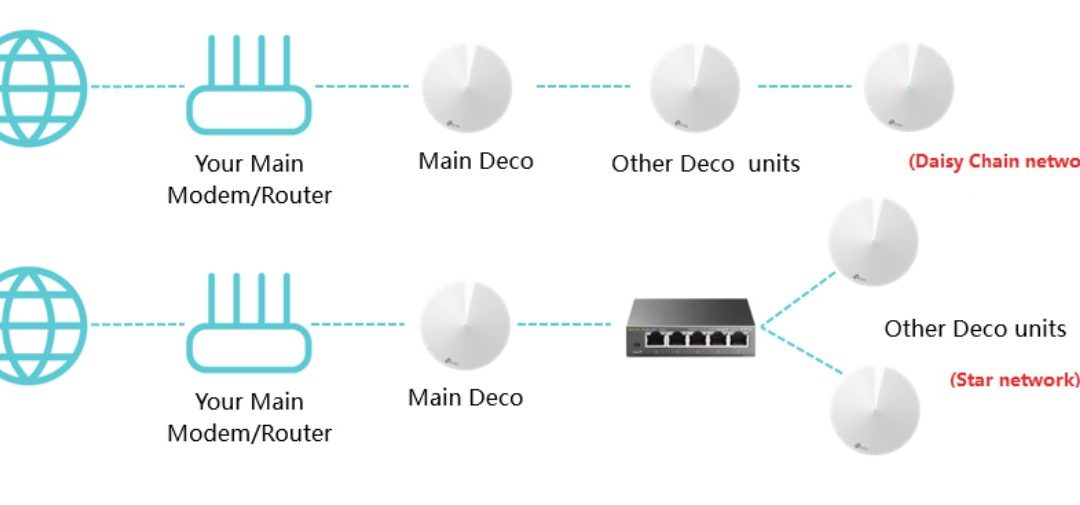
If your home has a BT broadband router and two or more TP-Link Deco units, the recommended setup is to use the Deco system to provide all Wi-Fi coverage throughout the property, while the BT router continues to manage the internet connection. TP-Link recommends operating Deco in Access Point (AP) Mode when used alongside an existing router, and Ethernet backhaul is fully supported in this mode.
Click open the headers below to learn how to install a TP-Link Deco WiFi network using your BTInternet router. There are a few methods, one of which replaces the BT router altogether, however we recommend plugging your main Deco unit into your router or connecting via a switch which is plugged into the router. Use Ethernet backhaul in your Tp-Link phone app to interconnect devices using ethernet cabling, or WiFi backhaul if you do not have Ethernet cabling. Support options are available for professional assistance. You can return to our Index of Articles by clicking here.
Recommended Connection Layout for wired Ethernet networks
Where Ethernet cabling is available throughout the property. Firstly, inspect ethernet cabling making sure that plugs and connections are firmly seated. Connect the equipment as follows:
Internet
|
BT Router
|
Ethernet Switch (if required)
|
+————+————+—–
| | |
Deco 1 Deco 2 Deco 3 …etc
Alternatively, all Deco units may be connected directly to the BT router or to a network switch connected to the router.
Why Ethernet Backhaul?
Using Ethernet between Deco units is generally the best-performing option because:
- Faster and more reliable than wireless backhau
- Less affected by thick walls and interference
- Provides better roaming between rooms
- Leaves more wireless capacity available for phones, tablets, TVs and laptops
TP-Link specifically supports Ethernet backhaul while operating in Access Point Mode.
Checking That Deco Is Configured in Access Point Mode
Microsoft includes a built-in reset mechanism for the OneDrive client.
Using the TP-Link Deco app on your phone:
- Open the Deco app
- Select More
- Select Advanced
- Select Operation Mode (or Operating Mode on some versions)
- Confirm that Access Point is selected
- If not, select Access Point and save the change
- Allow the Deco system to reboot
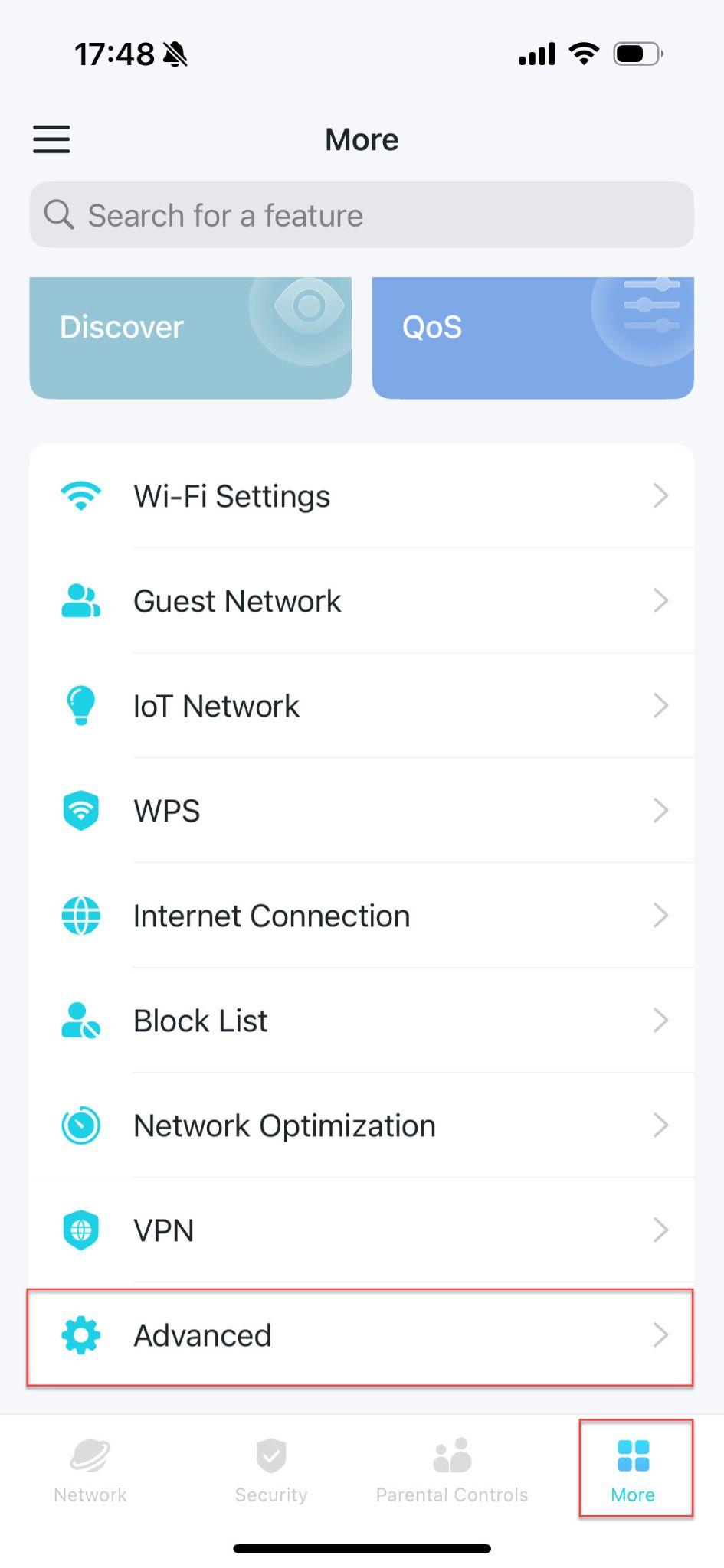
Finding Advanced settings on TP-Link Deco app
Finding Advanced settings on TP-Link Deco app
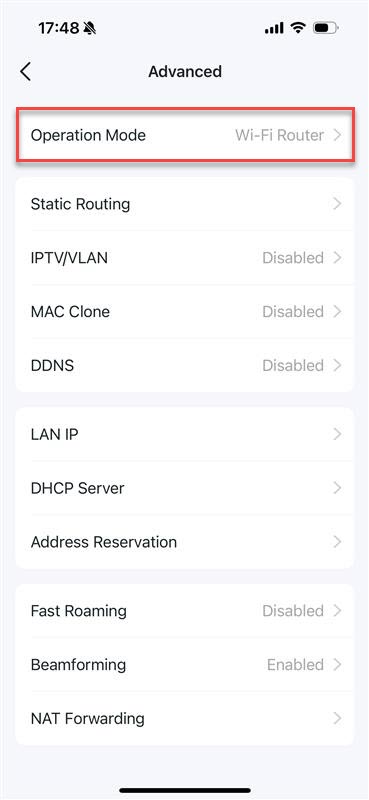
Once complete, the Deco system will provide the Wi-Fi service while the BT router continues to perform routing and DHCP functions.
Optional: Disable Wi-Fi on the BT Router
To avoid interference between the BT router and the Deco system, it is usually advisable to turn off the BT router’s own Wi-Fi and use only the Deco Wi-Fi network. Partly, this is because the main Deco unit can be operated as your router instead of your telco supplied router. Also, bandwidth between two operational WiFi networks can cause interruption or disruption. TP-Link also recommends disabling the existing router’s Wi-Fi when using Deco with an existing router.
For most BT Smart Hubs:
- Open a web browser
- Go to http://192.168.1.254 (this assumes default supplier settings)
- Log in to the Hub Manager (you will need your router credentials)
- Open Wireless settings
- Turn Wi-Fi Off
BT provides these controls through the Hub Manager on supported Hub models.
Next Styeps/If Problems Continue
If your Wi-Fi remains slow, unreliable or does not function correctly after following the above guidance, problems are posible in damaged or improperly cabling pin-outs, misconfigured telco router, poor Deco placement, or possibly broadband connectivity.
Check broadband connectivcity by disengaing all equipment from your router and testing service with a PC or laptop. Introduce device sequentially to check for faulty hardware.
If wired Ethernet backhaul to the router is not providing good service, opt for WiFi backhaul by disconnect remote Decos from cabling, make sure units are in range of main Deco unit. Check settings in your mobile phone app. Then, check WiFi services by grdually moving remote Deco units towards target destinations. Some versions of your phone app include statistics for checking signal performance between Deco units.
If the network is still not operating, professional assistance may be required. On-site diagnosis and remediation can be arranged at my standard call out charge for 90 minutes, and either an hourlyor daily rate, whichever is the lesser.
Comstat provides independent advice on business IT choices that reduce risk, protect continuity, and support long‑term growth. If you need help managhing email, please get in touch, or use our contact page to organize an appointment which suits your timetable. You can return to our Index of Articles by clicking here.
Microsoft OneDrive DLL Error: How to Fix a Corrupted DLL Using a OneDrive Reset
Microsoft OneDrive DLL Error: How to Fix a Corrupted DLL Using a OneDrive Reset
A client recently reported a startup error on a Windows 11 laptop. The message referenced a corrupted DLL file within the Microsoft OneDrive installation directory:
C:\Users\*user-name*\AppData\Local\Microsoft\OneDrive\Codecs\8.1.2\acutil-60.dll
The error stated that the DLL was either not designed to run on Windows or contained an error. Following additional restart attempts, the client believed Windows itself had become unusable.
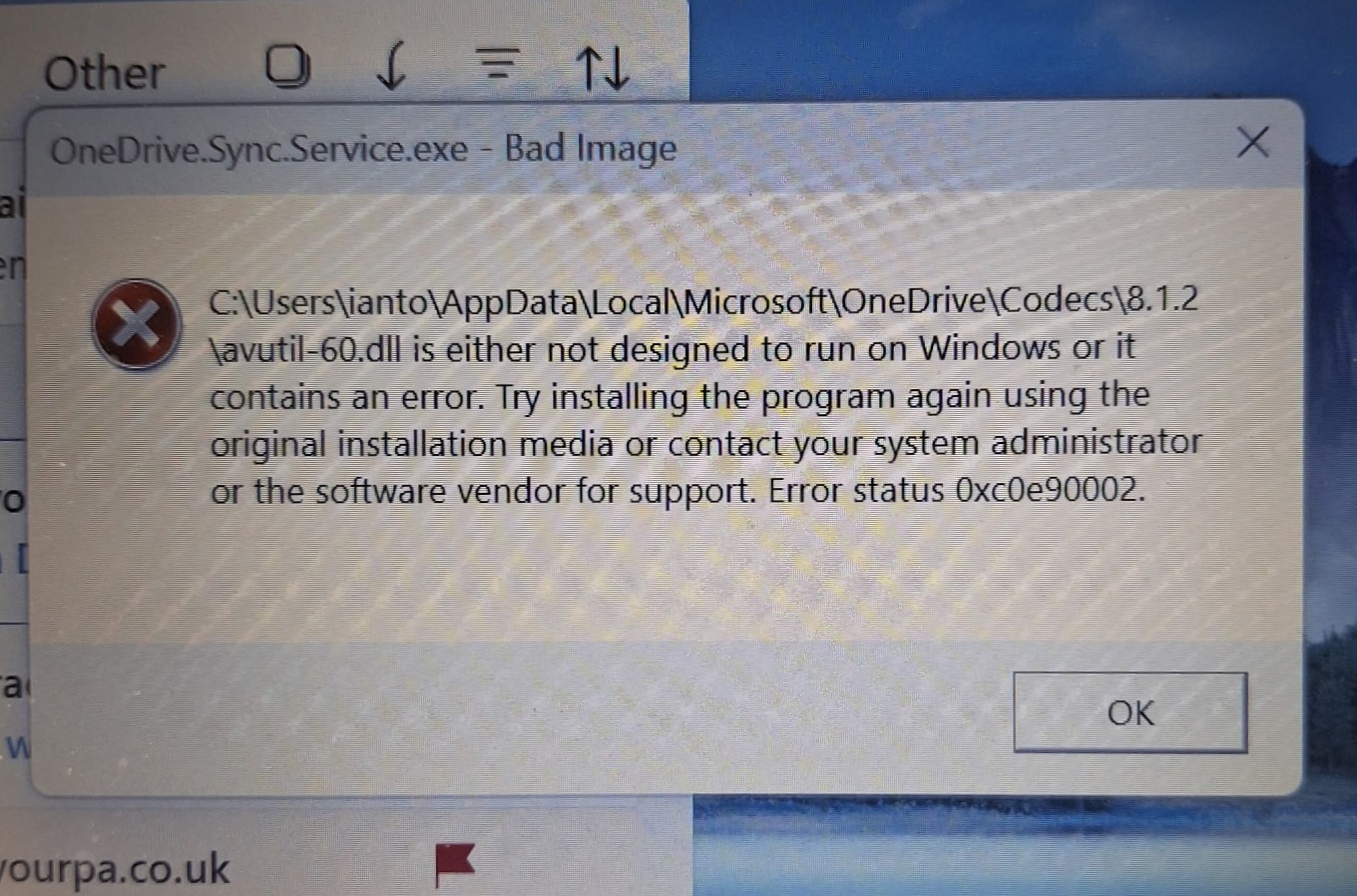
Seemingly terminal error messages of this kind are not usually a fatal error message concerning Windows operating system or hardware.
At first glance, this appeared to be a serious operating system failure. However, investigation showed that the issue was most likely a corrupted OneDrive component rather than a broader Windows or hardware problem.
Click open the headers below to learn how to interpret a DLL error message using this case study for repairing a corrupted OneDrive DLL. Support options are available for professional assistance. You can return to our Index of Articles by clicking here.
Understanding the OneDrive DLL Error
DLL files, or Dynamic Link Libraries, contain code and resources used by Windows applications. If one of these files becomes corrupted, Windows may generate a Bad Image error during startup or when launching an application.
A corrupted DLL can occur for several reasons:
- Interrupted software updates
- File system corruption
- Unexpected shutdowns
- Third-party security software interference
- Storage issues affecting application files
Although the error appeared severe, there was no immediate evidence that Windows itself was damaged.
First Rule: Identify the Application
When you receive a DLL error message, put concern to one side and first determine which application owns the file before taking further action.
In this case, the directory structure clearly indicated Microsoft OneDrive:
C:\Users<username>\AppData\Local\Microsoft\OneDrive
This meant troubleshooting could focus on OneDrive rather than immediately considering a Windows rebuild or hardware replacement.
As a general rule, DLL files found after:
AppData\Local
usually belong to user-installed applications or application components rather than the operating system itself.
The Fix: Reset OneDrive
Microsoft includes a built-in reset mechanism for the OneDrive client.
Using Command prompt, or even by typing <run> in the Windows Search tool on the Windows task bar, this command, the following command can be performed.
%localappdata%\Microsoft\OneDrive\OneDrive.exe /reset
The easiest way to run this command is:
- Press Windows + R
- Paste the command
- Press Enter
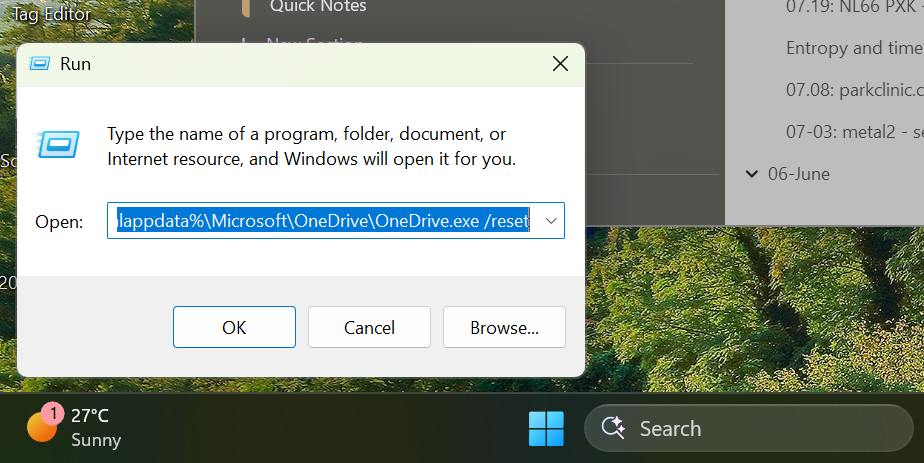
Enter Use Windows search to open the
The command stops the OneDrive client, rebuilds local configuration files, clears cached information and restarts the synchronisation engine. Windows may take a minute to execute the reset stages, so we allowed a short while for the computer to process instructions. Depending on your instance of Windows, this command might need modifying. Contact us for help in this case.
In this case, the result was immediate. The client regained normal access to Windows, and the OneDrive DLL error disappeared. This strongly suggested that the underlying problem was a corrupted OneDrive component rather than a damaged Windows installation.
Additional Checks After Fixing the Error
Even when a DLL reset resolves the issue, it is important to verify that deeper corruption does not exist elsewhere.
Open an elevated Command Prompt (use Run in the first instance) and run:
sfc /scannow
System File Checker scans protected Windows files and replaces incorrect versions with known good copies.
If corruption is reported, run:
DISM /Online /Cleanup-Image /RestoreHealth
This command repairs the Windows component store used by System File Checker.
Check the Disk for Problems
Whenever a corrupted DLL is discovered, it is worth checking the storage device for underlying faults.
Run:
chkdsk C: /f
If prompted, schedule the scan for the next restart.
For a more comprehensive examination:
chkdsk C: /f /r
This scans for bad sectors and attempts recovery where possible.
Although the OneDrive reset resolved the immediate issue, disk diagnostics remain an important step because file corruption can sometimes be an early sign of storage problems.
Why This Works for Other Microsoft DLL Problems
This case involved OneDrive, but the same troubleshooting principles apply to many Microsoft applications including:
- Outlook
- Teams
- OneNote
- Microsoft 365 Apps
- Edge
- Windows components
When a DLL error references a file within an application’s own folder structure, a repair, reset or reinstall of that application is often more effective than making direct changes to the DLL itself.
Downloading replacement DLL files from third-party websites is strongly discouraged. These files may not match the installed software version and can introduce security risks.
Instead:
- Identify the owning application.
- Use the application’s repair or reset function.
- Run SFC and DISM if required.
- Perform a disk health check.
- Reinstall the application only if the problem persists.
Summary
This case demonstrates that not every DLL error indicates a failing computer.
A startup error referencing a corrupted OneDrive DLL initially appeared to be a potentially serious Windows failure. In reality, resetting OneDrive reset restored normal operation within minutes.
For IT professionals and home users alike, the key lesson is straightforward: identify the application responsible for the DLL, use the application’s repair tools first, and then verify overall system health with SFC, DISM and CHKDSK.
In many cases, that approach resolves the issue without requiring a Windows reinstall, profile rebuild or hardware replacement.
Key Takeaway
If you encounter a OneDrive DLL Error, start by resetting OneDrive using:
%localappdata%\Microsoft\OneDrive\OneDrive.exe /reset
Then follow up with SFC, DISM and CHKDSK checks to confirm that the corruption was isolated and not part of a larger storage or operating system issue. This simple process can save hours of troubleshooting and quickly return a Windows PC to normal operation.
Comstat provides independent advice on business IT choices that reduce risk, protect continuity, and support long‑term growth. If you need help managhing email, please get in touch, or use our contact page to organize an appointment which suits your timetable. You can return to our Index of Articles by clicking here .
Microsoft Entra Passkeys: Why Microsoft Is Retiring SMS Authentication and What You Need to Do
Why Microsoft Is Retiring SMS Authentication and What You Need to Do
Microsoft Entra Passkeys are being enforced for business users in ealry 2027. This significantly reinforces account security at a time when phishing attacks and malicious intrusion is mushromming. Microsoft-provided SMS and voice authentication for Microsoft Entra ID will retire on 1 February 2027, with passkeys becoming the preferred authentication method.
If you are a Micrsoft 365 tenancy owner you need to be ready for this change. For instance, business owners may need to help staff update their sign-in routine. Recently, some users who only consider themselves Microsoft account holders have received notifications about this as well. This has led to understandable confusion about who is affected and whether any action is required.
The good news is that the change is straightforward once you understand the difference between a Microsoft account and a Microsoft Entra tenant. Also, this article will help you understand how you can determine if you need to action anything if you do not believe you are affected by this.
Click open the headers below to learn more about how Microsoft Entra Passkeys to prepare for Microsoft’s new credential system. Support options are available for professional assistance. You can return to our Index of Articles by clicking here.
What Are Microsoft Entra Passkeys?
A passkey is a modern authentication method designed to replace traditional passwords and SMS verification codes.
Instead of receiving a text message or entering a password, users authenticate using a trusted device such as:
- Windows Hello
- Face recognition
- Fingerprint authentication
- A security key
- A mobile device linked to the account
Microsoft Entra passkeys are classed as phishing-resistant authentication. This means they are far more difficult for attackers to steal, intercept, or misuse than passwords, voice verification, or SMS codes.
As cybercriminals increasingly rely on phishing campaigns, Microsoft and other major technology companies are moving towards authentication methods that do not depend on passwords or mobile text messages.
Why Is Microsoft Retiring SMS Authentication?
SMS authentication has served organisations well for many years, but it has several weaknesses.
Attackers can:
- Trick users into revealing authentication codes
- Conduct SIM-swap attacks
- Intercept messages in some circumstances
- Use social engineering to bypass protections
Passkeys solve many of these problems because authentication occurs directly between the device and Microsoft’s identity platform.
From Microsoft’s point of view, Microsoft Entra passkeys provide a much stronger security baseline for business and organisational accounts. The company is therefore encouraging all affected users to transition before the retirement date.
Who Is Affected?
If you manage a Microsoft 365 Business tenant, Microsoft Entra tenant, Azure subscription, or related cloud services, you should assume that this announcement applies to you.
Even if you already use Microsoft Entra Passkeys using Microsoft Authenticator, you might have some users who still rely on SMS-based multi-factor authentication (MFA). Often, this is because handsets are too old for tools like Microsoft Authenticator to operate on. Those users will need to migrate to a phishing-resistant authentication method before February 2027.
If you only use services such as:
- Outlook.com
- Hotmail
- Xbox
- OneDrive Personal
- Microsoft 365 Personal
- Microsoft 365 Family
you might not be affected.
However, there is an important exception.
Some people created Microsoft cloud services years ago and unknowingly obtained a Microsoft Entra tenant in the background. Microsoft may therefore send administrative notifications to accounts that appear to be ordinary Microsoft accounts.
How to Check If You Have a Microsoft Entra Tenant
If you receive one of these notifications and are unsure whether it applies to you, perform a simple test.
Visit the Microsoft Entra Admin Centre:
Sign in using the email address that received the notification. You will usually experience one of three outcomes:
Option 1: No Access to a Tenant
If Microsoft reports that you do not have access to a tenant or administrative resources, the notification is unlikely to require any action.
In most cases, personal Microsoft account users can safely disregard the message.
Option 2: Access to a Tenant
If the portal opens and displays tenant information, directory details, or administrative options, Microsoft considers you to have responsibility for an Entra environment.
You should review your authentication methods before the retirement deadline.
Option 3: A Forgotten Trial or Subscription
It is surprisingly common to discover an old Azure trial, Microsoft 365 test tenant, or developer environment that was created years ago.
If one exists, determine whether it is still required. If it remains in use, the transition to Microsoft Entra passkeys should be planned.
What Should You Do?
If you own a Microsoft 365 tenancy, or if your email addressis implicated in Microsoft services listed above which list you in Microsoft Entra, you should begin preparations well before 2027. Recommended actions include:
- Review authentication methods currently in use.
- Identify users relying solely on SMS or voice authentication.
- Check that mobile devices are able to install Microsoft Authenticator app
- Enable Microsoft Entra passkeys where appropriate.
- Encourage Windows Hello or FIDO2 security key adoption.
- Communicate upcoming changes to users.
- Test authentication workflows before enforcement begins.
Early adoption reduces the risk of support calls and avoids users being surprised by registration prompts later.
Benefits Beyond Compliance
The move to Microsoft Entra passkeys is not simply another administrative requirement. Identity theft is increasing sinificantly and improved security is not just for business users. In fact, if you are a consumer user and you believe your security is satisfactory even with SMS Authentication, you are in a high risk target group.
Imagine waking up one morning to discover that a malicious party has appropriated control of your online retail and banking accounts, and that they are using your identity to buy expensive luxury watches at auction houses for which payment is intended to be drawn against your savings? If this sounds like fiction, think again. This is just one such situation we have dealt with this year, and the trend is escalating.
Microsoft 365 users enjoy Microsoft Entra ID passkeys that offer:
- Better protection against phishing attacks
- Reduced password-related support requests
- Improved user experience
- Faster sign-in processes
- Stronger regulatory compliance
In practice, passkeys represent one of the most significant improvements to account security since multi-factor authentication became mainstream. Even if you are not a Microsoft 365 user, we suggest you think very carefully about improving secured access to email. Once an identity is stolen. building a new identity means significant costs and trouble.
Summary
Microsoft Entra passkeys are becoming the future of authentication across Microsoft’s cloud services. While many personal Microsoft account users will not need to take action, anyone responsible for a Microsoft 365 or Entra environment should review their authentication strategy now.
If you receive a notification about the retirement of SMS authentication, the first step is simple: sign in to the Microsoft Entra Admin Centre and determine whether you have access to a tenant. Once you know your status, you can take the appropriate action long before Microsoft’s February 2027 deadline.
Comstat provides independent advice on business IT choices that reduce risk, protect continuity, and support long‑term growth. If you need help with improving your ID security, please get in touch, or use our contact page to organize an appointment which suits your timetable. You can return to our Index of Articles by clicking here .
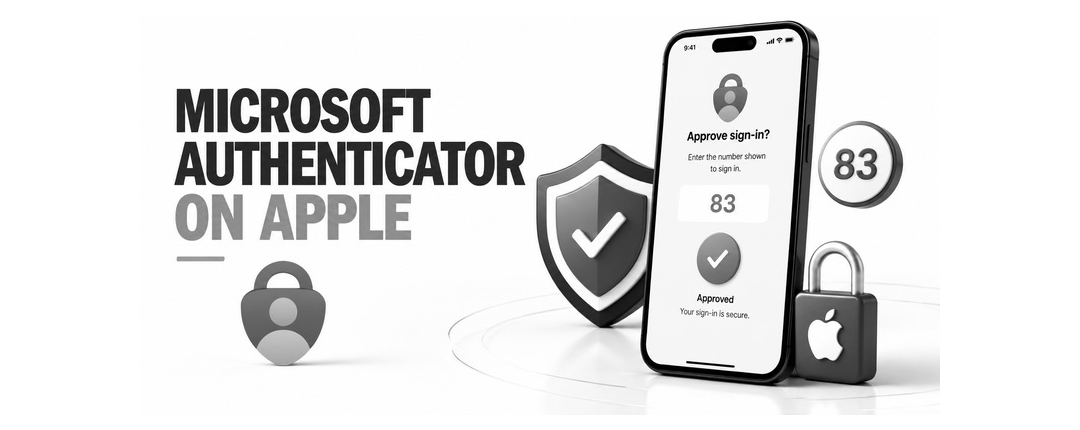
Microsoft Authenticator iPhone backup
Backup Microsoft Authenticator credentials to iCloud
iPhone users can use Microsoft Authenticator iPhone Backup utility to save Microsoft 365 credentials to their iCloud account.
Using Microsoft Authenticator iPhone Backup, you can restore your existing 365 MFA credentials to a new iPhone. Also, you can restore your MFA account if your iPhone’s working MFA settings are corrupted. If you are a 365 tenancy owner or a Global Administrator (GA) ou would need another global administrator (GA) to create new credentials. Without a second GA (see this article about creating a secondary “break-glass” Global Administrator) a Microsoft 365 tenancy owner could lock themselves out of their tenancy. So, backing up 365 Authenticator settings is critically important if you are a tenancy owner.
This article explains how to configure your handset, iCloud, and Microsoft Authenticator iPhone Backup.
Click open the headers below to learn more about Microsoft Authenticator iPhone Backup. Support options are available for professional assistance. You can return to our Index of Articles by clicking here.
How Microsoft Authenticator iPhone Backup Works
On an iPhone, Microsoft Authenticator relies on your Apple iCloud account to save your Microsoft 365 credentials.
There is no backup button inside the app in Microsoft’s version of Microsoft Authenticator for iPhone. Instead, once your iPhone is set up correctly, your MFA settings are synchronised and periodically checked in iCloud and iCloud keychain in the background.
The key requirement is that your iPhone is:
- Signed in to your Apple ID
- Using iCloud
- Using iCloud Keychain
If those conditions are met, Microsoft Authenticator iPhone backup is already working. Click open the next sections to learn how to set up your iPhone.
Important note about your Apple ID – your Apple ID, like a Google, Microsoft (personal) and a Microsoft 365 account – is a sovereign account. Always be sure that your sovereign accounts are configured with secondary sign-in alternatives, and be sure to verify your record and review your user account contact preferences no less than annually. If your sovereign account is not secured this way already, do not proceed with Microsoft Authenticator backup for iCloud until you have enabled and secured your Apple ID credentials.
Step‑by‑Step: Enabling Microsoft Authenticator iPhone Backup
These steps take about two minutes and only need to be done once. Please read through the workflow before you begin. Also, bear in mind that Microsoft and Apple can change processes from time to time and the workflow may vary depending on your iOS version and iPhone model. In any event, the objective is to enable iCloud, iCloud keychain, and enable iPhone to execute connectivity for Microsoft Authenticator.
1. Confirm You Are Signed In to Your Apple ID
- Open iPhone Settings
- Look at the very top of your screen
- If you see your name, then you are signed in
- If not, sign in with your Apple ID
Microsoft Authenticator iPhone backup needs to be associated with your Apple ID, so this step is essential.
2. Make Sure iCloud Is Turned On
- Open Settings
- Tap your name
- Tap iCloud
- Ensure iCloud is switched ON
Without connectivity to iCloud, Authenticator cannot backup your credentials.
3. Turn On iCloud Keychain (Most Important Step)
- Go to Settings → your name → iCloud
- Tap Passwords & Keychain
- Turn iCloud Keychain ON
iCloud Keychain securely stores your 365 MFA settings so that they can be retreived later. If you store Microsoft Authenticator credentials for other services, you can back these up too.
4. Allow Microsoft Authenticator to Use iCloud
- Go to Settings → your name → iCloud
- Tap Show All
- Ensure Microsoft Authenticator is switched ON
If Microsoft Authenticator is turned OFF, Microsoft Authenticator iPhone backup will not work. So, be sure to check this setting.
Using Microsoft Authenticator Day to Day
Once these settings are in place, you can use Microsoft Authenticator normally:
- Add your Microsoft work account if 365 MFA is not already configured
- Add any other supported accounts
- Approve sign‑ins as usual
There is nothing else to manage. On an iPhone, backup happens automatically in the background.
What Happens When You Get a New iPhone?
If your phone is lost, damaged, or replaced, restoring Microsoft Authenticator is straightforward:
- Sign in to the same Apple ID on the new iPhone
- Turn on iCloud and iCloud Keychain
- Install Microsoft Authenticator from the App Store
- Open the app
Your Microsoft Authenticator accounts/credentials will reappear automatically. You may be asked to sign in again to some services, but the Authenticator entries themselves are restored. This is why Microsoft Authenticator iPhone backup is so important to set up early.
Hot Tip: Microsoft Authenticator requires iOS 16 or later to work. If Microsoft Authenticator is not available in your App Store inventory, it is usually because your iPhone does not support minimum hardware/software requirements.
Common Questions About Microsoft Authenticator iPhone Backup
Do I need a Microsoft personal account for backup?
- No. On an iPhone, backup uses Apple iCloud only.
Can I choose where the backup is stored?
- No. Microsoft Authenticator iPhone backup always uses iCloud.
Is the backup secure?
- Yes. The data is encrypted and protected by iCloud Keychain.
Summary
For iPhone users, Microsoft Authenticator iPhone backup is simple, automatic, and secure — as long as iCloud and iCloud Keychain are enabled, and iOS is configured to connect Microsoft Authenticator to iCloud. Microsoft does not back up your MFA credentials to your Microsoft 365 account because if you have lost your credentials, you cannot login to 365 to retreive them. Therefore, MFA credentials need to be stored elsewhere.
Google users and Microsoft (personal) account users save their MFA settings in Microsoft (personal) accounts. Click here for guidance to backup 365 MFA settings using Android.
Spending two minutes checking these settings now can save hours of disruption later, and possibly catastrophic loss. For 365 tenancy owners and Global Administrators, this is a critically important utilitiy. If you manage devices or Microsoft 365 for your business and want help configuring this service correctly, Comstat can assist: feel free to get in touch, or use out contact page to organize an appointment which suits your timetable.
You can return to our Index of Articles by clicking here

cPanel Disaster Recovery Backups: Ownership responsibility
cPanel Disaster Recovery Backups: your data is yours to protect
Comstat maintains disaster recovery backups for your web server content and data strictly for our own administrative and disaster recovery purposes. This article sets out our backup policy which, in common with industry convention, relies on the principle that responsibility for data protection rests with the owner of the virtual server or hosting account.
This article explains how our disaster recovery backups are used within our hosting and virtual server environments — and just as importantly, how they are not used.
Click open the headers below to learn more about our policy regarding disaster recovery backups. Support options are available for professional assistance, and at the end of the article you can find links to guidance and help for implementing backups. You can return to our Index of Articles by clicking here.
Data is the responsibility of the owner
In all hosting environments managed by Comstat, the responsibility for data protection rests with the owner of the virtual server or hosting account.
That includes, but is not limited to:
- Website content and uploads
- Databases
- Email data
- Application‑specific files
- Configuration changes made by the account holder
This is in line with Internet Service Provider (ISP) practice. For instance, neither Google nor Outlook.com undertake to back up your email or files. Although Microsoft 365 guarantees service level availability, data remains the responsibility of the owner.
Every website owner should maintain their own backup strategy that aligns with their business, regulatory, and operational needs. This may include one or more of these approaches:
- cPanel backup (provided with your server)
- Backup utilities like Backuply which you can install using WordPress or cPanel Softaculous library
- off‑platform backups
- third‑party backup services
- or application‑level backup tools
We are glad to help you decide what is the best solution for your needs.
Importantly, although we do keep temporary backups which may be helpful as a last resort, our platform is not positioned as a primary backup service for end users.
Who Is Responsible for Data?
Responsibility for data protection rests with the owner of the virtual server or hosting account. In the case of the services we provide to you, this includes but is not limited to:
- Website content and uploads
- Databases
- Email data
- Application‑specific files
- Configuration changes made by the account holder
Every website owner should maintain their own backup strategy. This makes sense because your strategy needs to align with your business, regulatory, and operational needs. This might include using:
- solutions available to you with your hosting (e.g. Backuply, Softaculous WordPress Manager)
- solutions provided to you by agreement with your agents
- off‑platform backups
- third‑party backup services
- application‑level backup tools
Our data recovery backups are designed to cope with force majeure risks that your hardware is exposed to. Therefore, our platform is not positioned as a primary backup service for end users.
Why Comstat Takes Backups at All
Although responsibility for content and data ownership lies with an account holder, Comstat performs disaster recovery backups for clear and limited reasons:
- Platform‑level disaster recovery
- Server migration
- Administrative resilience
- Infrastructure failure scenarios
- Major security incidents
In this way, our backup regime exists to protect the integrity of the hosting platform as a whole, not to replace user‑managed backup solutions.
Our backup framework is designed to support hardware management and recovery in exceptional circumstances—not routine file restoration or historical data retrieval.
How Our Backup Policy Works
Unfortunately, web site owners do not always deal with backups. In this situation, our operational backups might be able to restore a recent working configuration. However, this might not accomplish a most recent known working configuration. Also, our backup library extends to a 90-day rolling window.
Backup Scope
- Full cPanel account backups
- Incremental – file changes made since baseline/last increment
- No guarantee of granular file‑level recovery
- No long‑term archival storage
- System files are excluded
Retention Model
- Daily backups: retained for 7 days
- Weekly backups: retained for 4 weeks
- Monthly backups: retained for 3 months
This schedule provides a maximum recovery window of approximately 90 days, which is appropriate for disaster recovery while avoiding unnecessary data retention.
Backup Access
- Backups are governed using native WHM and cPanel tools
- Restore actions are typically administrator‑controlled
- In some cases, backups may be visible to account holders in cPanel
- Access is provided only as a last resort, not as a service guarantee
This model ensures that cPanel disaster recovery backups remain predictable, auditable, and aligned with platform boundaries.
Why We Use Native WHM Backups
Firstly, it helps to understand how a web server operates.
WHM – Web Host Manager
Web server (platform) administrators use an operating system called WHM (Web Host Manager) to manage servers. Think of WHM as an equivalent of Microsoft Windows (admin user). Usually, web site owners do not have access to this hierarchy level. This is because WHM requires specialist knowledge
cPanel – where daily work happens
Web site owners typically use cPanel (Windows standard user) to manage their web site, email, etc.cPanel provides a broad toolset to deal with web sites, email, file management, and many other end-user features. Like a Windows (standard) user, cPanel users have daily control of the web server for email, WordPress, and other features. However, some functions are omitted because they are not likely to be needed, and pose elevated security or operational risk.
How our backup policy fits
We operate backups at WHM level. These backups are executed by a WHM admin account which is not available to the web site owner. Using WHM’s built‑in backup utilities offers several advantages, but some limitations, too:
- Tight integration with cPanel account structure
- Correct handling of permissions and metadata
- Well‑tested restore paths during emergencies
- Clear separation between platform and user responsibility
Custom or script‑based backup systems can introduce ambiguity, complexity, and increased operational risk. For disaster recovery, reliability and predictability matter more than flexibility. This also means that because our backups are executed at an “admin” level, restoration of data usually requires adjustment to ownership and read/write permissions. This is why owner-operated backups work more efficiently. Also, restoration from our WHM environment entails cost.
What This Means for Website Owners
In practical terms:
- You must maintain your own backups
- You should not rely on platform backups for routine “restores”
- Platform backups may help in exceptional circumstances
- No backup availability is guaranteed beyond the defined retention window
This approach keeps expectations clear and ensures that responsibility is properly aligned.
Summary - Next Steps
If you have questions about suitable backup strategies for your workload, we are always happy to discuss best practices. Backup utilities are already available to you at cPanel level, including Backup for cPanel which allows you to download and store your site in a backup file. WordPress can be backed up using plugins like Backuply, and your installation can also be backed up using Softaculous WordPress Manager. This is available on your server too. Lastly, we publish articles about options like:
- How to back up your web server with cPanel
- cPanel WordPress Backup: A Practical Guide for Virtual Host Owners
We continually introduce new content to our support section, so please do check our How To pages periodically.
Bear in mind that different solutions have their own merits. For instance, Softaculous WordPress Manager is great for ease of use. If you want to export your WordPress website to a new server, though, it is not a viable option. For that eventuality the second article in the list above is desirable. Admittedly, this approach is seemingly daunting, and you may need to contact us about this methodology. So, when you plan a backup strategy, you should define what the backups need to accomplish.
Remember, ownership of the data remains exactly where it should be: with you.
If you need help adopting this workflow, or you need disaster recovery planning or assistance, please get in touch, or use our contact page to organize an appointment which suits your timetable. You can return to our Index of Articles by clicking here .
Email System Audit and Recovery Review: What It Includes and Why It Matters
What Is an Email System Audit and Recovery Review?
An email system audit and recovery review is a structured assessment of your company’s email environment. It examines how your system is configured, how secure it is, and how well it can recover from failure or attack.
Most modern businesses rely on platforms such as Microsoft 365. These systems are powerful, but they are also complex. Over time, settings drift, risks increase, and gaps appear. An audit brings clarity.
A proper email system audit and recovery review answers three key questions:
- Is the system secure?
- Is it configured correctly?
- Can it recover quickly if something goes wrong?
Click open the headers below to learn more about how a professional email system audit helps meet IT compliance standards. Support options are available for professional assistance. You can return to our Index of Articles by clicking here.
What Does an Email System Audit Cover?
An email system audit and recovery review focuses on several core areas. Each one plays a role in protecting your business.
Security and Access
This aspect of an email system audit includes checks on:
- Multi-factor authentication (MFA)
- Admin permissions and access levels
- Legacy protocols such as IMAP or POP
- Conditional access policies
The goal is to reduce the risk of account compromise, which is one of the most common entry points for attackers.
Mail Flow and Protection
At this stage of an email system audit we review how email enters and leaves your system:
- SPF, DKIM, and DMARC records
- Anti-spoofing protection
- Anti-phishing and malware filtering
- A well-configured system stops threats before they reach users.
Mailbox and Data Configuration
As your email system audit progresses, the focus of this exercise deals with how data is stored and managed:
- Mailbox permissions and shared access
- Retention policies
- Archiving and audit logging
Often, businesses discover that data is either not protected enough, or kept longer than needed.
What Is a Recovery Review?
While the audit looks at your current state, the recovery element looks at your future resilience.
A strong email system audit and recovery review will assess:
Backup and Restore Capability
Microsoft 365 includes retention, but it is not a full backup solution. Other email systems make no provision for retention or broader backups at all. A review checks:
- Whether backups exist
- How quickly data can be restored
- How granular recovery is (single emails vs full mailboxes)
Incident Response Readiness
If an account is compromised, speed matters. The review looks at whether you can:
- Revoke sessions quickly
- Reset access securely
- Remove malicious rules or forwarding
Business Continuity
- You should also know what happens if:
- DNS settings fail
- A widespread outage occurs
Few organisations have a good understanding of these areas.
Why This Matters for Modern Businesses
Email is still the backbone of business communication. It is also a primary attack vector. A thorough email system audit and recovery review helps to:
- Reduce the risk of phishing and account takeover
- Protect sensitive client data
- Protect sensitive client data
- Improve compliance and record keeping
- Provide confidence for directors and stakeholders
In many cases, it also highlights unused features within your existing licensing—especially in Microsoft 365—that can improve security without increasing cost.
A Practical Approach: Audit in Stages
Many assume an audit must be a large, one-off exercise. In reality, a staged approach is often more effective.
An email system audit and recovery review can be delivered in phases:
Phase 1: Security Baseline
- Address critical risks such as MFA, admin access, and mail spoofing.
Phase 2: Configuration and Data
- Review policies, permissions, and retention settings.
Phase 3: Recovery and Resilience
- Assess backup, monitoring, and incident response processes.
This staged model allows work to be budgeted and managed over time. It also reflects how systems evolve, rather than treating the audit as a fixed snapshot.
A useful comparison is financial accounting. Accounts show a position at a moment in time. By contrast, an email system audit and recovery review can act as an ongoing process, adapting as your business grows and risks change.
What You Should Expect from an Audit
A professional email system audit and recovery review should deliver:
- A clear findings report
- Risk ratings (critical, high, medium, low)
- Plain English explanations
- A prioritised action plan
The aim is not just to highlight issues, but to give practical steps that improve your system.
Summary
An email system audit and recovery review is not just a technical exercise. It is a way to protect your operations, your data, and your reputation.
Handled correctly, a dsicipline like this provides both immediate improvements and a long-term roadmap. Whether delivered in one piece or in stages, it helps ensure your email system is secure, resilient, and fit for purpose.
Comstat provides independent advice on business IT choices that reduce risk, protect continuity, and support long‑term growth. If you need help managhing email, please get in touch, or use our contact page to organize an appointment which suits your timetable. You can return to our Index of Articles by clicking here .

cPanel WordPress Backup: A Practical Guide for Virtual Host Owners
Introduction
If you manage your own virtual host, you need a cPanel WordPress backup strategy. While you can configure cPanel a few ways to automate backups, the truth is that using cPanel Terminal or SSH is more comprehensive. It also affords maximum flexibility when restoring content.
For instance, Softaculous and other third party backup utilities impose attributes during backup/export that can obstruct access to files during restoration.
Instead, cPanel’s CLI (Command Line Interface) provides means to rename directory/file ownership and avoid WordPress ID codes that can render backups unusable. This guide shows you how to back up and restore your WordPress site, database, and (optionally) email quickly and reliably.
Important: this article gives an overview of a backup procedure assuming conventional configurations. You may need to tailor this workflow according to your virtual host’s LAMP, PHP, WordPress (or nested WordPress), and MySQL versions. If in doubt, you should contact us especially for production web sites for professional help.
Click open the headers below to learn more about using simple command line instructions to secure maximum flexibility for data restoration. Support options are available for professional assistance. You can return to our Index of Articles by clicking here.
What You Need Before You Start
To follow this cPanel WordPress backup workflow, you will need:
- SSH access to your server
- Your cPanel username and password credentials
- Basic command-line familiarity
- Permission to run backup commands
You may need to contact us for SSH access. SSH is usually restricted for improved security, and we are happy to enable it should you want SSH on an ongoing basis.
Step 1: Back Up WordPress Files
Your WordPress site lives in the public_html directory in your server’s home directory. Use this command to create a compressed archive:
tar -czf /home/username/public_html.tar.gz -C /home/username public_html
This creates a clean file backup that includes:
- Themes
- Plugins
- Media uploads
- Configuration files
This is the first part of your cPanel WordPress backup process.
Step 2: Back Up your WordPress Database
WordPress stores your web site’s content in a MySQL database. Credentials for your database are stored “server side” in a WordPress file called wp-config.php. You can open this file with a text editor to make a note of these credentials:
- DB name
- DB user
- DB password
Next, using your SSH command line, run this command:
mysqldump -u dbuser -p dbname > /home/username/database.sql
This database dump contains:
- Posts and pages
- Users
- Site settings
You can alternately export the database using phpMyAdmin. This is another efficient option, and it is secure because the database “dump” is downloaded to your local workstation.
Step 3 (OPTIONAL) Back Up Email
Email is stored separately from your website. Usually, email is handled via Microsoft 365, Gmail, or another email service. If you manage email via your web server, though, you need to back up your email. To capture this content use:
tar -czf /home/username/email.tar.gz -C /home/username mail etc
This captures:
- Mailboxes and messages
- Email account configuration
You can back up all accounts at once or target individual mailboxes if needed.
Step 4: Store Your Backups Safely
Once created, download your backups or move them to a safe location. For example:
scp username@server:/home/username/*.tar.gz ./
This command copies files from the server to your local machine. You can use cPanel File Explorer to do the same thing. Sometimes, using a mouse is a more familiar way to deal with files. Either way, keeping copies off the server ensures you can recover even if the original host fails.
Restoring your WordPress site
There are a few reasons backups are useful:
- you want to restore a last known working condition
- you want to migrate your web site to a new web server
- you may need to re-house your web site using a different domain name
Using Linux commands using cPanel’s SSH access is the only way to allow these eventualities to happen.
Restore your WordPress site
This cPanel WordPress backup workflow makes recovery simple. If you are restoring files to your existing server, skip to step 2.
- Recreate the cPanel Account
- Set up a new account with the same username if possible.
- Restore WordPress Themes/Plugins/Admin files
- tar -xzf public_html.tar.gz -C /home/username
- Restore Database
- mysql -u dbuser -p dbname < database.sql
- Fix Permissions
- chown -R username:username /home/username/public_html
- Check configuration
- Ensure wp-config.php matches the database details.
Restore email (optional)
If you included email in your cPanel backup WordPress process:
- Recreate email accounts in cPanel
- Restore files:
- tar -xzf email.tar.gz -C /home/username
- Reset permissions:
- chown -R username:mail /home/username/mail
Mail clients should then resynchronise automatically.
Why This Method Works Well
There are a few ways to backup a WordPress installation. Most methods become problematic because of limitations that backup utilities offer. Sometimes, this is to suit a limited purpose in the first place. This cPanel WordPress backup approach gives you:
- Independence from cPanel restore tools
- Fast, lightweight backups
- Full control over restoration
- including file naming
- ignoring WordPress ID codes that might prohibit import
- renaming and credentialling WordPress databases
- Clean rebuilds without legacy issues
Summary
A manual cPanel WordPress backup workflow using SSH is simple, reliable, and efficient. It suits users who want clarity and control during migrations or recovery.
Used alongside standard cPanel tools, our cPanel WordPress backup workflow gives you both flexibility and peace of mind.
If you need help adopting this workflow, or you need disaster recovery planning or assistance, please get in touch, or use our contact page to organize an appointment which suits your timetable. You can return to our Index of Articles by clicking here .
Business PC Recovery Tools Explained: Windows Recovery Drive vs Manufacturer Tools
Plan for recovery
Managing your IT at workstation or even network level is about preparing for failure, rather than waiting for a problem. PC recovery tools play an important part in ongoing hardware management.
When business owners and professionals choose a laptop, the conversation usually starts and ends with price. A £250 generic Windows laptop appears to do the same job as an £800 business‑grade device. Both run Windows. Both open email. Both connect to the cloud. However, although the price looks great, the reality does not hit until the computer develops a problem. Suddenly, PC recovery tools that could remedy a problem are note available to cinch an issue.
The difference only becomes Windows or hardware problems happen. In conventional offices, ‘work” computers tend to work with finite core applications only. Home office computers do not enjoy this discipline: a user often uses a computer for recreational and social functions that would not be tolerated in an office network. This makes home office computers more difficult to diagnose and remedy. So, recovery tools SHOULD be a prime consideration when buying a computer for home/small office use.
While Windowes provides recovery tools to look after itself, inexpensive generic computers do not usually provide manufacturer hardware diagnostics and recovery available to business class hardware.
Business PC recovery tools exist for:
- failed updates
- storage errors
- firmware problems
- full operating system corruption.
Understanding how these tools work—and why higher‑quality systems manage failure better—can significantly reduce downtime, data loss, and support costs.
Click open the headers below to learn more about how Manufacturer hardware recovery tools work with Windows Recovery to provide the best capability for restoring PC faults. Support options are available for professional assistance. You can return to our Index of Articles by clicking here.
How the Windows Recovery Drive Helps Recover Windows
The Windows Recovery Drive is a Microsoft‑provided safety net. Created using a USB stick, it contains the Windows Recovery Environment (WinRE), which can be used when Windows will not start.
At a basic level, Windows recovery tools allow you to:
- Repair startup issues
- Roll back recent updates
- Reset Windows while keeping or removing user files
- Access advanced tools such as Command Prompt for manual repair
For many home users, this is sufficient. Windows recovery is generic by design. It is meant to work on almost any compatible PC regardless of manufacturer.
However, that strength is also its limitation. Windows recovery focuses solely on the operating system. It does not deeply understand the hardware it runs on, nor does it diagnose whether Windows failed because the hardware itself is deteriorating.
The Limits of Windows‑Only Recovery
When a system will not boot, Windows Recovery (see our article here) assumes that:
- The storage device is healthy
- Firmware is intact
- Drivers can be reapplied later
- Hardware faults are unlikely
In a business environment, or in circumstances where users provide consultative or professional/advisory work, these assumptions are optimistic. Instead, in keeping with professionally managed network, it should be anticipated that IT will fail and plan for the eventuality.
If a failing SSD (hard disk drive), memory error, or firmware issue is the cause of the failure, Windows recovery may repeatedly reinstall an operating system that cannot remain stable. This leads to extended downtime and escalating support effort.
This is where manufacturer PC recovery tools from the become important. This kind of utility wraps around Windows Recovery, and apart from providing early warnings for hardware failure, these kinds of utilities are often capable of reinstalling the manufacturer’s OEM version of Windows. This is useful in situations where Windows might have been optimized for the computer’s hardware performance.
Manufacturer Recovery Tools: Beyond Windows Recovery
Major PC manufacturers add their own recovery layers on top of Windows. Manufacturer tools are tightly integrated with firmware, drivers, and hardware diagnostics.
Suppliers like Acer, Asus, Dell, Lenovo, and other mature brands supply spohisticated diagnostics, early warning, and recovery tools for computers which start in intermedate price ranges and above. Availability varies on specifications so do check before buying,
For the purposes of this article we will refer to Dell’s SupportAssist OS Recovery. Dell’s bundle operates similarly to other major manufacturer solutions.
What Manufacturer Recovery Tools Typically Provide
Manufacturer or PC recovery tools like Dell SupportAssist OS Recovery typically feature:
- Pre‑boot hardware diagnostics to test storage, memory, CPU, and motherboard
- OEM‑aware Windows repair that understands the exact device model
- Data backup tools before reinstallation
- Factory image restore matched to the device
- Firmware‑level recovery when disks or partitions are damaged
These utilities are beyond Windows Recovery capability. Manufacturer PC recovery tools operate outside Windows and, in some cases, partially inside the computer’s own system firmware. This allows recovery to begin even when Windows is completely unusable. In the right hands, this software can recover computers that might be otherwise determined to be unviable to repair.
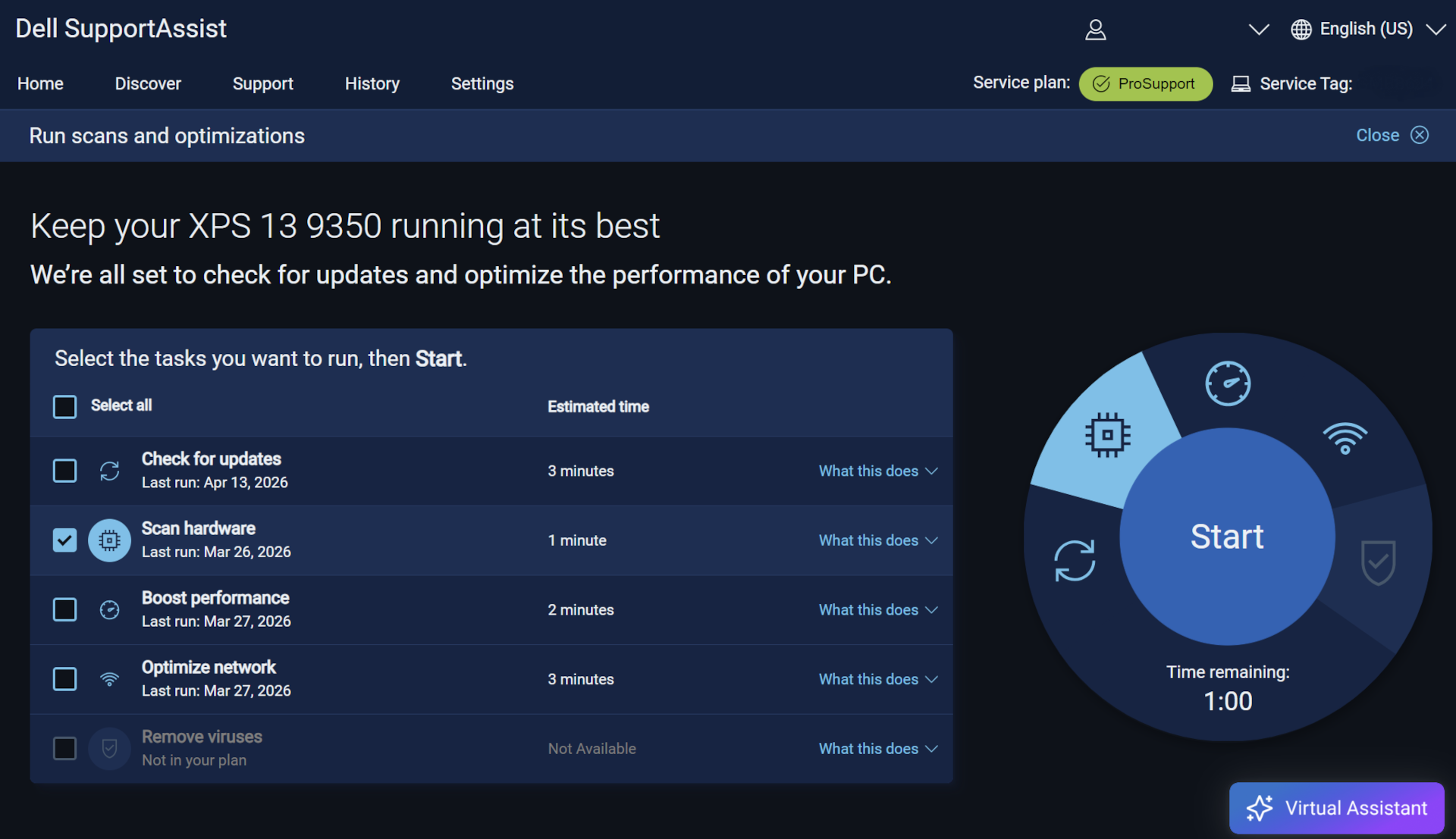
Manufacturers provide utilities like Dell’s SupportAssist OS Recovery which practively monitor performance and provide recovery tools not available in Microsoft Recovery Drive.
Why This Matters for Professional Users
From a cost perspective, the difference rarely shows up on day one. It appears later, when a device fails during a critical work period.
Without strong business PC recovery tools:
- Diagnosis takes longer
- Data recovery is riskier
- Rebuilds become manual and error‑prone
- Support costs rise quickly
With manufacturer PC recovery tools in place:
- Hardware faults are identified early
- Recovery paths are clearer
- Downtime is measured in hours, not days
- Devices can often be restored remotely or with minimal intervention
What looks like a £550 saving at purchase can easily become a £1,000 loss during a single serious failure.
The Strategic Difference Between Generic and Business‑Grade PCs
The real difference between a £250 laptop and an £800 business‑grade device is not performance. It is survivability.
Business‑grade systems are designed with the expectation that:
- Failures should be expected
- Mission critical devices must be recovered quickly
- Data must be protected
- Support needs to scale
These expectations are embodied in better business PC recovery tools for professional-level equipment, not just stronger materials or better keyboards.
Summary
Microsoft Windows’ Recovery Drive remains useful and should still be part of a basic disaster‑recovery plan. However, it is only one part of a comprehensive disaster recovery approach.
Manufacturer PC recovery tools—such as Dell SupportAssist OS Recovery—wrap around Windows recovery to provide diagnostics, data protection, and device‑specific restoration that Windows alone cannot offer.
For businesses, or users who rely on their computer for time-constrained productivity, choosing devices with strong recovery ecosystems is not a luxury. It is a practical investment in continuity, resilience, and predictable support costs.
If you are managing systems for the long term, recovery capability matters just as much as processor speed or storage size.
Comstat provides independent advice on business IT choices that reduce risk, protect continuity, and support long‑term growth. If you need help configuring email, please get in touch, or use our contact page to organize an appointment which suits your timetable. You can return to our Index of Articles by clicking here .